

Error 405 in Identity V occurs when User Center fails to authenticate account credentials during cross-platform data transfer. This guide provides expert troubleshooting to resolve Error 405 when transferring data from iOS to Android, covering account binding prerequisites, step-by-step fixes, and data verification.
Understanding Identity V Error 405
Error 405 represents a User Center authentication failure blocking cross-platform data transfer. The server rejects login credentials during migration, preventing account access on the new device. Unlike network errors, Error 405 stems from account binding conflicts.
NetEase's User Center manages authentication across iOS, Android, and PC platforms. During transfers, the system verifies account binding status, authentication method, and server region compatibility. Error 405 triggers when verification fails, halting the transfer to prevent data corruption.
For seamless currency management during platform transitions, Identity V Echoes top up through BitTopup ensures instant delivery with competitive pricing.
Technical Definition
Error 405 functions as an HTTP method rejection code for Identity V's User Center authentication. It occurs when the receiving platform (typically Android) can't validate the authentication token from your source platform (typically iOS). The issue exists in how credentials are registered in NetEase's database, not on your device.
Authentication requires three synchronized elements: bound email/phone number, authentication provider (Apple ID, Google Play, or NetEase account), and server region. Error 405 appears when these contain mismatched or incomplete information.
Why Error 405 Occurs
Primary cause: attempting transfers without unlinking platform-specific authentication. iOS accounts bound exclusively to Apple Game Center can't authenticate on Android devices lacking Apple's framework. Multiple conflicting bindings (Apple ID and Google Play on same email) create authentication ambiguity.
Secondary password requirements also trigger Error 405. Identity V requires 6-36 alphanumeric character passwords for migration. Skipping this step or using invalid passwords causes failures. Secondary passwords disable 24 hours before unbinding, creating a failure window.
Server region mismatches represent another trigger. Identity V operates separate clusters for different regions. Cross-region transfers need additional verification that standard transfers bypass. Attempting Asia-to-North America transfers without proper protocols consistently produces Error 405.
Impact on Account Data
Error 405 halts transfers without data loss or corruption. It functions as protection, preventing partial transfers that could split progress. However, repeated occurrences can temporarily lock your account for security, requiring 24-hour cooldown before retries.
Successful transfers preserve all character progress, skins, Echoes, Clues, rank tiers, Logic Path advancement, and friend lists. Season progress and guild memberships transfer intact.
Prerequisites for Successful Transfer
Account Binding Requirements
iOS accounts need iOS 10.0+, Android devices need Android 4.3+. These minimum OS versions ensure compatibility with NetEase's authentication protocols.
Before transferring iOS to Android, unlink Apple Game Center and establish NetEase account connection. Access User Center settings, select current authentication method, confirm unbind. This can't be reversed for 24 hours.
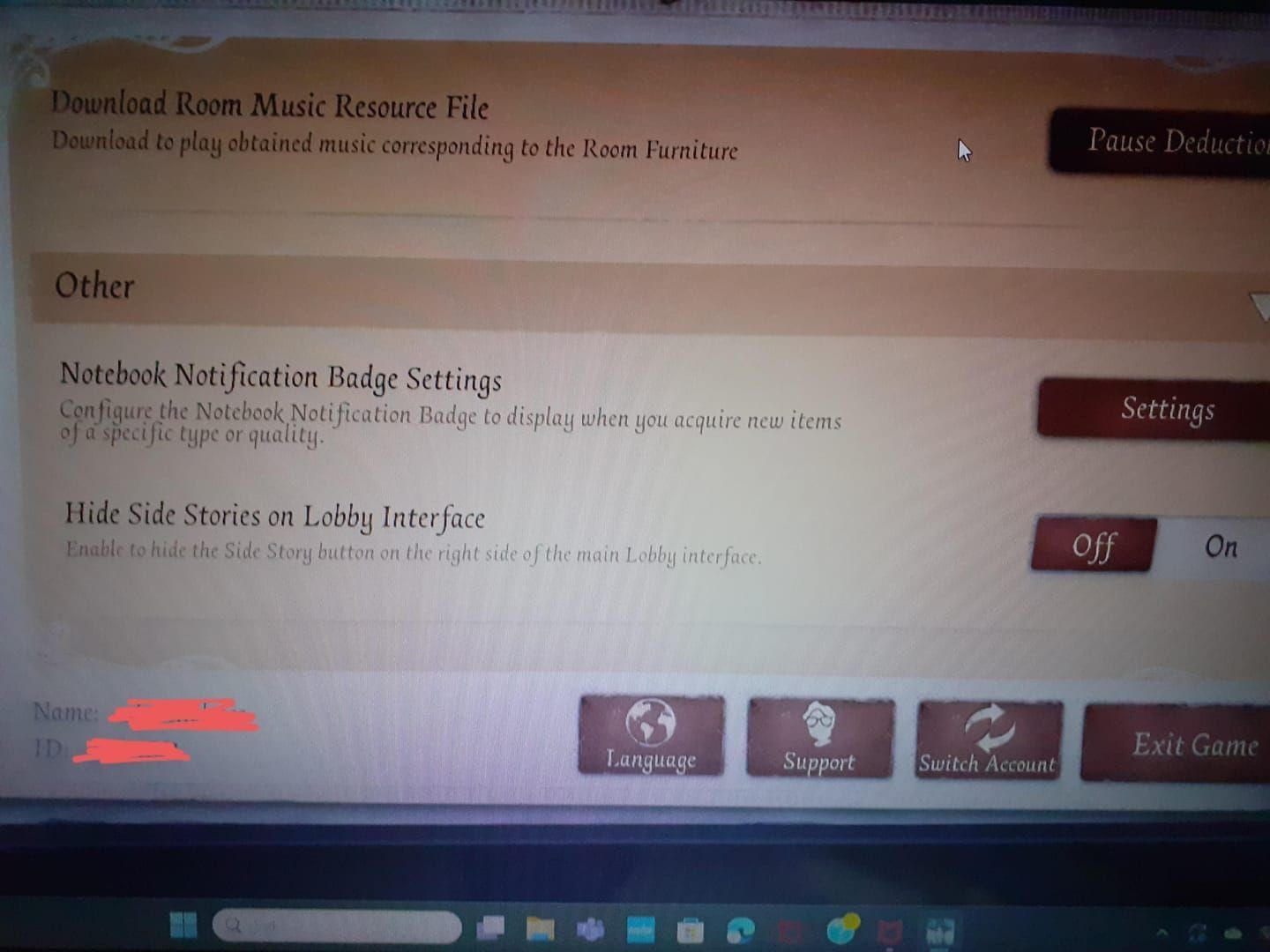
Android accounts require Google Play Games or NetEase account binding. Android supports direct NetEase authentication without platform-specific services, offering more flexibility.
Supported Authentication Methods
NetEase accounts provide the most reliable cross-platform authentication, functioning identically across all platforms. Requires valid email/phone, 6-36 alphanumeric password, and verification code.
Apple ID works exclusively on iOS. Players using Apple ID must add NetEase binding before cross-platform transfers.
Google Play functions on Android and PC but lacks iOS support. Requires NetEase binding for iOS transfers.
Server Region Compatibility
Identity V operates distinct regions: Asia, North America, Europe, Japan. Cross-platform transfers within same region proceed without additional verification. Cross-region transfers require manual NetEase support approval.
Verify current server region by checking the indicator on login screen. Transferring to different regions resets social features like friend lists and guilds, though character progress and purchases remain intact.
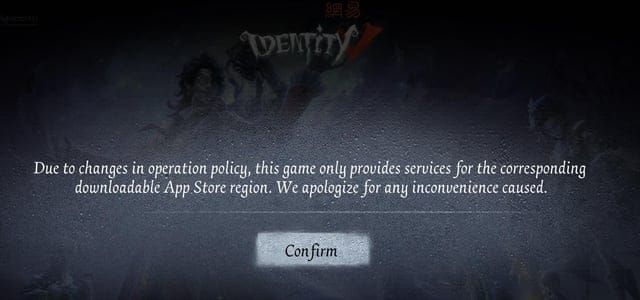
Ranked matches operate exclusively within server regions. Players transferring between regions must rebuild ranked standing from placement matches.
Network and Device Requirements
Use stable WiFi connections rather than mobile data. Transfer completes in 5-10 minutes under optimal conditions.
Both devices need sufficient storage: Android requires 3-4GB, iOS needs 3.5-4.5GB. Insufficient storage prevents proper authentication.
Disable VPN services during transfer unless required for regional access. Ensure firewall settings allow Identity V to communicate with NetEase servers.
Step-by-Step Fix: Resolving Error 405
Method 1: Clear User Center Cache
Close Identity V on both devices. On iOS, uninstall and reinstall (iOS doesn't provide manual cache clearing). On Android: Settings > Apps > Identity V > Storage > Clear Cache.
Restart both devices to terminate background processes. Launch Identity V on iOS first, log in, verify progress appears correctly.
Access User Center, select Switch Account, log out completely, wait 30 seconds, log back in with NetEase credentials. This regenerates authentication token with current server data.
Method 2: Re-bind NetEase Account
Correct binding order: establish NetEase credentials on iOS, unlink platform-specific authentication (Apple Game Center), verify NetEase login works independently before transferring.
Access User Center settings, locate Account Binding. If multiple authentication methods listed, unbind all except NetEase. Wait 24 hours after unbinding before attempting transfer.
Set/reset secondary password through User Center, ensuring 6-36 alphanumeric characters. Record securely—can't be recovered through standard password reset.
Method 3: Use Alternative Authentication
If NetEase account binding consistently produces Error 405, switch authentication providers. If you used email-based authentication, try phone number binding, or vice versa.
For maintaining Echoes during troubleshooting, buy IDV Echoes online through BitTopup's secure platform.
Create new NetEase account with different credentials, contact support to request account merging. Takes 3-5 business days but provides guaranteed solution for corrupted records.
Method 4: Server-Side Reset
Persistent Error 405 indicates server-side database corruption requiring official intervention. NetEase support can manually reset authentication status.
Provide: account ID (in User Center settings), detailed timeline with timestamps, error screenshots, list of attempted troubleshooting, device model/OS version.
Support responds within 48 hours, resolution takes 24 hours to 7 days. Avoid additional transfer attempts during this period.
Complete Transfer Process (iOS to Android)
Phase 1: Prepare iOS Account
Launch Identity V on iOS, verify all progress appears correctly. Screenshot account status as verification records.
Access User Center, verify NetEase account binding shows active and confirmed. If only Apple Game Center binding exists, add NetEase binding now.
Set secondary password through User Center security settings. Must differ from main NetEase password, meet 6-36 alphanumeric requirement.
Phase 2: Bind to NetEase User Center
After confirming NetEase binding is active, unbind Apple Game Center. Select Apple Game Center entry, tap Unbind, confirm action.
Wait full 24-hour cooldown without authentication changes. You can continue playing normally using NetEase login.
After cooldown expires, log out completely, log back in using only NetEase credentials. Verify this loads all account data.
Phase 3: Install on Android
Download Identity V from Google Play Store. Ensure device meets Android 4.3+ requirement and has 3-4GB free storage.
On login interface, tap User Center icon, select Switch Account, choose Migrate option. Enter NetEase credentials and secondary password.
Tap confirmation to initiate server-side verification (30-60 seconds). Don't close app or switch during verification.
Phase 4: Verify Data Integrity
After successful login, tap screen to enter game. System displays notification to link account immediately—critical step.
Access User Center settings, bind Google Play account or maintain NetEase as primary authentication. Verify binding shows confirmed and active.
Systematically verify transferred data: character roster, skin inventory, Echoes/Clues balances, rank tier, friend list, guild membership. Report discrepancies to support immediately with pre-transfer screenshots.
Common Mistakes Triggering Error 405
Binding Multiple Accounts to Same Email
NetEase treats each email as unique identifier. Multiple Identity V accounts on same email create database conflicts. Server can't determine which account to authenticate, resulting in Error 405.
Use unique email addresses for each Identity V account. If you've bound multiple accounts to one email, contact support to request email change for secondary accounts.
Transferring Between Different Regions
Cross-region transfers require manual NetEase approval, can't be completed through standard User Center tools. Attempting automated cross-region transfers consistently produces Error 405.
Submit support ticket requesting cross-region migration at least 7 days before intended transfer. Provide current region, destination region, account ID, transfer reason.
Incomplete Account Verification
NetEase requires email/phone verification for all bindings. Skipping verification creates incomplete authentication records triggering Error 405. Verification code must be entered within 10 minutes.
Complete verification immediately after initiating binding. Check spam folder if codes don't arrive within 2-3 minutes.
Network Interruptions During Transfer
Transfer authentication requires continuous server connection for 30-60 seconds. Network interruptions corrupt authentication token, causing Error 405 on subsequent attempts.
Use only stable, high-speed WiFi. Test connection stability with continuous ping test for 5+ minutes before initiating transfer.
If interruption occurs, wait 30 minutes before retrying to allow server-side timeout processes to complete.
What Data Transfers Successfully
Guaranteed Transfers
All unlocked characters transfer completely, including persona web configurations, talent allocations, character levels.
All skins, accessories, graffiti, emotes, portraits transfer entirely. System preserves limited-time event items and standard shop purchases.
Rank tier and match history transfer completely. Highest achieved rank, current season rank, previous season ranks, total ranked matches all appear.
Currency Considerations
Echoes transfer completely with no conversion fees or losses. Full balance appears immediately after successful transfer.
Clues transfer in full. Accumulated balance, daily earning progress, Clue-related achievements carry over.
All Fragment types transfer completely, preserving progress toward fragment-based unlocks.
Social Data
Friend lists transfer with limitations based on platform availability. Friends exclusive to source platform remain in list but appear offline. Cross-platform friends appear normally.
Guild membership transfers if guild supports cross-platform membership. Guild achievements and contribution rankings may reset.
Match history transfers for most recent 100 matches, preserving gameplay statistics and performance records.
Platform-Exclusive Items
Certain promotional items from platform-specific events may not transfer due to licensing restrictions. Transfer process displays warnings about platform-exclusive items before completion.
Ranked match participation becomes platform-locked after transfer. Can't play ranked with players on former platform.
PC-to-mobile transfers not supported through standard User Center. Contact NetEase support for manual migration.
Advanced Troubleshooting
Diagnose Server-Side vs Client-Side Issues
Test with alternative device. Borrow another Android device, install Identity V, attempt login. If login succeeds on alternative device, original device has configuration issues. If Error 405 persists across devices, problem exists in NetEase's server-side records.
Client-side issues involve corrupted app data, outdated OS, restrictive security settings. Verify Android version meets 4.3 minimum, check for OS updates.
Server-side issues manifest as consistent Error 405 across all devices and networks. Require NetEase support intervention.
Using VPN for Regional Restrictions
Some regions implement internet restrictions interfering with NetEase server communication. Use VPN to route traffic through unrestricted regions. Select VPN servers in same region as your Identity V server.
Configure VPN before launching Identity V. Test connection by accessing NetEase's official website. Launch Identity V only after confirming stable VPN connectivity.
Disable VPN after successful transfer. VPN during gameplay increases latency and affects performance.
Contacting Support
Include: account ID, exact error message text, Error 405 screenshots, troubleshooting steps attempted, device model/OS version, date/time of each occurrence.
Describe account binding history: authentication methods used, when each bound, whether any unbound, current binding status.
Request specific resolution: Please reset my account's authentication status to allow fresh NetEase binding provides clearer direction than Fix my Error 405.
Emergency Data Recovery
If Error 405 persists 7+ days despite support intervention, request emergency data backup. NetEase maintains server-side backups and can create manual snapshots.
Emergency recovery takes 10-14 business days, may involve creating new account ID with original data transferred. Original account ID becomes inactive after recovery.
Document all account details before requesting: screenshot character roster, skin inventory, Echoes balance, rank tier, friend list, unique items/achievements.
Post-Transfer Optimization
Verify Progress and Purchases
Conduct systematic verification within 24 hours. Check character roster against pre-transfer screenshots, review skin inventory by category.
Verify currency balances match pre-transfer records exactly. Screenshot current balances, compare to pre-transfer screenshots if discrepancies exist.
Review rank tier, Logic Path progress, season achievements. Check match history, verify friend list shows expected status.
Set Up Two-Factor Authentication
Enable two-factor authentication through NetEase account security settings. Requires verification code sent to registered email/phone for each new device login.
Configure authentication app-based two-factor for enhanced security. Link NetEase account to Google Authenticator or Authy.
Store backup authentication codes in secure location separate from device. Print codes or store in password manager.
Manage Multiple Device Access
After successful transfer, access account from both iOS and Android using NetEase credentials. Simultaneous login not permitted—logging in on one device logs you out from others.
Designate one device as primary gaming platform, use other for account management tasks.
Review active device list periodically through NetEase security settings. Remove unrecognized devices immediately, change password if suspicious.
Best Practices for Security
Change NetEase password every 90 days. Use unique passwords combining uppercase, lowercase, numbers, special characters.
Avoid logging in on public/shared devices. If necessary, change password immediately after logging out.
Enable all security notifications: login alerts, password change confirmations, authentication modification notices.
Continuing Your Journey
Safe Methods to Recharge Echoes
After transferring to Android, purchasing options change from Apple to Google Play payment infrastructure. Both platforms support same Echo packages at equivalent prices.
BitTopup offers competitive rates with instant delivery, supporting multiple payment methods including credit cards, PayPal, regional options. Maintains high user ratings for transaction security and customer service.
Verify Google Play payment method configured correctly before Echo purchases. Navigate to Google Play Store settings, select Payment Methods, confirm preferred option active.
Maintain Competitive Edge
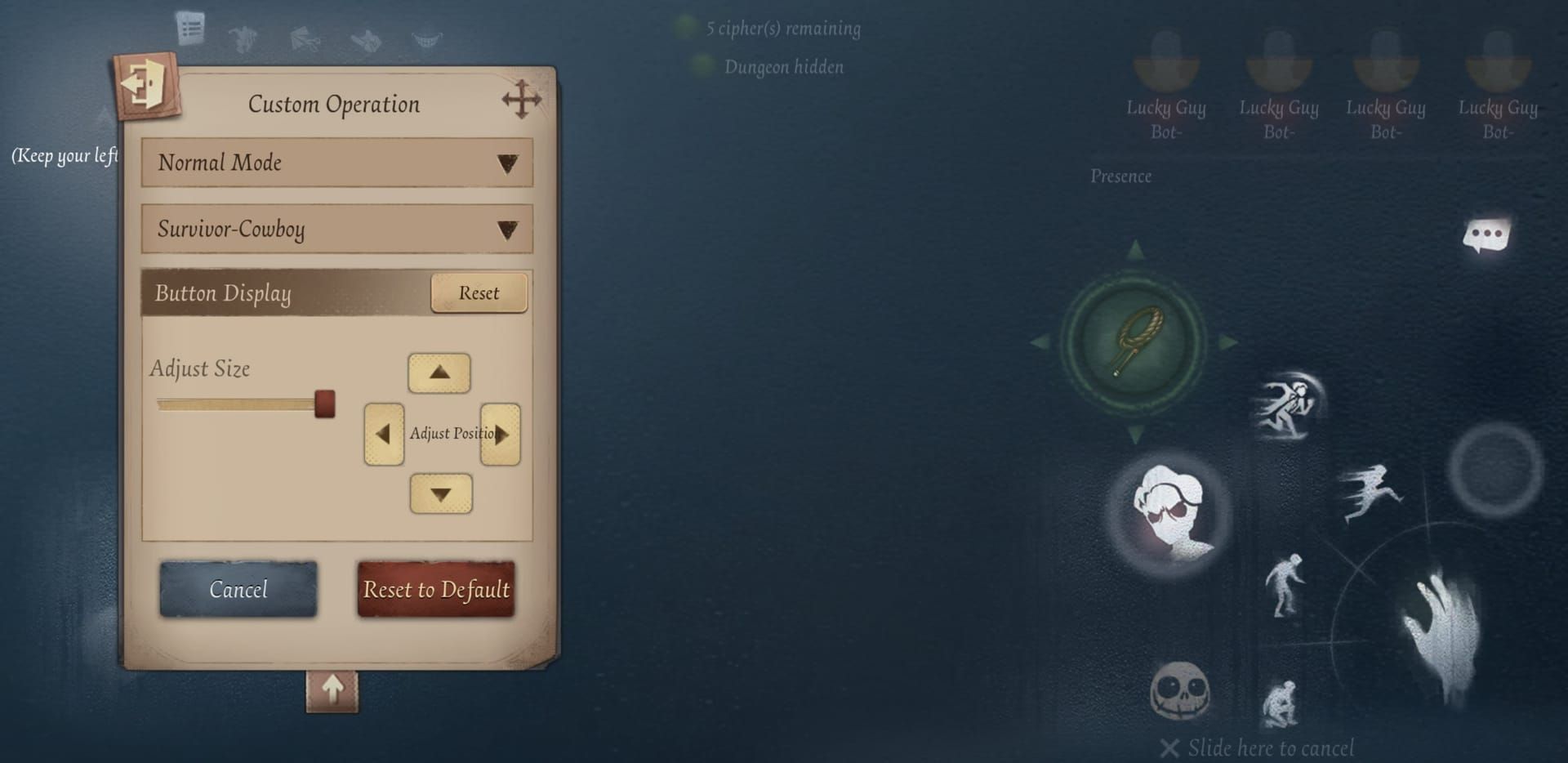
Adjust control settings for Android's different screen dimensions and touch response. Spend time in custom matches or training mode recalibrating controls before ranked play.
Optimize Identity V's graphics settings based on device capabilities. Lower graphics quality and disable visual effects if experiencing frame rate drops.
Reconnect with friend list and guild members to inform of platform change.
Optimize Performance on Android
Enable Developer Options: activate Force GPU rendering and Disable HW overlays. Access by tapping Build Number seven times in About Phone settings.
Close background applications before launching Identity V to maximize available RAM and processing power.
Use Game Mode or Performance Mode features. Samsung's Game Launcher, Xiaomi's Game Turbo significantly improve gameplay smoothness.
FAQ
What does Error 405 mean in Identity V User Center? Error 405 indicates User Center authentication failure during cross-platform transfer, caused by improper account binding, conflicting authentication methods, or incomplete verification. Prevents account access on destination device while preserving data on source device.
Can you transfer Identity V data from iOS to Android? Yes, using NetEase User Center authentication. Requires iOS 10.0+, Android 4.3+, NetEase account binding, and proper unlinking of platform-specific authentication before transfer.
Why does Identity V cross-platform transfer fail? Failures occur due to incomplete verification, multiple accounts on same email, cross-region transfers without approval, network interruptions, or skipping 24-hour cooldown after unbinding.
Will I lose my Echoes when transferring? No, all Echoes transfer completely with no fees or losses. Full balance appears immediately after successful transfer.
Do Identity V skins transfer between platforms? Yes, all skins, accessories, graffiti, emotes, portraits transfer completely. Platform-exclusive promotional items may have restrictions.
How long does Identity V data transfer take? 5-10 minutes under optimal network conditions. Unstable networks or server congestion can extend to 15-20 minutes.
Ready to continue your Identity V journey? BitTopup offers secure, instant Echo recharge for Identity V players worldwide, supporting all platforms with competitive pricing. Visit BitTopup now for exclusive deals on Identity V Echoes!