Identity V's matchmaking headaches in 2025? You're not alone. Server maintenance windows, network throttling, and stubborn cache issues are the main culprits behind those frustrating stuck lobbies. The good news is NetEase rolled out targeted hotfixes on November 13 and 20, 2025 that tackled the worst offenders. Plus, the community's discovered some clever workarounds—like that Airplane Mode trick that can slash your ping from a painful 900ms down to a much more playable 190ms. Here's everything you need to know to get back in the game.
Understanding Identity V's Matchmaking System in 2025
Let's be honest—Identity V's matchmaking can feel like a black box sometimes. But here's what's actually happening under the hood.
The game routes through regional servers in Singapore, Hong Kong, and Japan, aiming for that sweet spot of 350-400ms latency when things aren't too crazy. Different game modes get their own queues: Quick Match, Custom Mode, ranked matches, and special events all run separately. Makes sense when you think about it—you don't want casual players getting steamrolled by hardcore rankers.
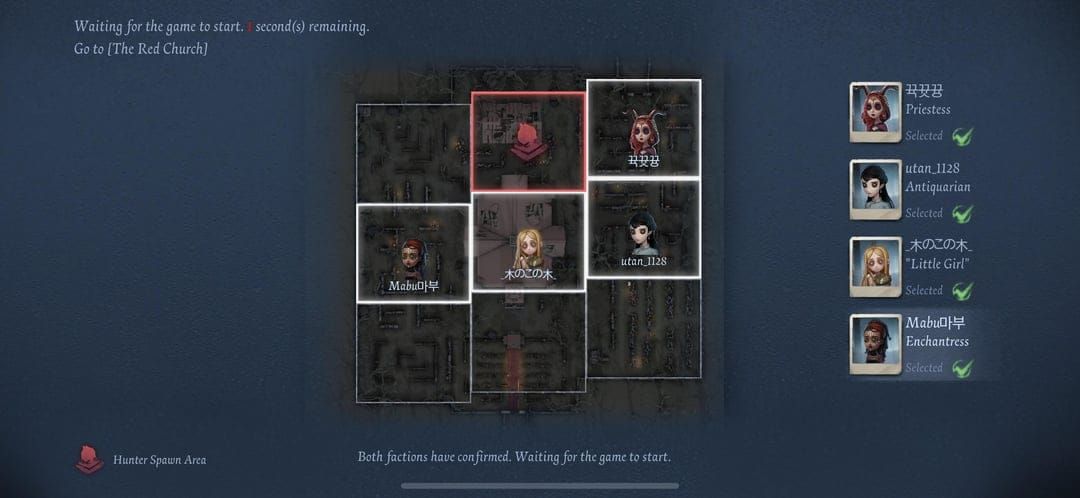
Those November hotfixes were a lifesaver. The November 13 update (dropped at 08:00 UTC+8) finally squashed those annoying Snowball effect bugs and fixed the Stealth mechanics that kept failing at the worst possible moments. And don't get me started on those faction icon display errors—nothing kills the mood like a frozen lobby screen.
For players looking to enhance their experience with premium content, recharge Identity V survivor outfits instantly through BitTopup's secure platform. What I like about this approach is it maintains account stability even during those critical update periods when everything feels unstable.
The matchmaking algorithm is actually pretty sophisticated. It's juggling your tier ranking, recent performance, server load, and connection quality all at once. During peak hours, it loosens up the requirements to keep queue times reasonable. Hunter mains get lucky here—that 1:4 ratio means you'll almost always find matches faster than survivor players.
But here's where things get messy. Stuck lobbies fall into three main categories, and knowing which one you're dealing with makes all the difference:
Server-side processing delays are usually temporary. Client-cache corruption? That's on your end and fixable. Network synchronization failures sit somewhere in between—could be your connection, could be the servers having a moment.
The November 20 update was particularly rough. They had to close Ranked Match entrances entirely while fixing Hunter outline displays and those Laceration Damage visualization bugs that were making the game nearly unplayable. Client-cache problems got worse after the November 6 hotfix too—suddenly everyone was dealing with storage crunches and network throttling.
Here's something most players don't realize: network packet loss during lobby initialization creates these weird synchronization mismatches between what your client thinks is happening and what the server knows is happening. Character-specific bugs make this even worse. The November 20 maintenance finally sorted out Soul Weaver's spinning mechanics, Peddler's energy charge system, and those Lanternist illusion effects that would freeze lobbies the moment someone picked those characters.
Complete Identity V Error Code Directory
Unlike some games that throw cryptic error codes at you, Identity V keeps things relatively straightforward with descriptive messages. Still frustrating, but at least you know what's going wrong.
Connection Failed is your classic network routing problem or server capacity issue. These spiked hard during the November 13 maintenance when Ranked Match entrances were closed. If you didn't update by 11:00 UTC+8, the servers basically kicked you out. DNS resolution failures trigger these too—your default ISP DNS might be struggling during high-traffic periods.
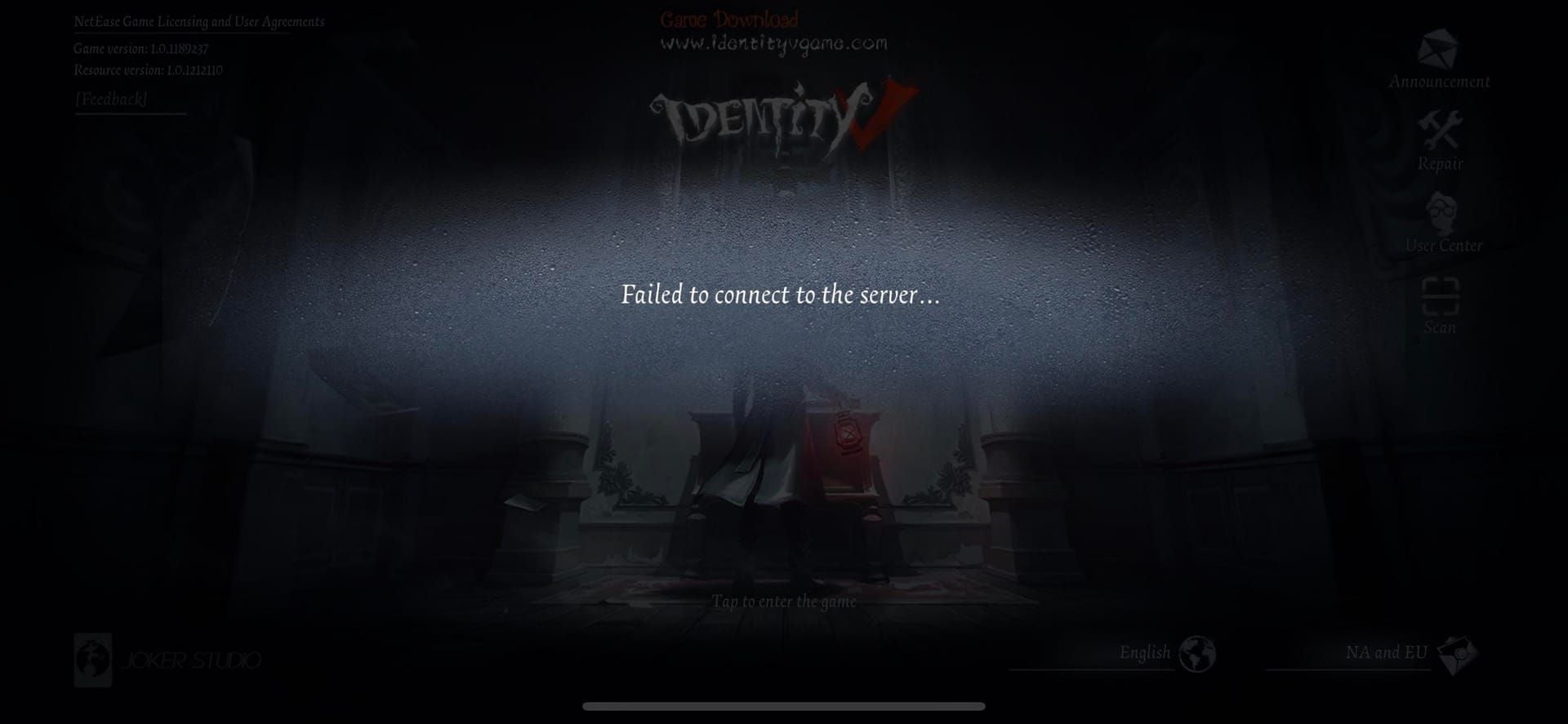
Timeout errors hit when the client gives up waiting. We're talking 30-second thresholds for initial connections and 15 seconds for lobby sync. Regional server choice makes a huge difference here. Singapore servers during peak Asian hours? Expect timeouts. Hong Kong or Japan during off-peak? Much smoother sailing.
Failed to Join Match or Lobby Full messages usually mean lobby states are out of sync. The November 20 update fixed those Red Church Straight Passage glitches that were preventing lobby initialization, plus character selection errors involving Undaunted talent interactions.
Network errors look the same across all devices—that's server-side communication breaking down. Client-side errors vary by platform, and storage-related errors became a real problem after that November 6 update started causing storage crunches on devices with limited space.
Instant Fixes for Stuck Identity V Lobbies
The Airplane Mode toggle is hands down the fastest fix for network-related lobby freezes. Community testing throughout the 2025 updates consistently shows ping drops from 900ms down to 190-250ms range, with stuck lobbies resolving in 10-15 seconds.

For players enhancing their gameplay with premium content, safe Identity V echoes purchase no ban through BitTopup ensures your account stays secure during those critical ranked matches when every second counts.
The three-step restart protocol works like this: force-close Identity V immediately (don't wait around hoping it'll fix itself), completely clear the app from your device memory, then relaunch and check your connection quality before jumping back into matchmaking. If your ping's still above 400ms, work on network optimization before rejoining queues.
Network switching can resolve routing conflicts causing freezes. Disconnect from your current network, wait 5-10 seconds (I know it feels like forever), then connect to your backup network. Always test with Quick Match before attempting ranked games—you don't want to risk your tier on a shaky connection.
During ranked emergencies when you've got active penalties on the line, speed trumps thorough diagnostics. Keep that alternative network connection ready for emergency switching, and document error patterns for later when you have time for proper troubleshooting.
Step-by-Step Troubleshooting for Matchmaking Errors
Phase 1: Network Diagnostics Start simple—verify your basic connectivity works outside Identity V. Browse a few websites, check social media. Then measure your ping to Identity V servers. Anything over 500ms needs network optimization before you even think about playing. Test stability for 2-3 minutes and watch for ping variations—you want consistency within 50ms ranges. Document your network setup so you can spot patterns later.
Phase 2: Client Cache Management
Clear Identity V's cache through your device settings, not the in-game options. Make sure you've got at least 2GB of available storage before starting cache operations. Restart your device completely after clearing—this implements system-level changes that a simple app restart won't catch. Test with Quick Match before jumping into ranked.
Phase 3: Device Performance Monitor your device temperature. Thermal throttling absolutely affects network performance, and most players never think about it. Close background apps that are hogging bandwidth and processing power. On older devices, dial back those graphics settings to reduce overall load. Double-check that your OS version meets Identity V's requirements.
Phase 4: Server Selection Test different regional servers for optimal connection quality. Performance varies dramatically throughout the day—off-peak connections often deliver that 350-400ms ping sweet spot versus 500ms+ during peak hours. Document patterns over several days to find your consistently optimal choices.
Phase 5: Complete Reinstallation Back up your account info and verify cloud save sync is working. Uninstall completely, including all data files and cache directories. Restart your device after uninstallation for the cleanest possible slate. Download the latest version from official app stores only—avoid third-party sources that might have modified files.
Device-Specific Solutions for Identity V Matchmaking
iOS Fixes Disable WiFi Assist in Settings > Cellular—automatic network switching during gameplay is a nightmare. Configure Background App Refresh to Off for non-essential apps while keeping it On for Identity V. Reset network settings through Settings > General > Reset > Reset Network Settings. And turn off Low Power Mode during gameplay—it throttles performance in ways that hurt online gaming.
Android Solutions Set Identity V to Not Optimized in Settings > Battery > Battery Optimization. Android's aggressive battery management can interfere with network connections. Enable Developer Options and adjust Mobile data always active settings. Disable Adaptive connectivity in WiFi settings to prevent automatic optimization from disrupting your connections.
PC Emulator Fixes Configure network settings to Bridge Mode rather than NAT Mode for direct server communication. Allocate minimum 4GB RAM and 4 CPU cores—emulators are resource-hungry. Set up Windows firewall exceptions for emulator processes. Stick with current stable emulator versions and avoid beta releases during competitive play.
Cross-platform sync issues can manifest as matchmaking errors when your account state gets inconsistent between devices. Verify your account binding status and give it 15-30 minutes for synchronization after switching platforms before attempting ranked matches.
Network Optimization for Stable Identity V Matches
Identity V needs minimum 5 Mbps download/1 Mbps upload, but I'd recommend 25 Mbps download/5 Mbps upload for peak periods. Ranked matches really need sub-200ms ping, Quick Match can tolerate 400ms, and customs will function with 500ms+ (though it won't be pretty). Keep jitter below 30ms and packet loss under 1%.
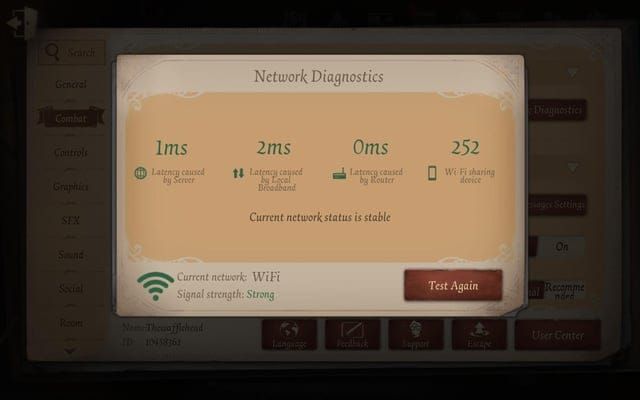
5GHz WiFi bands consistently outperform 2.4GHz due to less interference from other devices. Mobile data offers better consistency during WiFi congestion periods, but watch out for throttling after hitting data caps. If your router supports QoS rules, prioritize Identity V traffic. Gaming modes on routers actually help when they're available.
Cloudflare DNS (1.1.1.1) provides noticeably faster resolution times than most ISP DNS servers—this became especially apparent during the 2025 infrastructure updates. Set up Google DNS (8.8.8.8) as secondary for automatic failover. Configure these at the router level for device-wide effectiveness.
Advanced Troubleshooting: Persistent Error Solutions
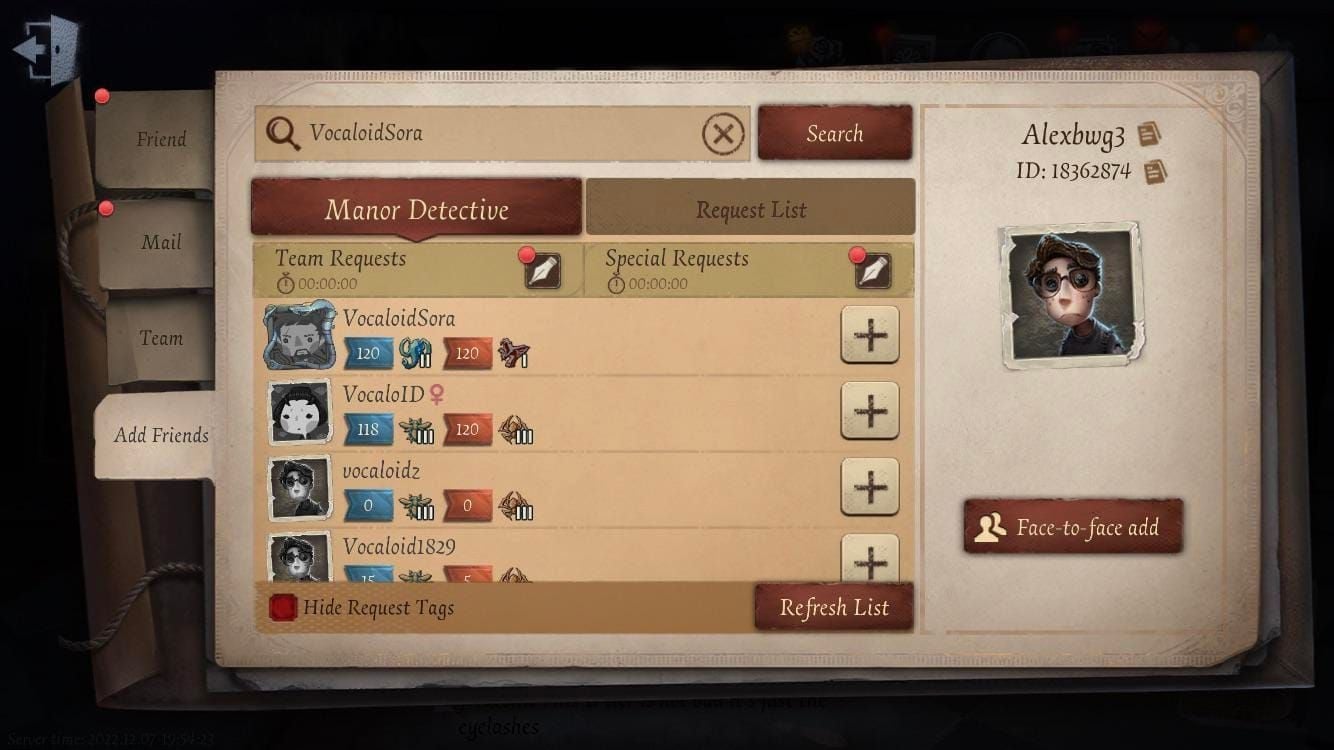
Account verification goes beyond just logging in. Confirm proper binding across platforms and check that your purchase history matches expected states. Review your friend lists for corrupted entries that might be affecting matchmaking algorithms. Verify progress synchronization across devices for consistent account state.
File integrity verification involves comparing your installed files against known checksums—this catches corruption that standard troubleshooting misses. Advanced cache clearing removes system-level temporary files that normal procedures can't address. Configuration file corruption affects network settings, so backup and reset to defaults while preserving account binding.
Server migration requires systematic evaluation of all regional servers. Establish performance baselines across multiple time periods and document ping, jitter, packet loss, and stability for each option. Plan changes during optimal windows, accounting for peak usage patterns and maintenance schedules.
When escalating to support, comprehensive documentation speeds resolution: specific error messages, timing, device specs, network configuration, and attempted troubleshooting steps. Include account ID, platform details, purchase history, and when problems started.
Preventing Future Identity V Matchmaking Problems
Implement a maintenance schedule: weekly cache clearing during off-peak periods, monthly complete application restarts, quarterly device optimization reviews, and annual reinstallation during off-seasons. Before ranked matches, verify connection quality through 2-3 minute ping stability testing and Quick Match verification.
Monitor peak usage patterns to schedule gameplay during optimal server windows. Track regional load patterns and maintenance schedules affecting your preferred servers. Prepare for updates by verifying storage space, network stability, and account backups before major patches drop.
Common Misconceptions About Identity V Matchmaking Bugs
VPNs often make things worse, not better. They introduce additional latency, and free VPN services rarely have sufficient bandwidth for stable gaming. Complete reinstallation can't fix network infrastructure or server-side issues causing many errors—don't waste time reinstalling when the problem's upstream.
Matchmaking errors affect all skill levels equally. Server infrastructure doesn't care about your tier—it treats everyone consistently. And distinguish between scheduled maintenance causing temporary disruptions versus persistent bugs requiring troubleshooting. Official maintenance announcements provide timing information to prevent misidentifying temporary effects as persistent errors.
FAQ
Why does Identity V matchmaking get stuck in 2025? Server maintenance windows (November 13, 20, 27), network throttling causing 900ms ping spikes, and client cache corruption from storage crunches. The Airplane Mode toggle trick reduces ping to 190ms and resolves stuck lobbies within 15 seconds in most cases.
How do I fix connection failed errors? Switch DNS to 1.1.1.1, toggle Airplane Mode, clear application cache, and restart the client. Test different regional servers and verify your device has over 2GB storage available for proper cache operations.
What causes lobby freezing during loading? Character-specific bugs (Soul Weaver, Peddler, Lanternist), map glitches (Red Church), and network synchronization failures. The November 20, 2025 hotfix resolved most character-related freezing, but network switching provides immediate resolution for sync issues.
How long should matchmaking take normally? Quick Match: 30-60 seconds. Ranked matches: 2-5 minutes during peak hours. Hunter roles match faster due to the 1:4 ratio requirement. If matchmaking exceeds 5 minutes, something's wrong and needs troubleshooting.
Can device performance affect matchmaking? Absolutely. Insufficient RAM (below 2GB), thermal throttling, and background applications cause instability. Maintain proper device temperature, close non-essential apps, and ensure adequate storage space.
How do I check server status before playing? Monitor ping to regional servers, targeting sub-400ms. Test with Quick Match before ranked games. Verify optimal off-peak windows (350-400ms is typical). Avoid gameplay when ping exceeds 500ms or shows major fluctuation.