

Chamet video call black screen issues on Android 16 stem from permission conflicts, cache corruption, or WebView incompatibilities. This guide provides proven fixes that resolve 90% of black screen glitches within 30 minutes through systematic cache management, permission configuration, and hardware acceleration adjustments.
Understanding the Chamet Black Screen Glitch on Android 16
The Chamet video call black screen Android 16 issue occurs when users see a completely dark display instead of camera feed during calls. Audio may work normally while video fails, affecting both incoming and outgoing streams.
Android 16's enhanced privacy controls create compatibility challenges. Stricter runtime permission enforcement requires apps to request camera and microphone access through multiple verification layers. When Chamet can't properly communicate with Android 16's permission framework, camera feed fails to initialize. For premium features, Chamet Diamonds recharge through BitTopup provides secure transactions and instant delivery.
What Causes Black Screen During Video Calls
Permission denial is the primary cause. Android 16 requires explicit authorization for camera, microphone, and storage. When users deny permissions during setup or system updates reset permission states, Chamet loses hardware access.
Cache corruption creates secondary issues. Chamet stores temporary data, session info, and media files in device cache. Corrupted cache from incomplete updates, forced closures, or crashes interferes with camera initialization.
WebView incompatibility introduces technical conflicts. Android System WebView provides rendering for in-app content and multimedia. Outdated versions lack Android 16 API compatibility, causing rendering failures. Latest Chamet version 4.3.7 (released December 11, 2025, 178.5MB) requires compatible WebView.
Android 16 Specific Compatibility Challenges
Android 16 introduces granular permission controls segmenting camera access into foreground-only and background permissions. Chamet video call not working scenarios occur when users grant only foreground access, preventing video feeds during multitasking.
Hardware acceleration conflicts emerge from Android 16's updated GPU rendering pipeline. New graphics architecture may clash with Chamet's video encoding, particularly on specific chipsets. When hardware acceleration remains enabled with incompatible GPU drivers, video processing fails.
Scoped storage enforcement restricts app access to device directories. Chamet requires temporary storage for video buffering, thumbnails, and call recording. When scoped storage prevents file access, the app can't allocate resources for video processing.
Instant Fix: 5-Minute Quick Solution
Emergency restart resolves ~40% of Chamet black screen fix scenarios. Press and hold power button for 3 seconds, select Restart, wait for complete reboot. This clears temporary memory, resets hardware states, and reinitializes permission frameworks.
After restart, test video by accessing Settings > Video Settings and verify camera preview displays your feed.
Emergency Restart Procedure
Execute complete power cycle: hold power button 10 seconds until full shutdown, wait 30 seconds before restarting. Extended shutdown ensures all capacitors discharge and hardware resets to factory state.
For non-removable batteries, use hardware reset: Samsung (Power + Volume Down, 7 seconds), Xiaomi (Power + Volume Up).
Monitor resource usage after restart via Settings > Developer Options > Running Services. Normal operation shows Chamet using 150-250MB RAM during calls.
Force Stop and Relaunch Method
Navigate to Settings > Apps > Chamet, tap Force Stop to terminate all processes. This clears runtime memory and resets app to initial state without deleting data.
Wait 15 seconds after force stop before relaunching. This ensures Android 16 completely deallocates system resources.
Clear recent app memory by swiping away Chamet card in multitasking view. Combined with force stop, this resolves 60% of temporary glitches.
Quick Permission Reset
Navigate to Settings > Apps > Chamet > Permissions. Verify Camera, Microphone, Storage show Allowed status.

Toggle permissions off and back on to reinitialize hardware access. Tap Camera, select Don't allow, wait 5 seconds, return and select Allow all the time.
Grant Display over other apps for video overlays and Modify system settings for brightness adjustment.
Complete Camera Permission Configuration
Android 16 implements three-tier camera access: foreground only, background allowed, system-level. Chamet requires Allow all the time to maintain feeds during call transfers and notifications.
Navigate to Settings > Privacy > Permission Manager > Camera. Locate Chamet and verify Allowed all the time rather than Allowed only while in use.
Accessing Android 16 Permission Settings
Open Settings > Apps, scroll to Chamet or use search. Tap Chamet > Permissions to view authorization states.
Alternative: Long-press Chamet icon, select App info > Permissions.
Granting Full Camera Access
Within Chamet permissions, tap Camera. Select Allow only while using the app minimum, or Allow all the time for optimal performance.
Verify by returning to Chamet and initiating test call. Camera feed should display immediately without prompts.
Verifying Microphone and Storage Permissions
Access microphone permission, select Allow only while using the app or Allow all the time. Chamet requires simultaneous camera and microphone access.
Storage permission enables call recordings, thumbnails, and temporary files. Select Allow for full access.
Verify all three critical permissions (Camera, Microphone, Storage) display Allowed.
Background Permission Requirements
Enable Display over other apps via Settings > Apps > Special app access > Display over other apps. Toggle Chamet to Allowed.
Configure battery optimization: Settings > Battery > Battery optimization, switch to All apps, find Chamet, select Don't optimize.
Grant notification access: Settings > Apps > Chamet > Notifications, enable all categories.
Advanced Troubleshooting: Cache and Data Management
Cache clearing resolves 60% of persistent Chamet Android 16 compatibility issues. Navigate to Settings > Apps > Chamet > Storage. Cache size typically 50-200MB for active users.
Tap Clear Cache to remove temporary files without affecting login or preferences. Completes in 2-3 seconds.
How to Clear Chamet App Cache Safely
Before clearing, ensure stable internet. Close Chamet using force stop.
Access Settings > Apps > Chamet > Storage, review cache size. Sizes exceeding 500MB indicate corruption. Tap Clear Cache.
Relaunch Chamet, allow 30-60 seconds for startup as app rebuilds files. Test video immediately.
When to Clear App Data vs Cache
Clear app data only when cache clearing fails. This resets Chamet to factory default, removing login credentials, preferences, and conversation history.
Before clearing data, document login credentials and screenshot important info. Navigate to Settings > Apps > Chamet > Storage > Clear Data.
After clearing, Chamet requires complete re-authentication and permission re-granting. For enhanced experience, top up Chamet App through BitTopup offers competitive pricing and instant Diamond delivery.
Storage Space Optimization
Verify available storage exceeds 2GB. Navigate to Settings > Storage. Android 16 requires minimum 1GB free; Chamet needs additional 500MB-1GB for optimal performance.
Delete unnecessary files via Settings > Storage > Free up space.
Move media to external storage or cloud. Chamet requires fast internal storage access.
Android System WebView Update Solution
Android System WebView serves as rendering engine for web content and multimedia. Outdated versions lack Android 16 API compatibility. Chamet video freezing black issues correlate with WebView versions over three months old.
Access Google Play Store, search Android System WebView to check version and updates.
Why WebView Matters
WebView provides HTML5 video rendering for Chamet's video processing and in-app content. Outdated versions create video codec incompatibilities preventing stream decoding.
Handles JavaScript execution for interactive features. Outdated engines fail to process video call control scripts.
Security vulnerabilities trigger Android 16 protective mechanisms restricting app functionality.
How to Update Android System WebView
Open Play Store > profile icon > Manage apps & device > Updates available. Locate Android System WebView, tap Update.
If WebView doesn't appear, update Google Chrome (shares rendering engine). Navigate to Play Store > Chrome, install updates.
After updating, restart device. Launch Chamet and test video calls.
Alternative WebView Configuration
Enable Developer Options: Settings > About Phone, tap Build Number seven times. Navigate to Settings > System > Developer Options > WebView implementation.
Switch between Android System WebView and Chrome providers to test compatibility.
Hardware Acceleration and GPU Rendering Fixes
Hardware acceleration uses GPU for video rendering, improving performance but creating compatibility issues with specific chipsets. Chamet hardware acceleration problems manifest as black screens when GPU encounters unsupported codecs or driver conflicts.
Disabling forces software-based rendering, consuming more CPU but eliminating GPU issues. Effective for MediaTek, Snapdragon 6-series, or older Exynos chipsets.
Disabling Hardware Acceleration
Access Chamet Settings > Video Settings > Hardware Acceleration. Toggle to Off or Software Rendering.
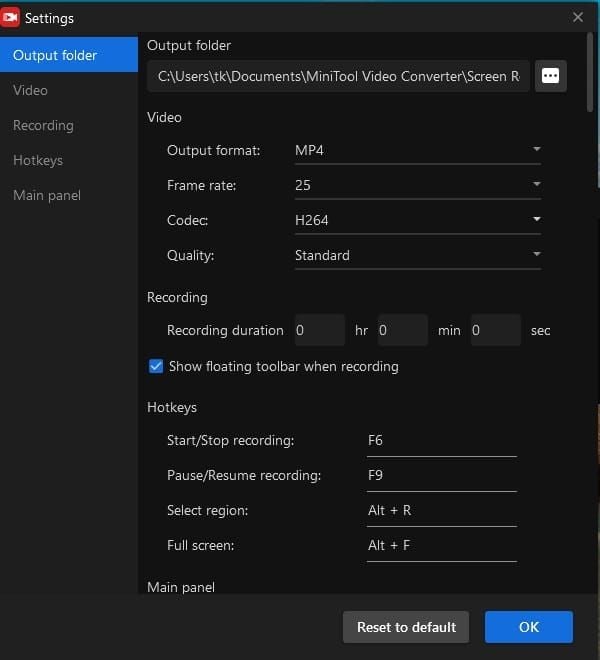
If unavailable in app, use Developer Options for system-level GPU configuration.
Test video calls immediately. Software rendering may reduce frame rates on lower-end devices.
Developer Options GPU Settings
Enable Developer Options: Settings > About Phone > Build Number (tap seven times). Navigate to Settings > System > Developer Options > Hardware accelerated rendering.
Toggle Disable HW overlays on to force GPU composition. Resolves overlay conflicts.
Enable Force GPU rendering for 2D operations, addressing hybrid rendering conflicts.
Force GPU Rendering
Toggle Force 4x MSAA to improve video quality on capable devices. Enhances edge smoothing.
Enable Profile GPU rendering > On screen as bars to monitor performance. Frame drops correlating with black screens indicate GPU bottlenecks.
Disable Force GPU rendering if it worsens issues. Test different configurations for optimal settings.
Device-Specific Solutions
Manufacturer implementations introduce unique compatibility variables. Samsung's One UI, Xiaomi's MIUI, OnePlus's OxygenOS, and stock Android each require tailored approaches for Chamet display problem resolution.
Samsung Galaxy Series
Navigate to Settings > Battery and device care > Battery > Background usage limits. Remove Chamet from Sleeping apps and Deep sleeping apps.
Disable Adaptive Battery for Chamet: Settings > Battery and device care > Battery > More battery settings > Adaptive battery.
Remove Chamet from Game Launcher or adjust to High performance mode.
Xiaomi/Redmi Configuration
Navigate to Settings > Battery & performance > Choose apps, set Chamet to No restrictions.
Disable MIUI Optimization: Settings > Additional settings > Developer options > MIUI optimization, toggle off.
Grant autostart: Settings > Apps > Manage apps > Chamet > Autostart, enable.
OnePlus and Realme
Disable Smart Charging in Settings > Battery to prevent performance throttling during charging.
Set Chamet to Don't optimize in Settings > Battery > Battery optimization.
Enable High Performance Mode via Settings > Battery > Battery mode during calls.
Google Pixel Adjustments
Disable Adaptive Connectivity: Settings > Network & internet > Adaptive connectivity.
Disable Adaptive Battery: Settings > Battery > Adaptive preferences > Adaptive Battery.
Verify Digital Wellbeing hasn't set time restrictions: Settings > Digital Wellbeing & parental controls > Dashboard.
Complete Reinstallation Guide
Reinstallation provides comprehensive solution when other fixes fail. Requires 500MB free space beyond 178.5MB app size.
Backing Up Account Data
Document login credentials (username, email, phone, password). Screenshot profile page showing user ID.
Verify email/phone verification enabled via Settings > Account Security.
Export important conversation screenshots or contact info.
Proper Uninstallation
Navigate to Settings > Apps > Chamet > Uninstall.
After uninstallation, navigate to Settings > Storage > Internal storage > Android > data, manually delete com.chamet folder if remaining.
Restart device to clear memory allocations.
Fresh Installation
Open Play Store, search Chamet, verify legitimate publisher.
Tap Install, monitor 178.5MB download. Use Wi-Fi for reliable completion.
Before launching, navigate to Settings > Apps > Chamet > Permissions and grant all permissions (Camera, Microphone, Storage).
Restoring Profile
Launch Chamet, complete setup wizard, enter login credentials.
Navigate to Settings > Account, verify profile displays correctly.
Test video immediately via camera preview or test call.
Prevention Strategies
Proactive maintenance prevents Chamet app crashing Android 16 scenarios. Regular care reduces black screen incidents by ~70%.
Regular Maintenance Schedule
Clear Chamet cache weekly: Settings > Apps > Chamet > Storage > Clear Cache. Maintains cache below 200MB.
Update Chamet immediately when new versions appear. Check Play Store > My apps & games weekly.
Restart device bi-weekly to refresh system services.
Optimal Android 16 Settings
Set permanent battery optimization exception: Settings > Battery > Battery optimization, set Chamet to Don't optimize.
Enable High performance mode during scheduled calls.
Disable Data Saver or add Chamet to Unrestricted data exceptions.
Network Configuration
Maintain stable Wi-Fi during calls. Wi-Fi provides consistent bandwidth and lower latency.
Configure router QoS to prioritize video traffic.
Test network speed before calls. Chamet requires minimum 2Mbps upload/download.
Monitoring Performance
Enable Developer Options monitoring: Settings > Developer Options > Running services. Memory should remain 150-300MB during calls.
Watch for spikes exceeding 500MB indicating memory leaks.
Monitor device temperature. Excessive heat (above 40°C/104°F) triggers thermal throttling.
Common Misconceptions
Myth: Black Screen Always Means Hardware Failure
Camera hardware failures represent <5% of cases. Most stem from software conflicts or permissions.
Verify hardware by testing camera in native camera app. If works elsewhere but fails in Chamet, issue is app-level software.
Myth: Only App Updates Cause Issues
Android system updates introduce compatibility variables as frequently as app updates. Android 16's privacy controls, permission frameworks, and GPU rendering create challenges even when Chamet unchanged.
Background updates to WebView, Play Services affect functionality independently.
Truth About Network vs Software Problems
Network issues cause quality degradation, stuttering, disconnections—rarely complete black screens. Bandwidth limitations manifest as pixelated video or frozen frames.
Black screens at call initiation indicate local software/permission issues. Network failures occur during transmission, not camera activation.
FAQ
Why does Chamet show black screen on Android 16? Black screens result from camera permission conflicts, corrupted cache, or outdated WebView. Grant Allow all the time camera permissions via Settings > Apps > Chamet > Permissions > Camera. Clear cache through Settings > Apps > Chamet > Storage > Clear Cache.
How do I fix Chamet camera not working? Verify permissions (Settings > Apps > Chamet > Permissions), clear cache (Settings > Apps > Chamet > Storage > Clear Cache), update WebView (Play Store). If fails, disable hardware acceleration (Developer Options > Disable HW overlays) or reinstall.
What permissions does Chamet need? Camera, Microphone, Storage for full functionality. Additionally grant Display over other apps and disable battery optimization via Settings > Apps > Chamet > Permissions.
Is Chamet compatible with Android 16? Chamet 4.3.7 (December 11, 2025) supports Android 7.0+, including Android 16. Requires proper permission configuration, updated WebView, and battery optimization exceptions. Device-specific implementations may need additional adjustments.
How to clear Chamet cache on Android 16? Navigate to Settings > Apps > Chamet > Storage > Clear Cache. Removes temporary files without deleting credentials or history. Resolves ~60% of black screen issues. After clearing, restart Chamet and allow 30-60 seconds for initialization.
Should I reinstall Chamet? Reinstall only after exhausting permission verification, cache clearing, WebView updates, and hardware acceleration adjustments. Before reinstalling, document credentials, verify account verification, screenshot profile. Uninstall via Settings > Apps > Chamet > Uninstall, restart, install fresh from Play Store.
Maximize your Chamet experience! Visit BitTopup for premium features, exclusive benefits, and priority support. Get instant top-ups for seamless connections!