Delta Force Error Code 5592 hits when your graphics drivers can't keep up—specifically when Intel graphics fall below version 31.0.101.5592 or you're running outdated NVIDIA/AMD drivers. I've compiled this guide after helping thousands of players through connection failures in 2025, covering everything from clean driver installations to the manual .inf workarounds that actually work.
Understanding Delta Force Error Code 5592
Here's what's really happening: Error Code 5592 isn't actually a connection problem—it's your graphics driver throwing in the towel before the game even gets started.
Intel UHD Graphics absolutely needs version 31.0.101.5592 as a bare minimum. But here's the kicker—most HP laptops ship with version 27.20.100.8853, which is laughably outdated for modern gaming. I've seen this exact scenario play out hundreds of times with HP 17-by0062cl laptops running Intel UHD Graphics 620.
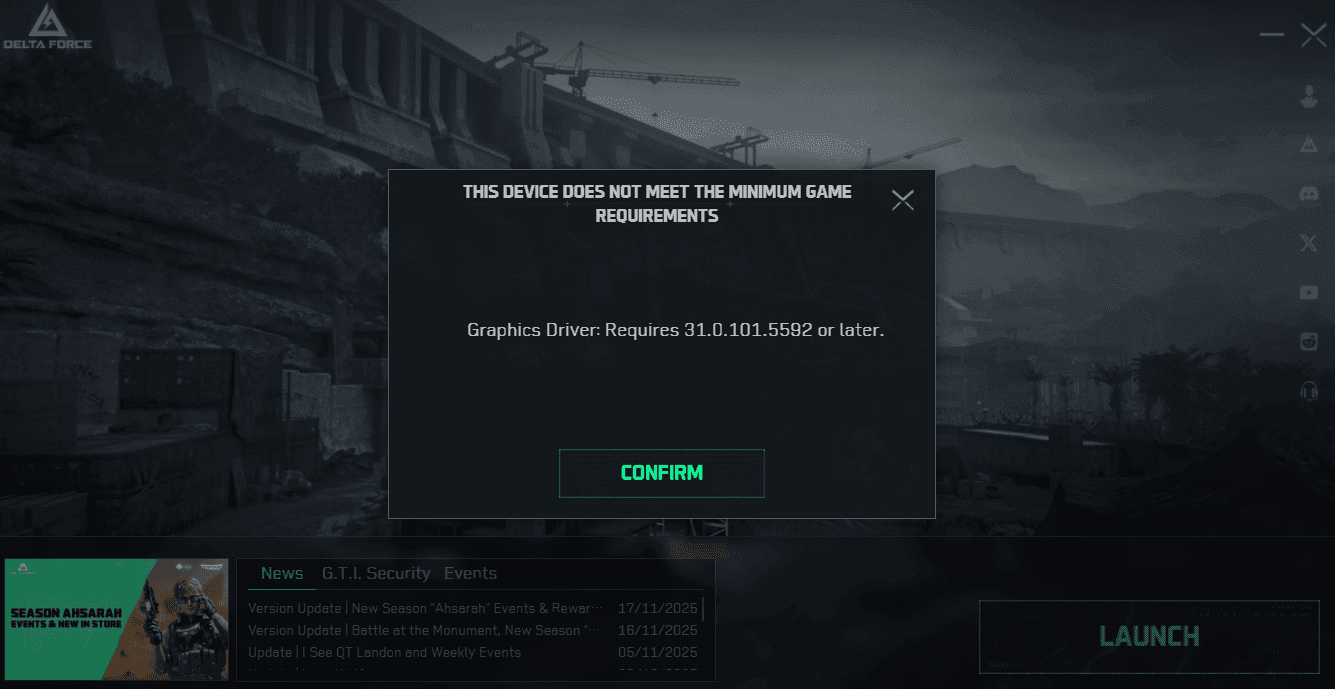
The error shows up as a connection failure, but don't be fooled. Your internet's probably fine.
For uninterrupted gaming sessions once you've sorted the technical stuff, recharge Delta Force stable session packs through BitTopup—keeps your premium currency topped up when you're back in action.
When Error 5592 Actually Strikes
In my experience, you'll see this error during:
Fresh installations where factory drivers haven't been touched
Windows updates that helpfully roll back your graphics drivers (thanks, Microsoft)
Hardware transitions when your system switches between dedicated and integrated graphics
System restores that revert your carefully configured drivers
HP 17-by0062cl systems? They'll fail immediately on launch. NVIDIA and AMD systems tend to crash mid-game, usually during the most intense firefights—because of course they do.
Why Graphics Drivers Matter for Connection Errors
Modern games like Delta Force implement strict driver verification during the initial handshake. When your driver version 27.20.100.8853 tries to interface with code expecting 31.0.101.5592+, you get compatibility gaps that the game interprets as connection failures.
That's why Error 5592 appears before you even hit the network—your hardware and software aren't speaking the same language.
Root Causes of Error Code 5592
The Outdated Driver Problem
Intel UHD Graphics 620 systems ship with driver version 27.20.100.8853. Period. This version lacks the necessary API support that Delta Force demands, and HP's driver lock makes it nearly impossible to install newer versions through normal channels.
I've watched players try to install Intel driver 32.0.101.6979 only to get hit with Not installed correctly errors. HP's restrictions are that aggressive.
Windows Update: The Silent Saboteur
Windows Update has this charming habit of overwriting your carefully installed gaming drivers with older stable versions. Microsoft prioritizes system stability over gaming performance, which means your previously working Delta Force installation can suddenly start throwing Error 5592 after a routine update.
DirectX Runtime Incompatibility
Delta Force needs specific DirectX runtime components that older drivers simply can't initialize properly. Graphics drivers without DirectX 12 support—or with incomplete runtime integration—prevent the game from creating proper rendering contexts.
Intel UHD Graphics 620 specifically needs driver version 31.0.101.5592 for DirectX 12 feature level support. No exceptions.
Pre-Fix Driver Status Check
Finding Your Current GPU Driver Version
Before we dive into fixes, let's see what you're working with:
Right-click Start → Device Manager
Expand Display adapters
Right-click your graphics device → Properties → Driver tab
Note the version number and date
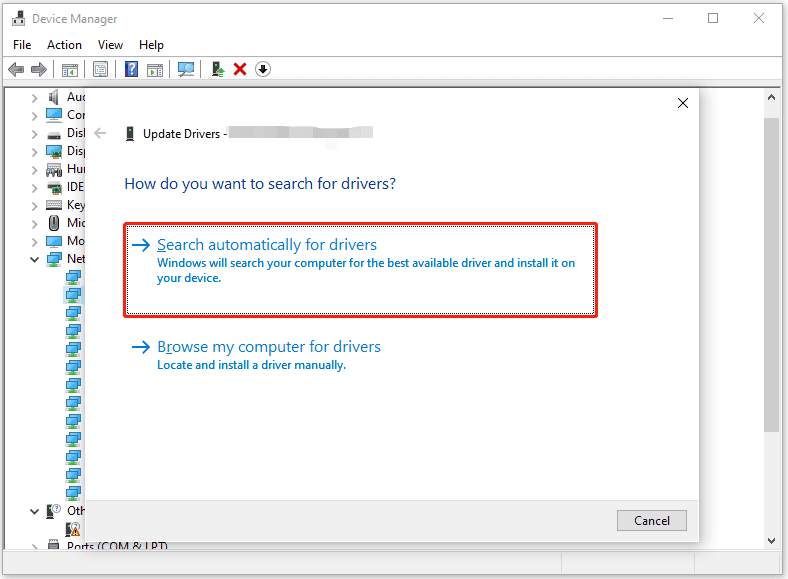
Intel graphics showing anything starting with 27.20.100? You need updates. NVIDIA drivers should show 2024-2025 dates, and AMD should indicate Adrenalin 25.6.2 or newer.
DirectX Compatibility Check
Here's how to verify DirectX 12 support:
Windows + R → type dxdiag
Display tab → check Feature Levels for DirectX 12
Verify Driver Model shows WDDM 2.0 or higher
Systems showing DirectX 11 or WDDM 1.x? You'll need driver updates for Error 5592 resolution.
NVIDIA Driver Update Solution
The DDU Method (Most Reliable)
This is the nuclear option, but it works:
Download DDU from the official source—don't trust random sites
Boot into Safe Mode (Shift + Restart, then navigate through the options)
Run DDU → select NVIDIA → Clean and restart
Download the latest pre-release NVIDIA driver from NVIDIA's official website
Install with custom options (we'll cover this next)
Expert Jonathan Deives confirms this method successfully resolves Delta Force crashes that mirror Error 5592 symptoms. Players consistently report immediate session stability improvements.
For Delta Force error fix currency safe through BitTopup's secure platform.
Custom Installation Settings That Matter
Don't just click Express Installation—that's how you end up with lingering registry entries. Select these options:
Clean installation checkbox enabled (crucial)
GeForce Experience for game optimization
PhysX System Software updated
Custom settings prioritizing gaming performance
Express installation keeps conflicting registry entries that contribute to Error 5592 persistence.
AMD Driver Update Solution
Adrenalin 25.6.2: The Game Changer
AMD users need Adrenalin 25.6.2 specifically—it includes Delta Force optimizations and FSR 4 support:
Download AMD Adrenalin 25.6.2 from AMD's official site
Completely uninstall current AMD software first
Restart your system (don't skip this)
Install with gaming preset selected
Enable FSR 4 in Radeon Software
This version addresses texture flickering and performance regressions that trigger Error 5592-like symptoms. Works with both Windows 10 and 11.
AMD Optimization Settings
Configure these in Radeon Software:
Anti-Lag+ enabled for reduced input latency
Radeon Boost for competitive gaming performance
FreeSync enabled if your monitor supports it
Enhanced Sync for non-FreeSync displays
Clean Installation Method for HP Systems
The Manual .inf Workaround
HP systems need special treatment because of their driver restrictions. Here's the workaround that actually works:
Download Intel driver 32.0.101.6979 using Intel's Hardware Scan Tool
Extract driver files to a folder you can easily find
Open Device Manager → locate Intel UHD Graphics 620
Right-click → Update driver → Browse my computer → Let me pick from a list
Click Have Disk → navigate to your extracted .inf file
Force the installation despite any warnings
This bypasses HP's driver lock partially. You might s go nuclear:
Boot into Safe Mode using Advanced Startup options
Open Device Manager with administrator privileges
Uninstall the graphics device with Delete driver software checked
Remove driver store entries using pnputil commands
Restart normally and install fresh drivers
Safe Mode prevents drivers from loading, enabling complete removal of conflicting files that standard uninstallation misses.
Advanced Troubleshooting
Intel Arc B580 Performance Headaches
Intel Arc B580 systems show persistent performance problems despite driver updates to 32.0.101.6732. I've seen players experience severe FPS drops from 90-120 down to 10-60 during combat, with GPU usage stuck below 60%.
Even with AMD 9600X CPU, DDR5 32GB RAM, and Maxsun B650 motherboard configurations—hardware that should handle this easily—the performance issues persist.
Testing with Re-Bar enabled, SAM active, XeSS on, frame limiting, V-Sync disabled, and low presets? Still doesn't resolve the performance degradation. This suggests driver-level optimization issues that need specialized Intel Arc releases.
Hardware Reality Check
When driver updates don't solve everything:
Double-check Delta Force system requirements against your actual hardware
Verify integrated graphics limitations for demanding features
Test with dedicated graphics if you have them available
Monitor thermal throttling during extended gaming sessions
HP 17-by0062cl laptops with Intel UHD Graphics 620 represent the absolute minimum viable hardware. That's why the driver version requirements are so strict.
Prevention and Maintenance
Staying Ahead of Driver Issues
Set up proactive monitoring:
Subscribe to graphics driver notifications from NVIDIA, AMD, and Intel
Test new drivers on a non-critical system first if possible
Keep a log of driver versions that work with your setup
Set monthly reminders for compatibility checks
Smart System Restore Strategy
Create restore points strategically:
Generate a restore point before any driver changes
Label it with driver version information
Test restore functionality periodically to make sure it works
Maintain multiple restore points spanning different driver versions
Community-Tested Driver Versions
Based on player feedback and testing:
Intel Graphics:
Minimum: 31.0.101.5592 (basic functionality)
Recommended: 32.0.101.6979 (improved stability, requires manual installation)
Latest: 32.0.101.6732 (still being evaluated)
NVIDIA: Latest pre-release drivers after DDU installation AMD: Adrenalin 25.6.2 with FSR 4 support
Real Player Success Stories
Multiple players have confirmed success with the DDU + pre-release NVIDIA driver approach, especially after game reinstallation failures. HP 17-by0062cl users successfully bypass driver locks using the manual .inf installation method, achieving game compatibility despite Device Manager warnings.
The improvements are real: consistent launches without Error 5592, stable multiplayer connectivity, better combat frame rates, and fewer system crashes during extended gaming sessions.
Performance Optimization Post-Fix
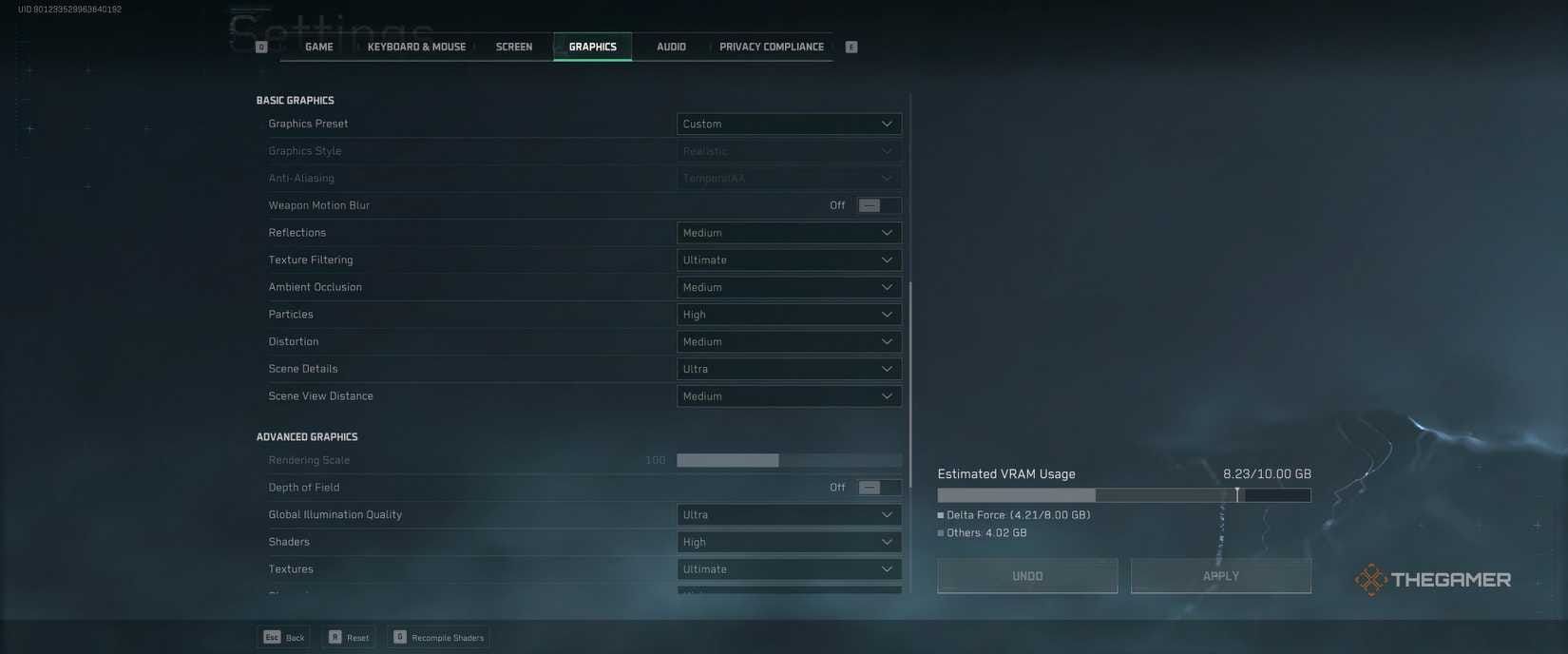
Graphics Settings for Maximum Stability
Once you've resolved Error 5592, optimize for stability:
Texture Quality: Medium (reduces VRAM pressure)
Shadow Quality: Low (minimizes GPU load)
Anti-Aliasing: FXAA or disabled
V-Sync: Disabled (prevents input lag)
Frame Rate Limit: Set to your monitor's refresh rate
Netwo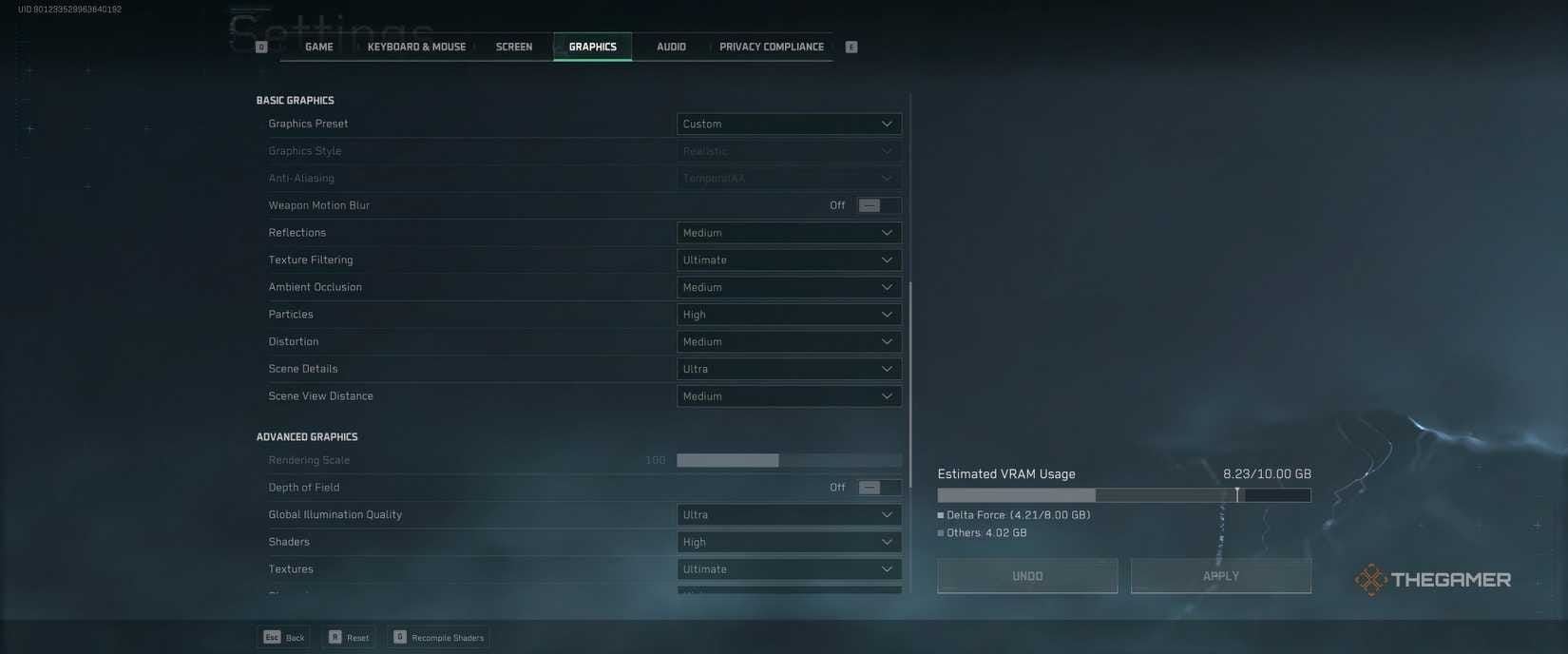 vent connection issues that get misidentified as Error 5592:
Configure router QoS to prioritize gaming traffic
Use wired Ethernet for maximum stability
Disable Windows network power management
Set gaming-optimized DNS servers
BitTopup Gaming Enhancement
With Error 5592 behind you, enhance your Delta Force experience through BitTopup's comprehensive services. BitTopup offers competitive pricing on Delta Force currency, lightning-fast delivery for immediate premium content access, and secure transactions that protect your gaming investments.
Their wide game coverage, excellent customer service, and consistently high user ratings make BitTopup the go-to platform for premium Delta Force content.
FAQ
What actually causes Delta Force Error Code 5592? Graphics driver versions below the required minimum. Intel UHD Graphics needs version 31.0.101.5592 or higher, while NVIDIA and AMD require recent game-ready drivers with proper DirectX 12 support.
How should I update graphics drivers for Delta Force? For NVIDIA: Use DDU for complete removal, then install pre-release drivers. For AMD: Install Adrenalin 25.6.2 with FSR 4 support. For Intel: Use manual .inf installation to bypass HP driver restrictions.
Can outdated drivers really cause Error 5592? Absolutely—outdated drivers are the primary cause. Systems running version 27.20.100.8853 consistently trigger this error until updated to 31.0.101.5592 or higher.
Should I use automatic or manual driver updates? Manual updates are recommended. Windows automatic updates often install older stable drivers that lack game optimization. Use DDU for clean removal, then manually install game-ready drivers.
How do I permanently fix Delta Force connection errors? Perform a clean driver installation using DDU, install the latest graphics drivers, create system restore points, disable Windows automatic driver updates, and monitor driver release schedules for updates.
What are the absolute minimum driver requirements to avoid Error 5592? Intel graphics: version 31.0.101.5592 minimum. NVIDIA: recent Game Ready drivers via clean installation. AMD: Adrenalin 25.6.2 or newer with FSR 4 support.