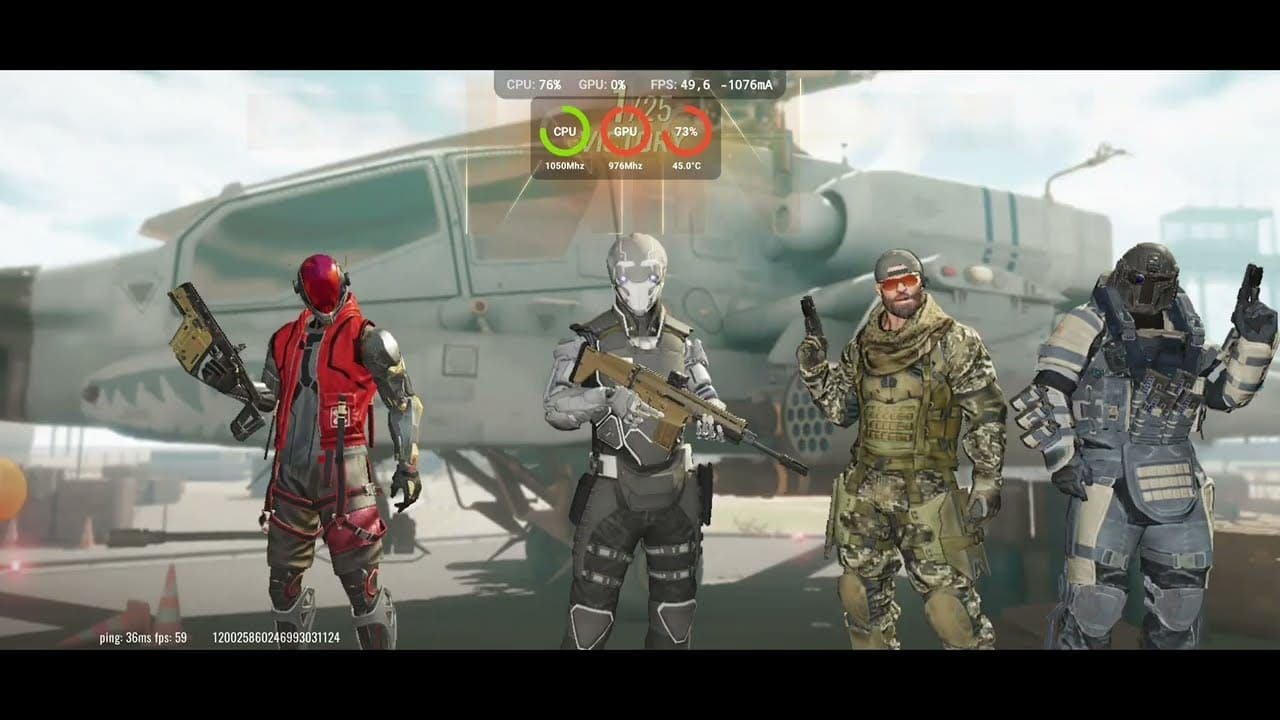
Official Blood Strike key art from the game's Steam store assets, retrieved November 29, 2026.
Blood Strike PC players have three official ways to install the game on Windows: Steam, NetEase's own client from the official site, and Google Play Games on PC. Steam lists the game as free to play, while NetEase's client page publishes no requirements. If your Blood Strike account already lives on a phone, link it to Steam before the first Steam launch.
The three routes in one table
| Route | Where to start | Disk space listed | Hardware listed | Phone account |
|---|---|---|---|---|
| Steam | The game's Steam store page, listed as free to play | 30 GB | See the requirements table below | Link it from your phone or PC client before the first Steam launch |
| NetEase's own client | The Official Website button on NetEase's Download PC Client page, which opens the game's home page | Not published | Not published | NetEase's guide places the main account in the "PC or mobile client"; the linking step is for Steam |
| Google Play Games on PC | The Get started button on Google's Play Games on PC listing | 10 GB, on an SSD | See the requirements table below | Google's footnote: sync across devices might not be available for this game |
The disk-space answer for Blood Strike on PC depends on the route. Steam lists 30 GB free for both the minimum and recommended setups, Google's listing asks for 10 GB on a solid state drive, and NetEase's client page gives no figure.
Downloading it, route by route
Steam
- If you already play on a phone, link Steam to that account first (the linking section below explains why).
- Open the Blood Strike page on Steam, in the Steam app or on the store site.
- Press Play Game. The page lists the game as free to play.
NetEase's own client
- Open NetEase's Download PC Client page. It has two buttons, Steam and Official Website, and a slideshow of taglines. The first three read "Ultra HD graphics & smooth frame rate!", "Smooth gameplay on low-end devices" with a short call to jump into battle, and "Cross-platform connectivity, team up with friends anytime!"
- Press Official Website. It opens the game's home page, where the PC download link goes to a NetEase download address (adl.easebar.com). The separate pc_download page links its Windows button to another one (adl.netease.com).
- Check the installer yourself. Neither page publishes a file size or requirements.
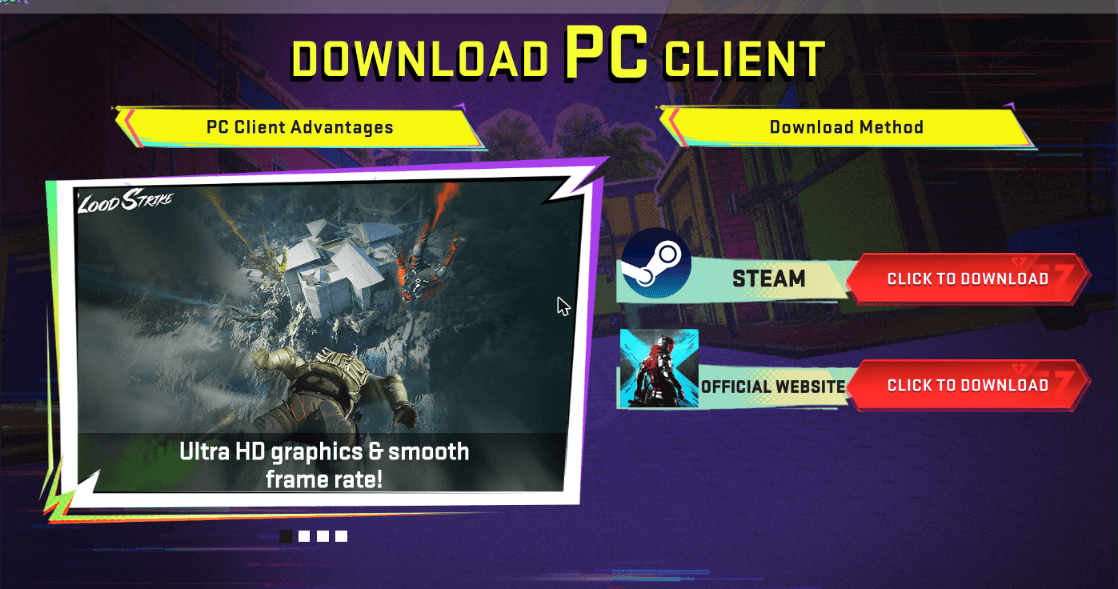
The official PC download page for Blood Strike on share.blood-strike.com, screenshot taken November 29, 2026.
Google Play Games on PC
- Check your machine against the Google column of the requirements table below.
- Open Google's Blood Strike listing for PC and press Get started.
- Google says you will then get an email for Google Play Games on PC.
None of NetEase's three pages (the PC download page, the Download PC Client page and the home page) links to this route. The home page links Google Play, the App Store, a PC client download and Steam.
Listed requirements, with the NetEase column left empty
| Item | Steam minimum | Steam recommended | Google Play Games on PC minimum | NetEase client |
|---|---|---|---|---|
| Windows | Windows 10 | Windows 10 | Windows 10 (v2004) | Not published |
| Processor | Intel i3-540 or AMD Athlon 200GE | Intel Core i5-4460 | 4 physical CPU cores | Not published |
| Memory | 4 GB | 8 GB | 8 GB | Not published |
| Graphics | Intel HD 4000 or AMD Radeon R5 220 | NVIDIA GeForce GTX 960 | Intel UHD Graphics 630 or comparable | Not published |
| DirectX | Version 11 | Version 11 | Not listed | Not published |
| Storage | 30 GB | 30 GB | 10 GB on a solid state drive | Not published |
| Other | Broadband connection | Broadband connection | Windows admin account, hardware virtualization turned on | Not published |
Steam's page lists the Windows version's requirements. Google's page is for Google Play Games on PC and asks for a different kind of machine: less disk space, but an SSD, 8 GB of memory and virtualization switched on. Google does not say whether the game it runs is a Windows build or the Android one, and the virtualization line points to Android, which is a reading and not a statement from Google. The same page carries a footnote on its feature list, "seamless sync across devices", which might not be available for this game. No source says how this route's accounts or matches relate to Steam or the NetEase client.
What Steam's page showed on November 29
- Free to play, developed and published by NetEase Games, with Windows as the only platform listed. No Mac or Linux build.
- Early access began in October 2024. The full release followed in March 2025.
- Features listed include cross-platform multiplayer, partial controller support and Xbox controllers.
- Nine interface languages: English, Arabic, Indonesian, Portuguese - Portugal, Russian, Simplified Chinese, Thai, Vietnamese and Spanish - Latin America. Full audio is listed for English, Portuguese - Portugal, Simplified Chinese and Spanish - Latin America. Players from Brazil will notice that only the Portugal variant of Portuguese is listed.
- Reviews in all languages: 24,642, shown as Very Positive, with 806 recent ones also Very Positive. The 7,492 English reviews are shown as Mostly Positive.
Link first, launch second
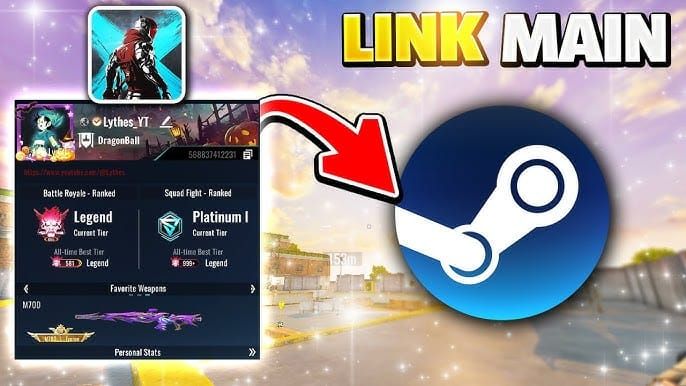
Steam has its own account for the game. NetEase's guide to linking your main account with Steam says that if you want to log in to your main game account through Steam, you should link Steam from your current PC or mobile client before you launch the game on Steam. The steps in the guide:
- Log in to your account on the PC or mobile client, enter the game and click Settings.
- Choose Account in the top right corner of the settings menu.
- Choose Bind Account.
- Choose Bind Steam.
After that, logging in through Steam continues with your main account's progress. NetEase repeated the rule in its November 5, 2024 update notice, and the Steam Account Linking FAQ of November 8, 2024 adds that linked accounts share progress across PC, Steam and mobile. No later post in the game's Steam news feed, up to the November 10, 2026 update, repeats or changes these rules. They are two years old, so check the in-game Bind Account screen before you rely on them.
If you already started the game through Steam
The guide is direct about this: a Steam account that has already logged in without being linked cannot be linked to your main game account afterward. The FAQ tells those players to contact NetEase's customer service. It also says that a player who never links Steam to anything does not lose their Steam content and can keep logging in through Steam as usual.
If both accounts have progress
When a linked Steam account and the original account both have progress, NetEase's Steam Account Progress Selection notice of November 6, 2024 says you must choose which one to keep, and the other is overwritten. The game defaults to the PC or mobile progress. Switching to the Steam progress is done through an online account selection form, where you give one of three IDs: your Steam ID, the PC or mobile game ID, or the Steam game ID. NetEase says the choice cannot be reversed and that its team handles requests within one business day.
What one player did, and why it is unconfirmed
In an August 2025 thread on the game's Steam discussion board, a player who could not bind an existing Facebook-linked Android account described a longer route: log in on the phone with the Steam account, create and bind a NetEase account to it, open the support page from the headphones icon, unbind Steam there, and then bind Steam from the original phone account. One reply thanked the poster, the poster answered it, and a third user said to link from the game's settings. NetEase has not published these steps. NetEase's own advice is to contact customer service, so read the thread as one player's account and nothing more.
PC against phone: what the sources support
No source read for this article ranks PC above phone or the reverse, and NetEase's pages make no such claim. What the sources document is a shared match pool and a few PC-specific features.
Steam lists Blood Strike as cross-platform multiplayer, and NetEase's Download PC Client page uses the phrase "cross-platform connectivity". NetEase's December 19, 2024 update notice shows what that looks like in practice. Under a Cross-platform Matchmaking heading it says mobile players had not been clearly told when they were paired with PC players, which caused confusion. The Lobby, Friend List and Recruitment List got clearer markers to tell mobile and PC players apart. Steam also lists partial controller support and Xbox controllers.
NetEase's Steam posts include PC-only sections, mostly between October 2024 and May 2025. Dates below are the dates each announcement carries.
| Posted | What changed on PC |
|---|---|
| October 24, 2024 | Auto pick-up icon now shows prompts for throwables and medical items; some buttons are more transparent while scoping. |
| November 14, 2024 | Custom hotkeys can combine ALT, SHIFT, CTRL, TAB or CAPS LOCK with another key. A Quick Revive hotkey and a teammate outline setting (Settings, Gameplay, Battle Info) were added. |
| December 5, 2024 | New Teammate Volume, Voice Chat Toggle and Team Chat Mode settings (free chat or button chat), a lobby text-chat hotkey, and Enter to start and send a message. The teammate outline effect was removed for now. |
| December 19, 2024 | Throwable and medical wheel: drag the mouse over an item and release the key to pick it. Enter opens and closes lobby chat and Tab switches chat channels. F2 opens Voice Settings in the lobby or in a match, and the key can be changed. |
| April 10, 2025 | Quick airdrop cache, switched on in Settings, Gameplay, Battle Controls. Fixed teammate volume set to 0 still letting teammate sound through. |
| May 28, 2025 | Configured keybindings work for Playpal in the lobby. The PC version can share one hotkey between map zoom and other functions. |
| September 4, 2025 | Firing Sensitivity settings added for the PC version. |
| April 28, 2026 | A PC Exclusive Event, Memories by the Riverside, lets PC players try a Classic Ultra gun skin and unlock it for good by completing missions. |
Emulators and consoles
NetEase's pages list no console version. Steam shows Windows as the only platform, the home page links Google Play, the App Store, a PC client download and Steam but no console store, and no NetEase console announcement for Blood Strike turned up in searches run for this article.
Emulators are a gap. BlueStacks advertises Blood Strike for PC in search results, but none of the NetEase pages read for this article says anything about third-party emulators, so neither support nor a ban can be stated. Google Play Games on PC is Google's own route and is covered above.