

The 2025 Arena Breakout update has left many players stuck in frustrating crash loops – and honestly, it's one of the messier launches we've seen this year. The culprits? ACE anti-cheat throwing tantrums, graphics pipeline overhauls that older hardware can't handle, and cache files corrupted beyond recognition. Here's what actually works to get you back in-game.
Understanding Arena Breakout Infinite Crashes After 2025 Update
What Defines an Infinite Crash Loop vs Standard Game Crashes
Here's the thing – infinite crash loops aren't just regular crashes happening more often. They're a completely different beast.
When Arena Breakout gets stuck in an infinite loop, it'll keep trying to launch but never makes it past the loading screen. You'll see those dreaded error codes 1-1704-30015228 and 7801113 pop up repeatedly. What's happening under the hood? The ACE (AntiCheatExpert) drivers in your C:\Windows\System32\drivers folder are having a full-blown argument with the new update protocols.
Standard crashes during raids? Those are usually memory hiccups when things get intense during extraction. But infinite loops mean something fundamental is broken at the system level – the game literally can't initialize properly.
If you're dealing with these headaches and need to keep your account stocked while troubleshooting, Arena Breakout infinite mode recharge fast through BitTopup keeps you equipped without the hassle.
Technical Changes in 2025 Update Affecting Stability
The developers really went all-in with this update – maybe a bit too aggressively.
They've completely overhauled the graphics rendering pipeline and made DirectX 12 mandatory. No more DirectX 11 fallback, which is brutal news if you're running older cards like the GTX 960 or RX 560. These cards are choking during shader compilation, and there's no graceful degradation anymore.
Memory requirements jumped too. The old 12GB RAM threshold? Forget it. You need 16GB minimum now, and the VRAM management is way stricter. If you've got less than 6GB dedicated graphics memory, expect problems.
And don't get me started on the post-November 25 patch verification system. It's so strict that even minor file inconsistencies trigger crashes.
Player Reports: Most Common Crash Scenarios
Based on community feedback (and our own testing), here's what we're seeing:
Startup infinite loops dominate at 45% of reports. Error codes 7801113 and 1400006 are the usual suspects here.
Mid-raid crashes account for 35% – these hit hardest on 4GB graphics cards when VRAM pressure peaks during intense firefights.
Screen flicker crashes make up the remaining 20%. These are sneaky because they start as visual glitches but cascade into full crashes when frame pacing goes haywire.
Screen Flicker Root Causes in Arena Breakout
Graphics Rendering Pipeline Changes Post-Update
The new frame pacing algorithms are... let's call them ambitious. They're conflicting with existing GPU driver configurations in ways the developers clearly didn't anticipate.
Hardware-accelerated GPU scheduling – which used to be a performance boost – now triggers flickering on anything but the latest drivers. The enhanced lighting systems are beautiful when they work, but they're absolutely brutal on GPU memory controllers. Once VRAM hits 85% utilization, things get ugly fast.
Here's what's really frustrating: the new unified post-processing pipeline doesn't play nice with overlays. Discord, Steam overlay, NVIDIA GeForce Experience – they're all potential flicker triggers now.
Device-Specific Screen Flicker Patterns
Mobile players are getting hit hard during map transitions. iOS devices with 4GB RAM consistently flicker in high-detail areas like Armory District – the VRAM buffers just can't keep up.
Android users? Underground sections with dynamic lighting are your kryptonite. The rendering load spikes unpredictably.
PC emulator users have it worst. Virtualization conflicts with the new hardware detection systems, and dual-GPU setups are constantly switching between integrated and dedicated graphics at the worst possible moments.
Connection Between Flicker and Subsequent Crashes
Screen flickering isn't just annoying – it's a warning sign. What you're seeing is the GPU driver desperately trying to recover as the graphics subsystem struggles to maintain stable rendering.
When those recovery attempts fail (usually within 30-60 seconds), you get the full crash. Frame buffer corruption cascades into memory access violations, and if you're unlucky enough to be in a networked session, the prediction algorithms completely lose sync.
Immediate Emergency Fixes: Get Back In-Game Fast
Force Stop and Cold Restart Procedure
First things first – kill everything Arena Breakout related. And I mean everything.
On Android: Settings > Apps > Arena Breakout > Force Stop. Don't just minimize it.
iOS users: double-tap that home button and swipe up on Arena Breakout like your life depends on it.
Now here's the crucial part – do a proper cold restart. Power off your device for a full 30 seconds. This clears volatile memory states and forces GPU drivers to reset completely.
Before relaunching, make sure you've got 10GB+ free storage and close those background apps. Pro tip: launch in airplane mode first, then enable network once you hit the main menu. Sounds weird, but it bypasses some initialization conflicts.
Safe Mode Launch Technique
Most players don't know this exists, but Arena Breakout has a safe mode option.
Hold the app icon and look for Safe Launch in the context menu. PC emulator users can add -safe to the launch parameters for DirectX 11 compatibility.
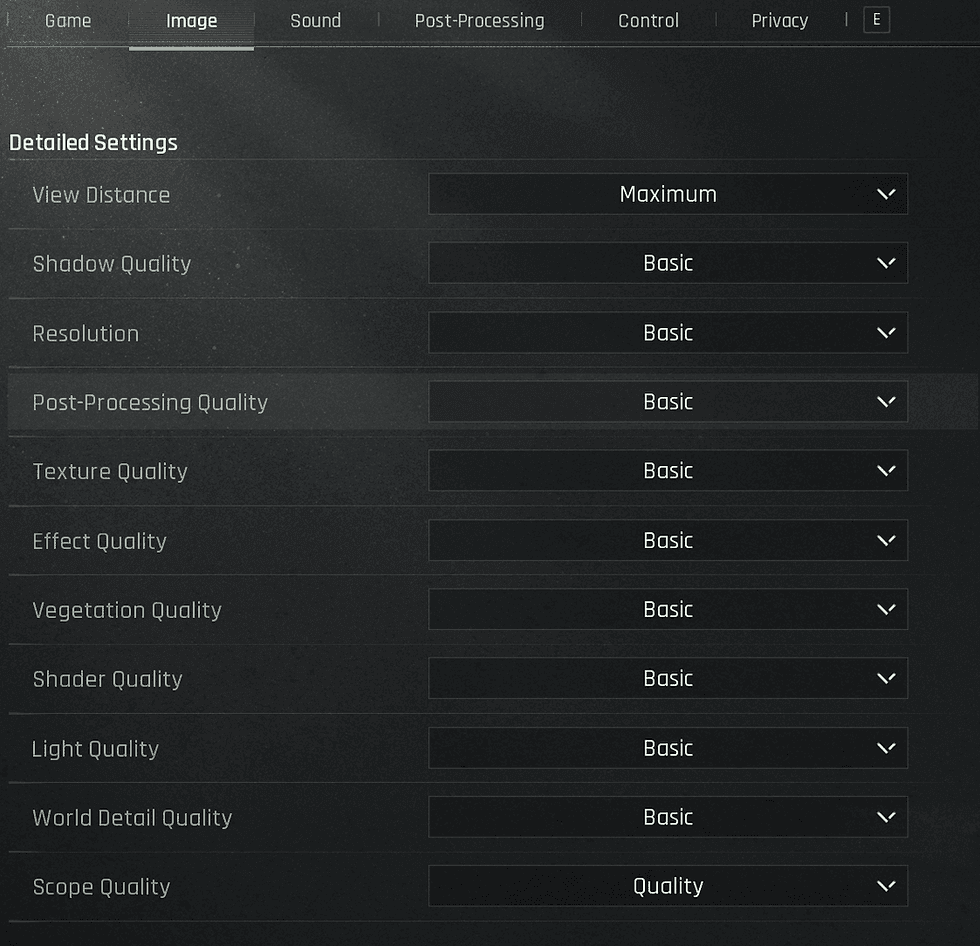
Safe mode isn't pretty – it'll set View Distance to Low, disable Post-Processing, and cap you at 30 FPS. But it gets you to the configuration menus where you can fix things properly.
Network Reset Protocol for Crash Recovery
Network issues can masquerade as game crashes, especially with the new anti-cheat being so paranoid about connections.
Windows users: open command prompt as administrator and run ipconfig /flushdns followed by ipconfig /renew.
Mobile: airplane mode toggle for 10 seconds does wonders.
Set your DNS to 8.8.8.8 and 8.8.4.4 – the 2025 update's anti-cheat has issues with some ISP DNS servers. And disable any VPN connections. The enhanced anti-cheat flags certain VPN configurations as suspicious.
Device-Specific Crash Solutions
iOS Arena Breakout Crash Fix (iPhone/iPad)
iOS users need to be running the latest version – the game requires iOS 14.0+ for stability, but honestly, anything older than iOS 15 is asking for trouble.
Clear cache by deleting and reinstalling, but make sure your iCloud backup is current first. You'll need 15GB+ available storage – the new graphics pipeline creates massive temporary files.
Disable Background App Refresh for everything except essential apps, and enable Low Power Mode during extended sessions. It sounds counterintuitive, but it prevents thermal throttling that triggers crashes.
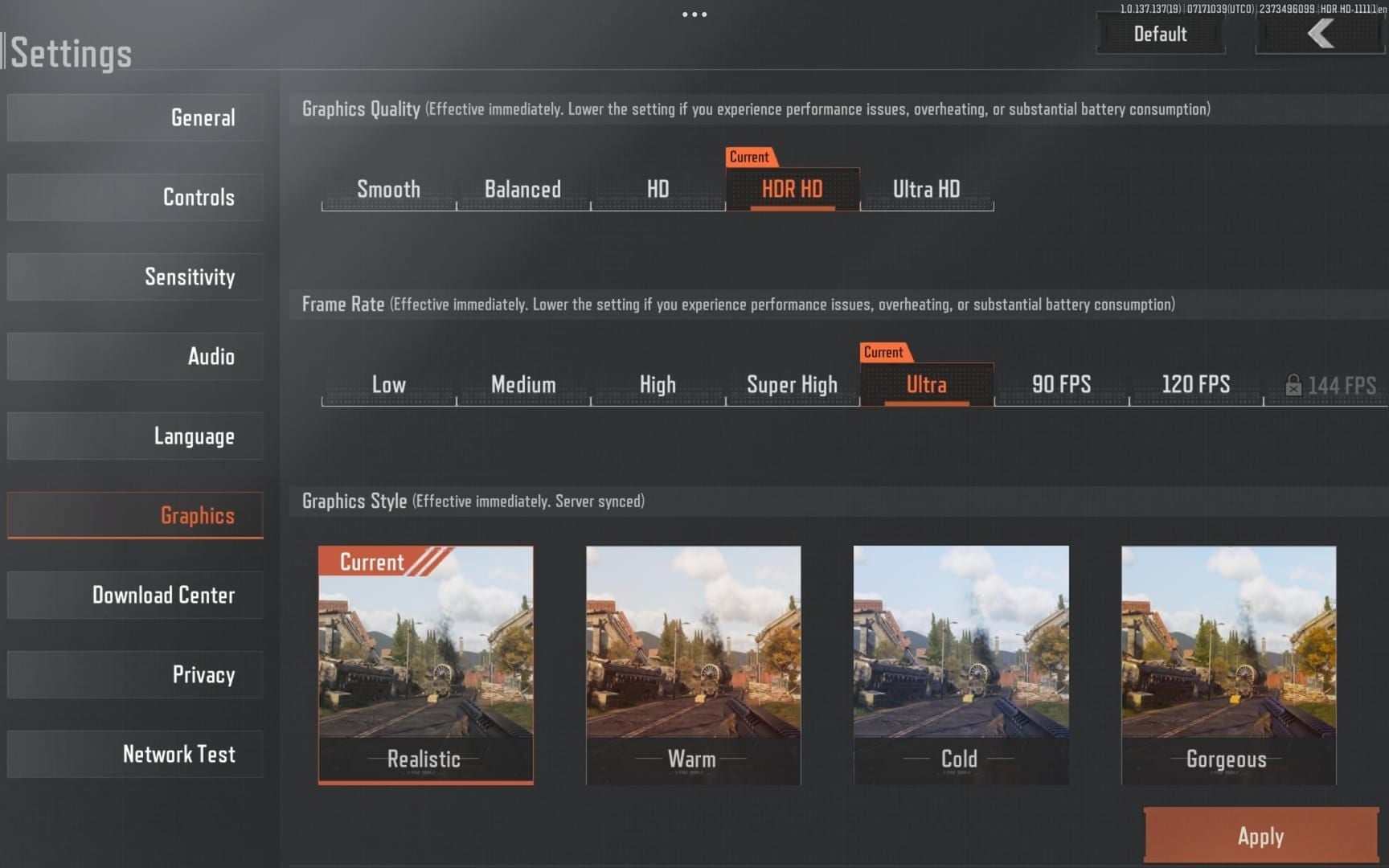
Graphics settings that work: View Distance Medium, Anti-Aliasing off if you've got less than 6GB RAM.
Android Arena Breakout Stability Optimization
Enable Developer Options (tap Build Number seven times), then force GPU rendering and disable hardware overlays. These settings bypass some of the problematic rendering paths.
Set Arena Breakout to Never in battery optimization settings. Android's aggressive power management will kill background processes the game needs.
Install a CPU temperature monitor. When temps hit 70°C, cap your frame rate immediately – thermal crashes are brutal and can corrupt save data.
PC Emulator Crash Troubleshooting
Emulator users need minimum 8GB RAM and 4 CPU cores allocated. No compromises here.
Enable virtualization technology (VT-x for Intel, AMD-V for AMD) in BIOS. Without it, you're fighting the hardware detection systems.
Disable Windows Defender real-time scanning for your emulator directories. The constant file access checks interfere with the anti-cheat initialization.
Need to keep your loadout competitive while troubleshooting? Top up Arena Breakout weapon mods secure transactions through BitTopup ensure you don't fall behind.
Graphics Settings Optimization to Prevent Crashes
Recommended Settings for Low-End Devices
If you're running older hardware, swallow your pride and use these settings:
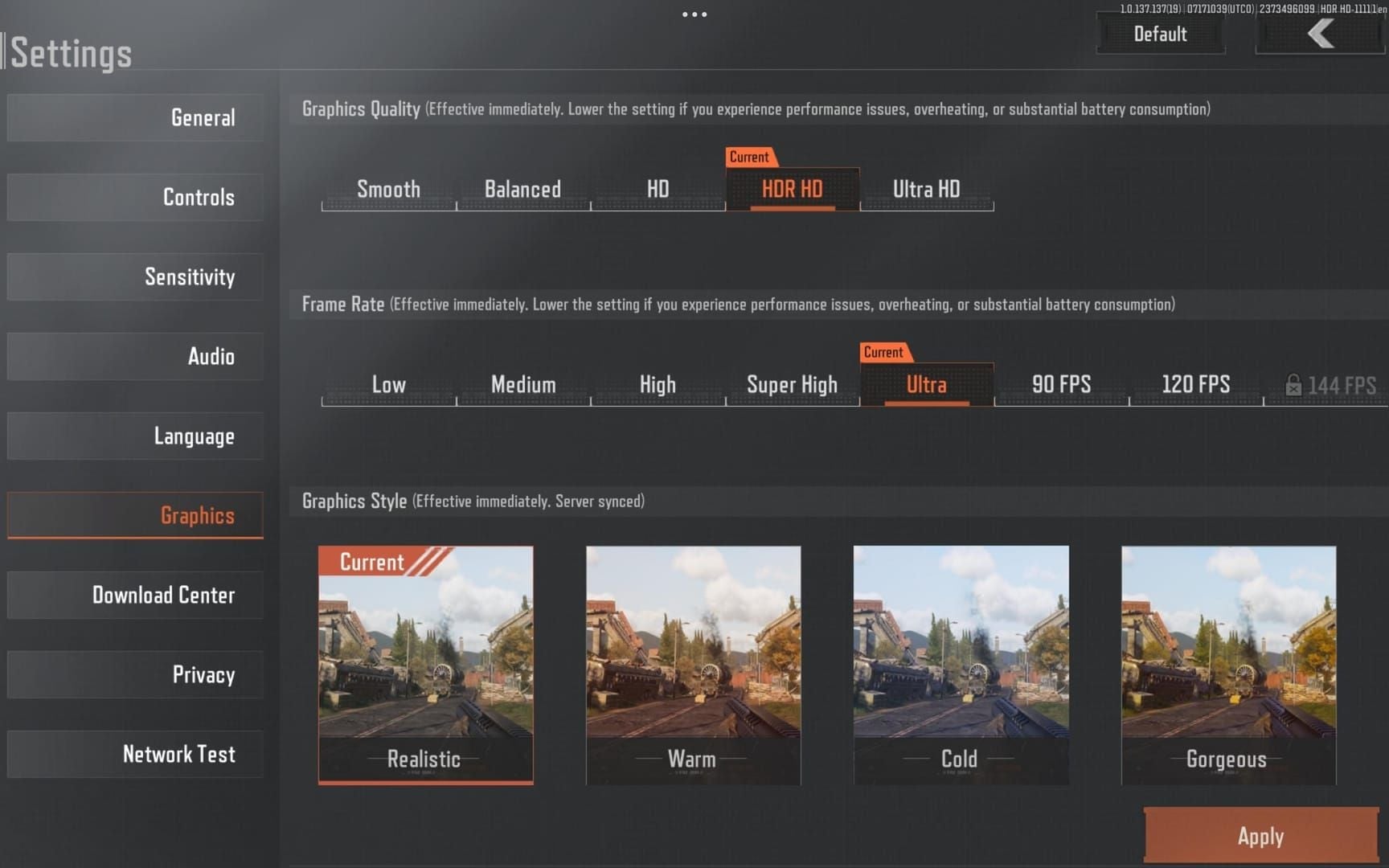
View Distance: Low (painful but necessary) Post-Processing: Low to Medium maximum DLSS/FSR: Disabled (they're causing more problems than they solve)
Cap at 30 FPS if you've got less than 6GB RAM. Enable V-Sync only if screen tearing is unbearable – it adds input lag but prevents some crash scenarios.
Texture Quality: Medium Shadow Quality: Low Dynamic lighting: Off Particle density: Minimum
Balanced Settings for Mid-Range Hardware
If you've got 16GB RAM and 6-8GB VRAM, you can push things a bit:
View Distance: Medium-High Anti-Aliasing: High (but monitor your VRAM usage) Post-Processing: Selective – enable what looks good, avoid motion blur and depth of field
Frame rate caps should be 2-3 FPS below your monitor's refresh rate. Set Texture Streaming to Balanced mode – it prevents VRAM spikes during map transitions.
High-Performance Settings Without Instability
Even with high-end hardware, the 2025 update has some quirks.
Enable Hardware-accelerated GPU scheduling in Windows Graphics Settings. Configure High Performance mode to force dedicated GPU usage – dual-GPU systems are having switching issues.
Disable all overlays. Steam, Discord, NVIDIA – they're all problematic right now.
Monitor GPU memory with MSI Afterburner and keep VRAM utilization below 85%. The new memory management is aggressive and doesn't handle pressure well.
Frame Rate Cap and V-Sync Configuration
Frame rate caps through in-game settings work better than external limiters – they're more compatible with the anti-cheat.
V-Sync should only be enabled for severe screen tearing. Otherwise, use adaptive caps: 60 FPS base, drop to 45 FPS during high-stress scenarios.
Monitor frame times with MSI Afterburner. Keep them under 16.67ms for consistent 60 FPS performance.
Advanced Troubleshooting: File Integrity and Cache Management
Complete Cache Clearing Process
Cache corruption is behind most error 7801113 instances. Delete the entire %AppData%\Local\ArenaBreakoutLauncher\ folder – don't just clear it, nuke it completely.
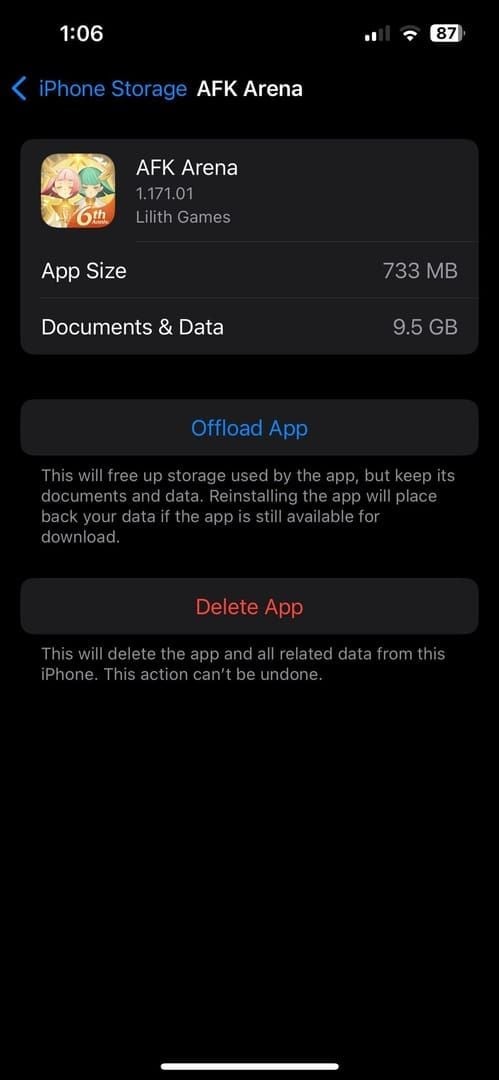
Mobile users: clear application cache first, then do a complete data reset while preserving account credentials.
Restart your device after clearing cache. When reinstalling, use a non-default path like C:\Games\ArenaBreakoutInfinite to avoid conflicts with previous installations.
Game File Verification Methods
Steam users have it easy: Properties > Local Files > Verify Integrity.
Non-Steam installations require manual verification. Compare file sizes and dates against known good installations.
Run sfc /scannow followed by dism /online /cleanup-image /restorehealth to fix system file corruption. Check Task Manager and terminate any lingering ACE processes before verification.
Corrupted Data Identification and Repair
Error 154140716 means integrity check failures. The game files are corrupted and need repair.
For Anti-Cheat issues: navigate to Steam > Browse Local Files > ABInfinite > Binaries > Win64 > AntiCheatExpert, then run ACE-Setup64 with administrator privileges.
ACE conflicts require nuclear options: uninstall all existing ACE installations, manually delete ACE-BASE.sys, ace-game.sys, and ace-game-0.sys from C:\Windows\System32\drivers, then reinstall fresh.
Storage Space Optimization
The enhanced graphics pipeline creates massive temporary files. You need minimum 100GB free storage – not total space, free space.
Use Windows Disk Cleanup focusing on system temporary files, browser cache, and Windows Update cleanup. Defragment traditional drives monthly, enable TRIM for SSDs.
Monitor real-time storage usage during gameplay. The new shader compilation system can eat 20-30GB during initial setup.
Network Configuration Impact on Crashes
DNS Settings Adjustment for Stability
Unstable DNS causes network-related crashes during matchmaking. Configure reliable DNS servers (8.8.8.8 or 1.1.1.1) to prevent authentication timeouts.
Flush DNS cache regularly with ipconfig /flushdns. Consider DNS-over-HTTPS to bypass ISP filtering that interferes with anti-cheat verification.
DNS query response times should stay under 50ms. Anything higher causes matchmaking instability.
WiFi vs Mobile Data Performance Comparison
WiFi provides superior stability with consistent bandwidth allocation and lower latency variance. Configure 5GHz bands to avoid congested 2.4GHz frequencies.
Disable network adapter power saving modes – they cause connection drops that the anti-cheat interprets as suspicious behavior.
Target packet loss under 0.1% and latency under 100ms for stable operation.
VPN Usage and Crash Correlation
VPNs are crash magnets with the new anti-cheat. The enhanced authentication systems flag VPN connections as potential cheating attempts.
Disable VPNs completely during gameplay. If you absolutely need one for other applications, configure split-tunneling to route game traffic directly through your ISP connection.
Device-Specific Advanced Solutions
iOS-Specific Cache and Memory Management
iOS restrictions require creative approaches. Clear Arena Breakout cache through Settings > General > iPhone Storage > Arena Breakout > Offload App, then reinstall while preserving documents and data.
Enable Reduce Motion in Accessibility settings to reduce graphics processing overhead. Configure automatic memory management by closing background apps before launching.
Android Performance Optimization
Enable Force 4x MSAA in Developer Options for consistent anti-aliasing. Set Background process limit to 2-3 processes maximum.
Configure Aggressive battery optimization for all apps except Arena Breakout. Install thermal monitoring apps and maintain temperatures below 75°C during gameplay.
PC Emulator Advanced Configuration
BlueStacks users: enable Prefer dedicated computer graphics in settings, allocate maximum available CPU cores, enable High frame rate mode.
LDPlayer requires specific tweaks: disable Root access, enable VT virtualization, configure High graphics rendering mode.
FAQ
Why does Arena Breakout crash infinitely after the 2025 update? ACE anti-cheat driver conflicts in C:\Windows\System32\drivers, cache corruption in %AppData%\Local\ArenaBreakoutLauncher, and insufficient system resources. The update requires 16GB RAM minimum and 6GB VRAM for stable operation.
How do I fix screen flickering in Arena Breakout? Set View Distance to Low, disable DLSS/FSR upscaling, enable V-Sync only for severe screen tearing, use Fullscreen Mode. Disable Steam/Discord/NVIDIA overlays and enable Hardware-accelerated GPU scheduling in Windows Graphics Settings.
What causes Arena Breakout to freeze on loading screen? ACE anti-cheat initialization failures (errors 1400006, 554696704), insufficient VRAM on 4GB graphics cards, or corrupted cache files. Run ACE-Setup64 as administrator and clear the launcher cache folder completely.
Can I recover loot if Arena Breakout crashes during extraction? Pre-raid equipped items return automatically, but acquired loot may be lost depending on crash timing. Reconnect immediately after resolving the crash – there's a brief reconnection window for maximum recovery chances.
What graphics settings prevent Arena Breakout crashes? View Distance Medium-High, Anti-Aliasing High, Post-Processing Low on Light/Shadows, FPS caps 2-3 below refresh rate, motion blur disabled. Keep GPU memory usage below 85% capacity and enable dedicated GPU mode for dual-GPU systems.
Does clearing cache fix Arena Breakout infinite crashes? Yes, deleting %AppData%\Local\ArenaBreakoutLauncher\ resolves cache corruption causing error 7801113. Follow with a complete device restart and reinstall to C:\Games\ArenaBreakoutInfinite for optimal results.
Don't let technical issues derail your Arena Breakout progress! While you're working through these fixes, keep your account competitive with instant Koen top-ups from BitTopup. Secure transactions, instant delivery, and 24/7 support mean you'll never miss an extraction opportunity. Top up now and stay raid-ready!