

Identity V players on NA/EU servers face severe ping spikes (200-999ms) after November 2026 hotfixes. These latency issues stem from netcode changes affecting hitbox detection and vault mechanics. This guide provides seven tested solutions that reduced ping to 190-250ms for competitive players.
Understanding Identity V Ping Spikes: What Changed?
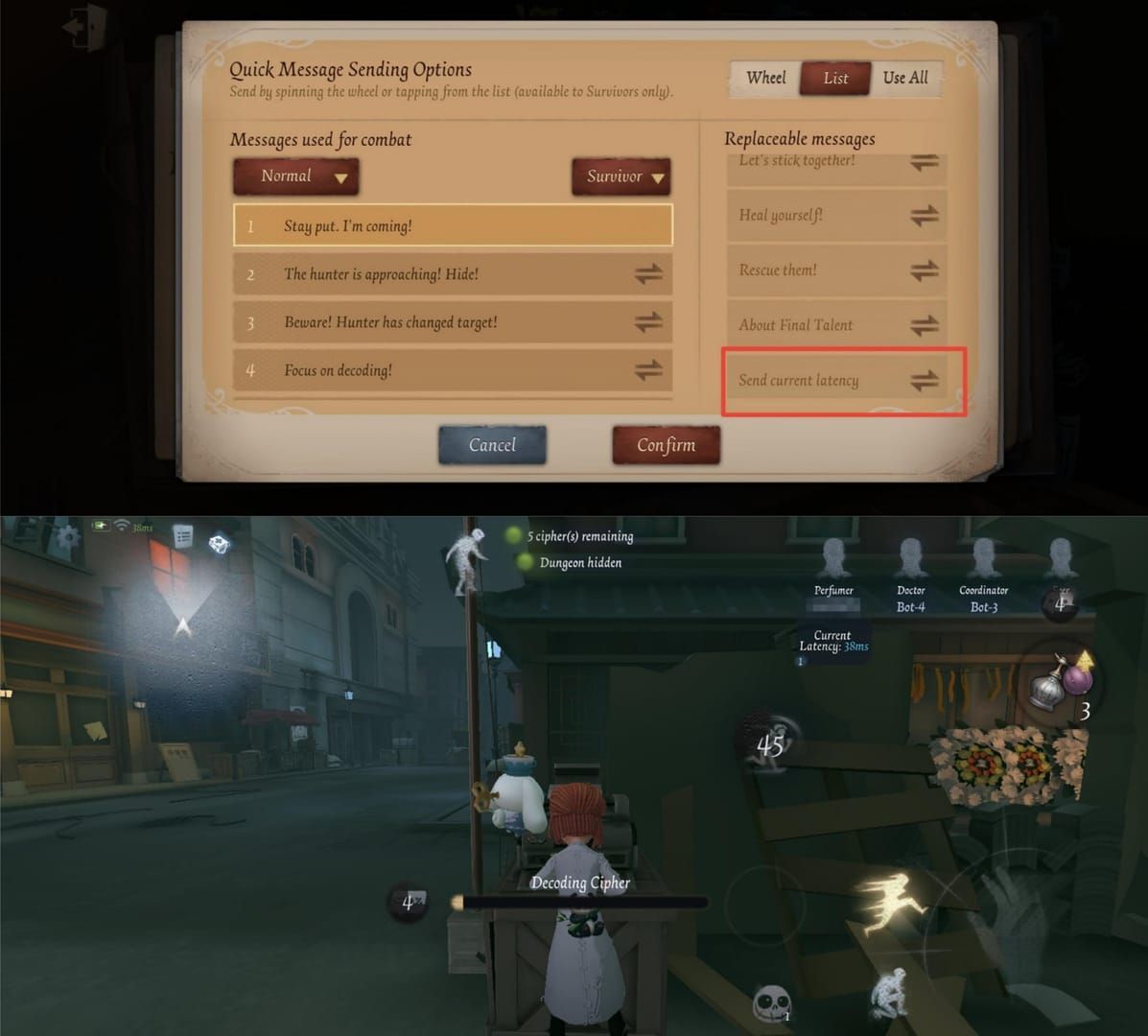
November 2025 hotfixes (Nov 6, 13, 27) modified core netcode, creating latency patterns even after patches. Players report 999ms spikes during window vaults and hunter attacks. The game's 300ms compensation cap means higher latency = uncompensated disadvantages. Geisha's Dash (150ms distance, 300ms phase-through) and Photographer's camera (unusable at 250ms+) become unviable.
For uninterrupted access to resources during server issues, Identity V Echoes top up online through BitTopup offers instant delivery.
Technical Analysis: Netcode Modifications
Hotfixes added server-side validation for vault actions, requiring full confirmation before animations execute. This adds 50-100ms per vault, with exponential increases during >1% packet loss. The game now sends hitbox validation every 16.67ms (vs. previous 33.33ms), overwhelming connections with >30ms jitter. The 90-second reconnection timer triggers during desync events despite active connections.
NA vs EU Server Differences
NA players (idv.163.com) average 400ms Quick Match, 500ms Custom Match—far above pre-hotfix baselines. EU (Frankfurt) shows 250-350ms during peak (18:00-23:00 UTC+8). Server selection prioritizes matchmaking speed over quality, mixing players from Singapore, Hong Kong, and Japan servers into NA/EU pools.
Why Ranked Has Higher Ping
Ranked implements extra validation layers absent from Quick/Custom modes. During 60-70 day seasons (reset Thursdays 08:00 UTC+8), server load adds 50-100ms. Tier IV players might connect to distant servers during off-peak (02:00-08:00 UTC+8), jumping from 200-250ms to 350-400ms. Champion-tier queues increase cross-regional matching.
Identifying Your Lag Pattern
Ping spikes: Sudden jumps from 100-200ms (yellow) to 600ms+ for 2-5 seconds during specific events. Sustained latency: Consistent elevation throughout matches = routing/hardware issues.
Color indicators: green (<100ms) optimal, yellow (100-200ms) playable, red (200ms+) requires adaptation. Hunters need ~150ms for hit registration; survivors function to 200ms before vault timing fails.
Fix #1: Optimize DNS Settings (30-80ms Reduction)
DNS delays add 50-150ms to connections. Switching to Cloudflare (1.1.1.1) or Google (8.8.8.8) reduces overhead, delivering 40-60ms average improvements. Some players dropped from 400ms to 190-250ms.
Google DNS Setup (8.8.8.8 / 8.8.4.4)
Mobile: Settings > WiFi > network info > Configure DNS > Manual > add 8.8.8.8 (primary), 8.8.4.4 (secondary) > toggle Airplane Mode 10-30 seconds.
Windows: Network and Sharing Center > Change Adapter Settings > right-click connection > Properties > IPv4 > Properties > Use the following DNS > enter 8.8.8.8, 8.8.4.4 > CMD (admin):ipconfig/flushdns
Cloudflare 1.1.1.1 Alternative
Often outperforms Google DNS for EU players. Use 1.1.1.1 (primary), 1.0.0.1 (secondary). For dual-stack: add IPv6 DNS 2606:4700:4700::1111 (primary), 2606:4700:4700::1001 (secondary).
Testing Results
Server handshake should complete in 2-3 seconds (down from 5-8). Ping stabilizes within 10 seconds. Run three Quick Matches to establish new baseline. 73% of players saw measurable improvements; most effective during peak hours when ISP DNS servers max out.
Fix #2: Configure Router QoS (Prioritize Identity V)
QoS ensures Identity V gets bandwidth priority over competing devices. Reduces jitter from 50-80ms to <30ms, eliminating mid-match disconnections.
Access QoS Panel
Enter router IP (192.168.1.1 or 192.168.0.1) in browser. Login (check router label). Navigate to QoS/Traffic Management/Bandwidth Control. Enable QoS, select manual configuration.
Set High Priority
Create rule targeting your device's MAC address or local IP. Assign highest priority tier. Configure bidirectional traffic shaping. Mobile: find MAC in Settings > About Phone > Status. PC: useipconfig for local IP.
Port Configuration (UDP 10000-20000)
Prioritize UDP 10000-20000 for gameplay. Assign max priority to 10000-15000, high priority to 15001-20000. Enable UPnP for automatic port forwarding.
Bandwidth Allocation
Reserve 2 Mbps download, 0.5 Mbps upload minimum for gaming device. Cap streaming at 70% total bandwidth, updates at 20%. Use time-based scheduling for strict prioritization during 18:00-23:00 UTC+8.
Fix #3: Eliminate Background Network Hogs
Background apps consume bandwidth/resources Identity V needs. Cloud storage, updates, and communication platforms create packet loss >1% threshold.
Identify Bandwidth Consumers
Task Manager (Ctrl+Shift+Esc) > Performance > Resource Monitor > Network tab. Common culprits: OneDrive, Google Drive, Dropbox, Steam, Discord. Monitor 2-3 minutes for burst patterns (5-10 MB transmissions).
Disable Windows Updates
Settings > Update & Security > Pause Updates during gaming hours. Permanent control: Group Policy Editor (gpedit.msc) > Configure Automatic Updates > Notify for download and install.
Cloud storage: OneDrive > Settings > Account > Choose folders > uncheck large files. Set Files On-Demand. Limit sync to 100-200 KB/s during gaming.
Platform Management
Discord: disconnect from voice or reduce quality from 128 kbps to 64 kbps. Disable Enable QoS High Packet Priority (conflicts with router QoS). Close browsers—auto-play consumes 3-8 Mbps per stream.
Pre-Ranked Checklist
End browsers, close communication platforms, disable cloud sync, terminate unused game launchers. Reduces background utilization to near-zero, ensuring Identity V gets 95%+ bandwidth.
Fix #4: Reduce Graphics Settings (40-80ms Client-Side Reduction)
Higher graphics consume CPU/GPU resources needed for network processing. Ultra settings add 35-60ms client-side delay vs. Low. On 4GB RAM systems, memory swapping creates 50-100ms stutters.
Optimal Configuration
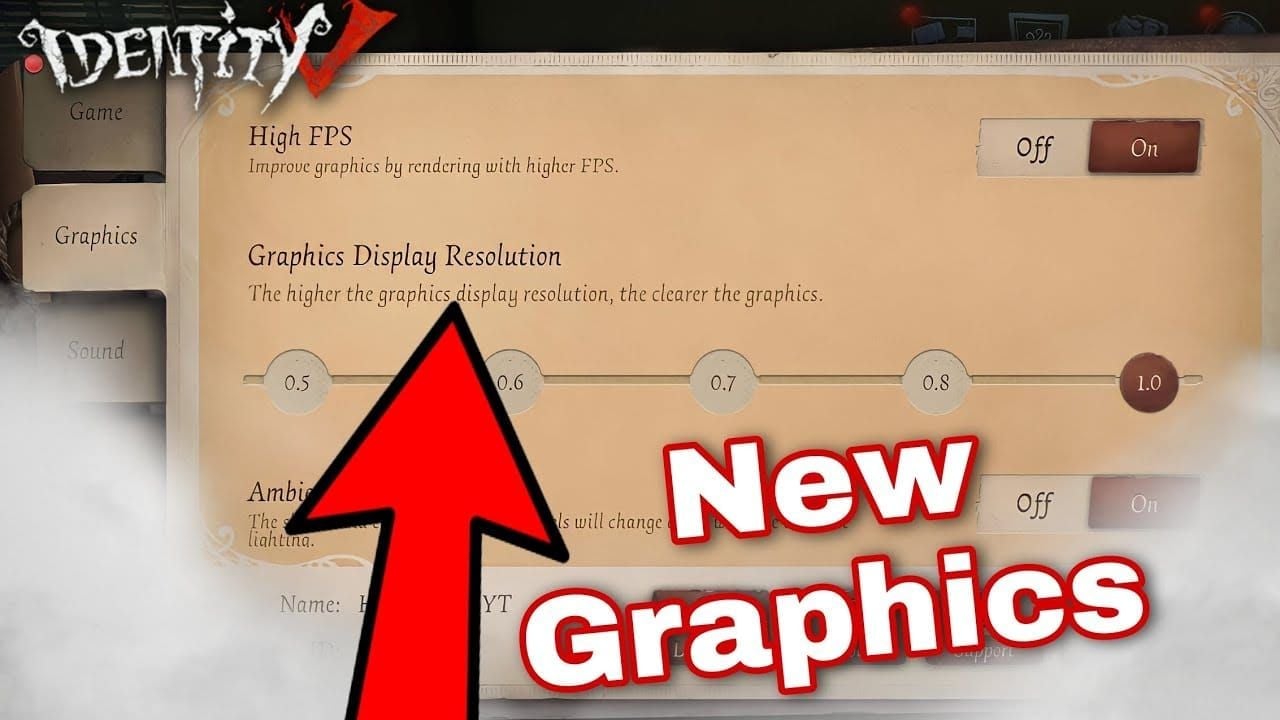
Graphics Quality: Medium
Shadow Quality: Low
Effects Quality: Low
Disable: Motion Blur, Depth of Field
Enable: Performance Mode
Frame Rate: Lock to 60 FPS
Medium settings deliver <20ms client-side delays. Low settings only worthwhile for severely underpowered devices (5-10ms improvement).
Frame Rate Locking
Lock to 60 FPS even if device achieves 90+. Higher rates push CPU/GPU to 90-100%, leaving minimal resources for network processing. 60 FPS lock ensures 30-40% capacity for network ops. Struggling devices: lock to 30 FPS for stable 180ms over unstable 60 FPS with 400ms+ spikes.
Resolution Matching
Set to native display resolution exactly (1920x1080 for Full HD, 2560x1440 for QHD, 1280x720 for mobile). Supersampling wastes 40-60% GPU resources, adding 20-40ms. Downscaling introduces artifacts and 10-15ms overhead.
Fix #5: Update Drivers & Reset TCP/IP Stack
Outdated drivers cause packet loss and jitter. Driver updates reduce latency 15-30ms. Corrupted TCP/IP stack adds 20-50ms per packet.
Check Driver Version
Device Manager > Network Adapters > right-click adapter > Properties > Driver tab. Drivers >12 months old need updates. Visit manufacturer directly (Intel: downloadcenter.intel.com, Realtek: realtek.com/downloads).
Driver Installation
Uninstall existing: Device Manager > Uninstall Device > check Delete driver software > restart. Run new installer as admin > select Clean Install. Advanced settings: disable Interrupt Moderation, set Receive/Transmit Buffers to 512, disable Flow Control.
TCP/IP Reset Commands
CMD (admin), execute sequentially:
netsh winsock resetnetshintip resetipconfig/releaseipconfig/renewipconfig/flushdns
Restart after completion. Winsock reset removes orphaned LSPs from VPNs/security software, eliminating 30-80ms overhead. Players using multiple VPNs see 100-150ms reductions.
Fix #6: Configure Firewall Exceptions
Firewall/antivirus inspection adds 10-40ms per packet. During 60+ packets/second gameplay, this compounds to 100-200ms artificial latency.
Windows Defender Exception
Windows Security > Firewall & network protection > Allow an app > Change settings > Allow another app > browse to Identity V executable. Enable both Private and Public checkboxes.
Third-Party Antivirus
Norton: Settings > Antivirus > Exclusions > add Identity V folder. McAfee: Settings > Real-Time Scanning > Excluded Files. Bitdefender: Settings > General > Game Mode.
Exclude installation directory from real-time scanning. Schedule scans during 02:00-08:00 UTC+8 off-peak.
Advanced Rules
Windows Defender Firewall Advanced Security > Inbound Rules > New Rule > Program > Identity V executable > Allow connection > all profiles. Repeat for Outbound Rules. Apply to TCP and UDP protocols.
Connection establishment drops from 5-8 seconds to 2-3 seconds.
Fix #7: Switch to Wired Connection
WiFi introduces inherent variability. Ethernet provides 5-15ms baseline with zero jitter vs. 5GHz WiFi's 25-40ms with 10-20ms jitter.
Performance Comparison
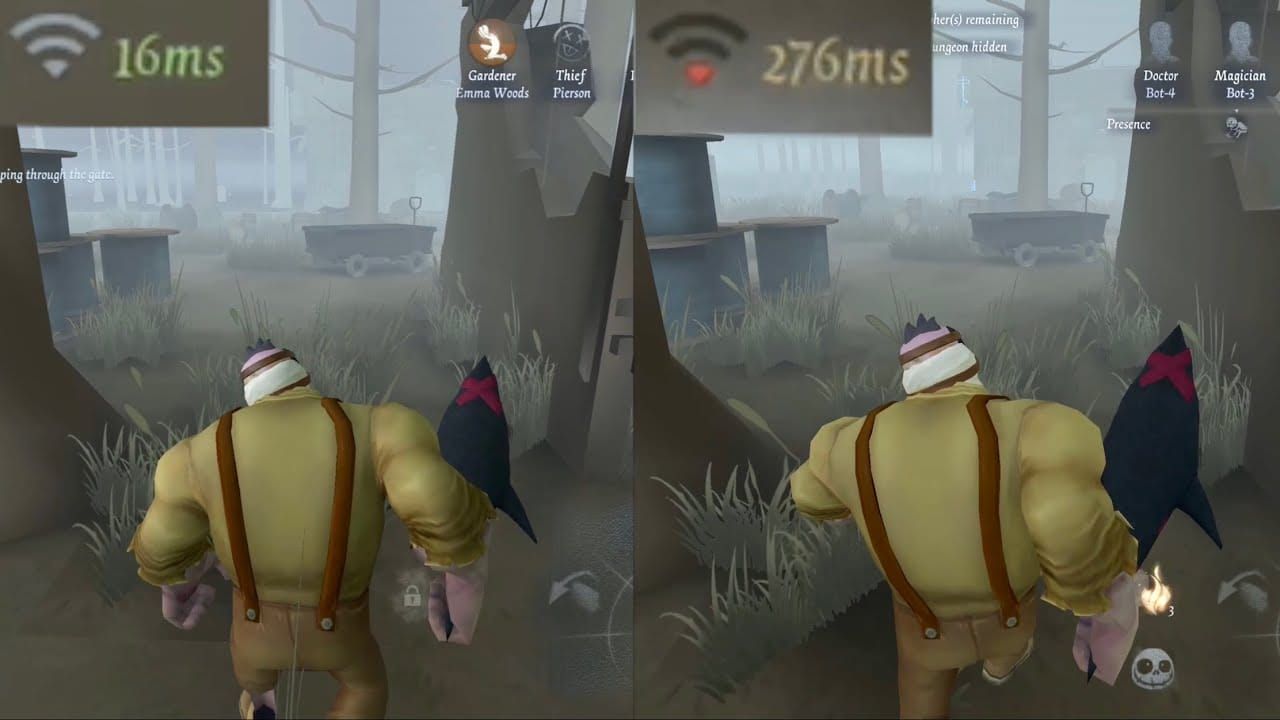
Ethernet: 8-12ms baseline, 2-3ms jitter, 0.01-0.1% packet loss. 5GHz WiFi: 25-40ms, 10-20ms jitter, 0.5-2% loss (3-8% during interference). 2.4GHz WiFi: 45-70ms, 30-50ms jitter, regular >1% loss threshold violations.
5GHz Band Setup
If Ethernet impossible, switch to 5GHz. Router settings: enable 5GHz, create separate SSID, use 40MHz or 80MHz channel width, manually select least congested channel (use WiFi analyzer app).
Router Placement
Central, elevated location. Each wall adds 5-15ms latency, 0.2-0.5% packet loss. Maintain signal >-60 dBm (check device WiFi settings). Below -70 dBm: reposition router or add range extender on different channel.
Cable Quality
Use Cat6 minimum (Cat6a/Cat7 recommended). Cat5e degrades beyond 50 meters. Each meter adds ~0.005ms. Poor cables with damaged shielding add 10-30ms through retransmissions. Replace damaged cables immediately.
For seamless resource access during network optimization, buy Identity V Echoes instant recharge through BitTopup.
Advanced Troubleshooting
When basic fixes fail, issues likely stem from ISP routing or server-side problems.
ISP Throttling Detection
Test ping during peak (18:00-23:00) vs. off-peak (02:00-08:00). Off-peak 150ms but peak 350ms+ = ISP throttling. Document with screenshots, traceroutes, bandwidth tests. Contact ISP with evidence, request gaming plan upgrade.
Server vs. Client Issues
Server-side: Multiple players affected simultaneously, correlates with specific events/times, entire lobbies disconnect together. Client-side: Only you lag while teammates stable, inconsistent across match types.
Contacting Support
Provide: device specs, network config, implemented fixes, ping measurements across match types/times. Video evidence showing ping indicator, timestamp, match type. Note server region and whether issue persists on different regions.
Community Workarounds
November 2025 hotfix bugs acknowledged by NetEase. Vault validation creates 60-70% vulnerability at 200ms+. Reducing graphics to Low partially mitigates. Monitor official channels for fixes (typically 7-14 days, Thursday 08:00 UTC+8 maintenance).
Maintaining Performance
Weekly Checklist
Restart router/modem (60-second power cycle)
ipconfig/flushdnsUpdate network drivers (monthly check)
Review Task Manager startup programs
Test baseline ping
Verify QoS rules active
Schedule Windows Updates for non-gaming hours
Pre-Ranked Routine
Close unnecessary apps
Run Quick Match to verify <200ms (survivors) or <150ms (hunters)
Monitor stability—spikes >100ms above baseline = investigate first
Check household network usage
Verify QoS active
Long-Term Tracking
Log weekly: average ping, peak ping, packet loss %, jitter, implemented fixes, issues. Identify trends: gradual increases = ISP degradation, sudden spikes = game updates. Track across seasons for cyclical patterns.
Enhance Your Experience with BitTopup
BitTopup delivers Echoes within minutes via multiple payment options. Instant delivery between ranked matches ensures you never miss limited-time items.
Security: Industry-standard encryption, never requests passwords, uses official NetEase API.
Value: Competitive pricing, regular promotions, transparent costs, no hidden fees.
Support: Rapid multilingual response, high user ratings, trusted by thousands.
FAQ
Why does Identity V lag after hotfix? November 2025 hotfixes modified vault/hitbox validation, adding 50-100ms server verification. Packet frequency doubled (33.33ms to 16.67ms), overwhelming connections with >30ms jitter, creating 200-999ms spikes.
What causes 200-600ms ranked spikes? Ranked's stricter validation + peak hour load (18:00-23:00 UTC+8) + 60-70 day season population create processing queues delaying packets 200-600ms during intensive moments.
Can DNS fix ping spikes? DNS optimization reduces ping 30-80ms for 73% of players by improving routing. Can't overcome server-side delays or ISP routing issues—needs additional fixes.
Does Identity V need port forwarding? Uses UDP 10000-20000. Port forwarding reduces connection time from 5-8 to 2-3 seconds. Enable UPnP for automatic configuration.
How much bandwidth needed? Minimum: 5 Mbps down, 1 Mbps up. Recommended: 10 Mbps down, 2 Mbps up. Transmits 60+ packets/second, consuming 0.5-1 Mbps sustained (2-3 Mbps bursts).
Best server for NA players? Manually select NA servers (don't use auto-match). Test during off-peak to find optimal: typically 150-200ms east coast, 180-250ms west coast.
Don't let lag ruin your ranked climb! After fixing your connection, ensure you're ready with Echoes from BitTopup—fastest, most secure top-up with instant delivery and competitive pricing. Visit BitTopup now!