

New season updates in Honor of Kings often crash FPS from 60 to 25-40 during teamfights due to particle overload and rendering stress. This guide provides proven fixes—disabling Dynamic Resolution for 15-25% FPS gains, adjusting particle effects for 20-30% improvements, and network tweaks reducing latency by 30-50%.
Understanding Performance Issues After Updates
Honor of Kings lag after new season update manifests as frame drops and stuttering, especially during teamfights where FPS plummets from 60 to 25-40. Updates introduce new skins, enhanced effects, map modifications, and expanded assets that strain device resources. The IRX update (June 21, 2026) added 120 FPS support, fundamentally altering performance baselines.
For uninterrupted purchases during lag, use Honor of Kings tokens top up through BitTopup for instant, secure transactions.
What Causes FPS Drops
Post-update issues stem from:
Increased asset loading (hundreds of MB of new visuals)
Optimization bugs in new code
Memory management inefficiencies
Each update adds content requiring simultaneous management with existing assets, creating bottlenecks. Memory leaks gradually consume RAM during extended sessions, triggering system throttling.
Network Lag vs Graphics Stutter
Network lag: Delayed inputs, teleporting heroes, skills activating late. Check ping—green (<50ms optimal), yellow (50-100ms playable), red (>100ms significant lag).
Graphics stutter: Choppy visuals, frozen frames, inconsistent pacing even with immediate input response. Occurs independently of network status.
Why Teamfights Destroy Performance
Teamfights activate 300-500 particles simultaneously as ten heroes unleash skills. Solo laning renders 50-100 particles with 55+ FPS, but 5v5 engagements overwhelm rendering pipelines. Each skill generates multiple particle layers—trails, impacts, AOE indicators, status effects—calculated 60 times per second. Five heroes per team using ultimates simultaneously spike particle counts beyond mid-range device capabilities, causing 40-50% FPS drops.
New Season Content Impact
New seasons add:
Ranked resets
Exclusive skins with enhanced effects
Map terrain modifications
Additional game modes
Enhanced skins feature complex animations, higher-res textures, and more particles. Map updates include dynamic water, improved lighting, weather effects—continuously consuming GPU resources. Devices maintaining stable 60 FPS may struggle to reach 45 FPS post-update.
Technical Breakdown: Teamfight FPS Drops
Particle Effect Overload
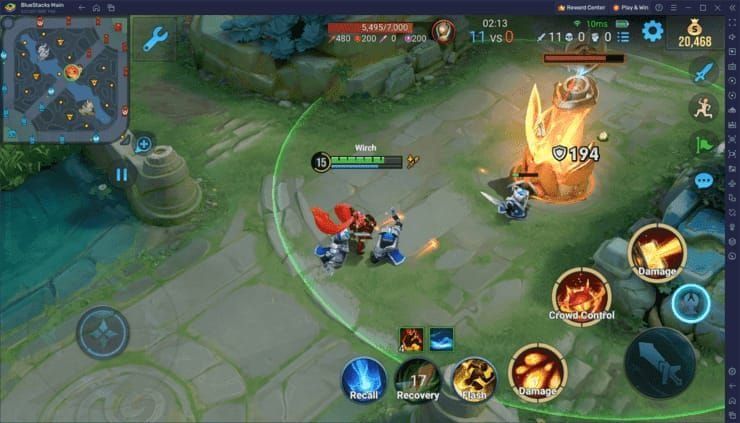
Particle systems use dynamic rendering adjusting for screen density and device capability. During teamfights, 300-500 simultaneous effects exceed scaling ability. Each particle requires physics calculations, collision detection, transparency blending, lighting interactions. Mid-range GPUs hit computational ceiling, forcing frame drops or quality reduction. Disabling Dynamic Resolution improves FPS 15-25% by preventing automatic adjustments that consume processing resources.
Animation Rendering Challenges
Each hero runs multiple animation layers: base movement, skill casting, status overlays, equipment effects. Teamfights render ten heroes with 3-5 layers each—30-50 concurrent animations requiring skeletal calculations and texture mapping. Dynamic shadows compound this, recalculating position/shape every frame. Shadow Quality Low reduces rendering 10-15% without noticeable quality loss during fast action.
Memory Management
Honor of Kings pre-loads hero models, skill effects, map assets into RAM—consuming 2-4GB during extended sessions. Teamfights trigger additional high-res texture loading, potentially exceeding available RAM. When limits hit, OS forces background process closure or swaps data to slower storage, causing freezes and FPS drops. Clearing cache frees 500MB-2GB, allowing optimized cache rebuilding. Maintain 4-6GB free storage for dynamic loading without system intervention.
Device Processing Limits
Mobile processors use thermal throttling to prevent overheating, reducing clock speeds when temperature exceeds safe thresholds. Intense teamfights generate heat—above 40°C triggers 20-40% throttling, directly causing FPS drops. Optimal temperature below 35°C maintains max clock speeds. Battery below 50% activates power-saving modes limiting processor speeds. Keep battery above 50% before ranked matches.
Immediate In-Game Settings Fixes
Optimal Graphics Quality (Step-by-Step)
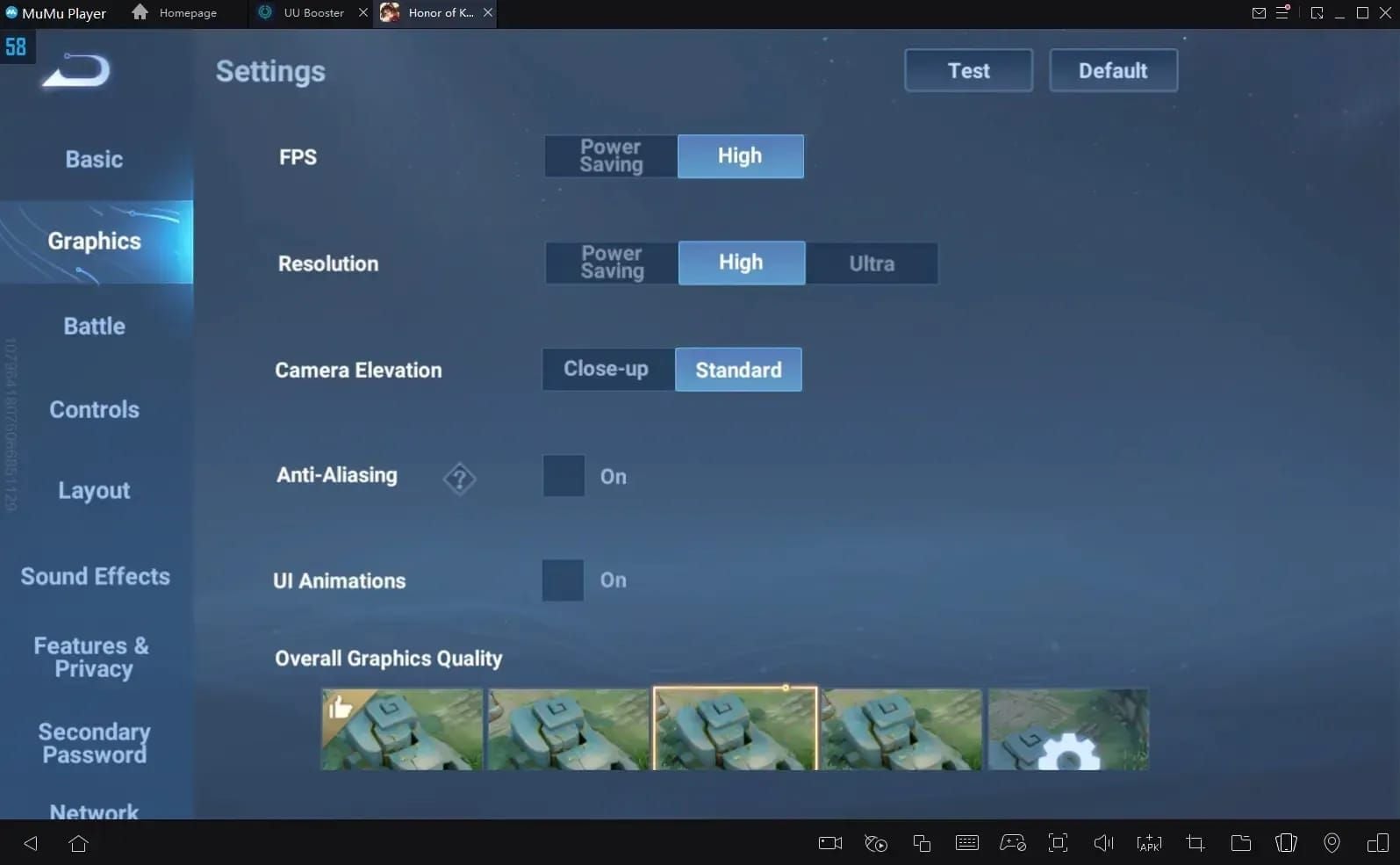
Open Settings > Graphics
Set Graphics Quality to Medium (4-6GB RAM devices) or Low (2-4GB RAM)
This auto-scales texture resolution and model complexity
Medium maintains hero details and readable effects while reducing rendering 25-35% vs High/Ultra HD. Low prioritizes frame stability over visuals.
Display Settings for Maximum FPS
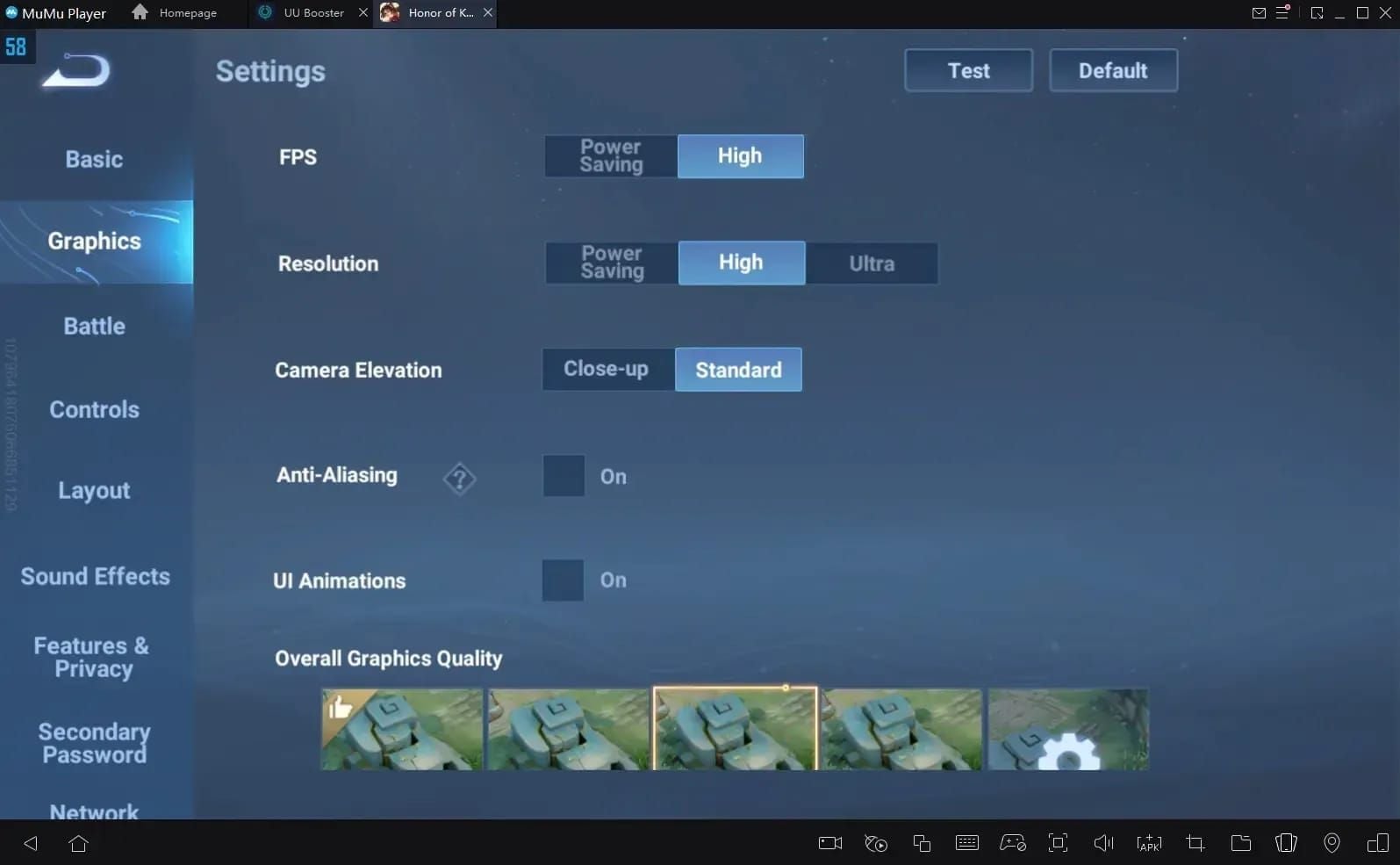
Settings > Display/Battle Settings
Lock FPS at 30 or 60 based on device—avoid Auto
Toggle off Dynamic Resolution in Graphics advanced settings
Enable Display FPS for real-time monitoring
Disabling Dynamic Resolution delivers 15-25% FPS improvement by eliminating constant resolution scaling overhead.
For seamless purchases, buy Honor of Kings tokens instant recharge through BitTopup.
High Frame Rate Mode Usage
60 FPS Mode: Snapdragon 8 series, Apple A14+, equivalent processors with 6GB+ RAM 120 FPS Mode: Latest-gen gaming phones only 30 FPS Mode: Budget/mid-range devices for consistent pacing
Forcing 60 FPS on mid-range devices causes worse teamfight lag—frequent drops to 25-30 FPS vs stable 30 FPS.
Particle Effects and Role Outline
Medium Particle Effects: 20-30% FPS improvement on mid-range devices, maintains skill indicators Low Particle Effects: Max performance, basic shapes and reduced counts Role Outline: Disable or reduce prominence to free GPU resources
Camera and Interface
Higher camera angles reduce foreground environmental details, slightly improving jungle performance. Interface Opacity 70-80% ensures critical info visibility during frame drops.
Device-Level Optimization
iOS Checklist
Close background apps (double-tap home, swipe away)
Disable Background App Refresh (Settings > General)
Avoid Low Power Mode (throttles 40%)
Restart before sessions
Maintain 4-6GB free storage
Safari tabs consume 100-300MB each—close before gaming.
Android System Settings
Enable Game Mode/Performance Mode (Samsung Game Launcher, Xiaomi Game Turbo)
Developer Options: No background processes
Disable Animations: Window/Transition/Animator scale to 0.5x or off
Clear RAM before launching
Enable Do Not Disturb
4GB RAM or less devices need aggressive background management.
Background App Management
Close all apps before launching
Disable automatic updates during sessions
Turn off cloud sync (Google Photos, iCloud, Dropbox)
Exit messaging apps
Disable VPN unless required
Ensure battery above 50%—most devices activate power-saving below this. Monitor temperature—charging while gaming can exceed 40°C throttling threshold.
Storage Requirements
Honor of Kings needs 4-6GB free: base game (3-4GB), cache (500MB-2GB), system overhead. Insufficient storage causes:
Slow asset loading, delayed textures
Update failures (need 1-2GB temporary space)
System slowdown (<10% free storage)
Clear cache monthly: Settings > Storage > Honor of Kings > Clear Cache (frees 500MB-2GB).
Advanced Troubleshooting
Clear Cache Properly
iOS:
Settings > General > iPhone Storage
Locate Honor of Kings
Offload App (preserves data)
Reinstall from App Store
Log in—settings/progress intact
Android:
Settings > Apps > Honor of Kings
Storage > Clear Cache (NOT Clear Data)
Restart device
Launch normally
Frees 500MB-2GB, forces optimized cache rebuild.
Game Client Repair
Launch game > Settings
Repair Client or Resource Verification
Initiate verification (scans for corruption)
Download/replace corrupted assets (100-500MB)
Restart after completion
Resolves localized FPS drops with specific heroes.
Reinstall vs Optimize
Reinstall when:
Cache clearing/repair fail
Frequent crashes during loading/teamfights
Visual artifacts (missing textures, corrupted models)
Performance degraded after failed update
Link account to social/email before reinstalling. Downloads 3-4GB fresh files.
Hardware vs Software Diagnosis
Hardware Limitation:
Consistent FPS drops across all settings
Overheating above 40°C within 10 minutes
Issues across multiple games
Device 3-4+ years old
Software Issue:
Sudden degradation after specific update
Lag only in specific modes/heroes
Improves after restart, degrades over time
Other apps run smoothly
Settings for Device Tiers
Low-End (2-4GB RAM)
Graphics Quality: Low
FPS Lock: 30 (stable vs unstable 60)
Shadow Quality: Low/Off
Particle Effects: Low
Dynamic Resolution: Disabled
Role Outline: Simplified/Off
High Frame Rate: Disabled
Maintains stable 30 FPS during 300-500 particle teamfights.
Mid-Range (4-8GB RAM)
Graphics Quality: Medium
FPS Lock: 60
Shadow Quality: Low (10-15% reduction)
Particle Effects: Medium (20-30% improvement)
Dynamic Resolution: Disabled (15-25% gain)
Role Outline: Standard
High Frame Rate: Enabled (60 FPS)
Maintains 55-60 FPS solo, 45-55 FPS teamfights.
Flagship Devices
Graphics Quality: High/Ultra HD
FPS Lock: 60 or 120 (IRX support)
Shadow Quality: Medium/High
Particle Effects: High
Dynamic Resolution: Disabled (still wastes resources)
Role Outline: Enhanced
High Frame Rate: Enabled (120 FPS if available)
Disabling Dynamic Resolution provides 15-25% improvement even on flagships.
Balance Visual vs Performance
Test in Practice Mode before ranked. Enable Display FPS to observe real-time performance during simulated teamfights. Adjust until hitting target FPS in worst-case scenarios.
Network Optimization
Network Lag Indicators

<50ms (Green): Optimal, imperceptible delay
50-100ms (Yellow): Minor delays, noticeable in teamfights
>100ms (Red): Significant lag affecting timing
Packet Loss >1%: Rubber-banding, rollbacks
Jitter >20ms: Inconsistent ping, unpredictable delays
Enable Network Optimization (Settings > Network) for 30-50% latency reduction.
DNS Configuration
Device WiFi settings
Select connected network
Configure DNS manually
Primary DNS: 1.1.1.1 (Cloudflare)
Renew DHCP/reconnect
Restart game
Reduces ping from 250ms to 120ms in high-latency scenarios, DNS query time from 105ms to 31ms.
WiFi Optimization
5GHz WiFi: 10-20ms improvement vs 2.4GHz
Router Proximity: Within 15 feet, no walls
Channel Selection: Use WiFi analyzer for least congested
USB-C Ethernet: Reduces ping from 200ms to 30ms
Ethernet eliminates packet loss and jitter for competitive play.
Server Selection
Always select geographically closest server:
Same Region: <50ms (green)
Adjacent Region: 50-100ms (yellow)
Distant Region: >100ms (red)
Network optimization reduces penalty 30-50% but can't overcome geographic distance.
Common Misconceptions
Higher Graphics = Better Experience?
No. Stable 60 FPS at Medium graphics beats fluctuating 40-60 FPS at Ultra HD. Smooth motion matters more than high-res textures. Competitive advantage comes from consistent performance enabling precise timing.
Game Booster Apps Truth
Third-party boosters often:
Consume resources themselves
Provide features already in device settings
Introduce security risks
Conflict with anti-cheat
Use built-in manufacturer game modes (Samsung Game Launcher, Xiaomi Game Turbo). Avoid unknown third-party apps.
WiFi vs Mobile Data
Neither inherently faster—depends on signal strength, congestion, infrastructure. 5G can beat congested WiFi; strong 5GHz WiFi often beats 4G LTE. Test both, select based on actual ping. Packet loss and jitter matter more than raw ping.
Update Size ≠ Performance Impact
Large updates don't automatically degrade performance. Include high-res assets for flagships while maintaining optimized versions for lower-end hardware. Issues stem from optimization bugs, not asset size. Small hotfixes frequently improve performance.
Prevention for Future Updates
Pre-Update Checklist (24-48hrs before)
Clear cache (free 500MB-2GB)
Ensure 4-6GB free storage
Close apps, restart device
Verify temperature <35°C
Connect stable WiFi
Charge battery >50%
Screenshot current settings
Monitor Performance
Enable Display FPS (real-time frame rate)
Track ping color changes (green/yellow/red)
Record baseline: solo laning (>55 FPS), teamfights (45-60 FPS)
Temperature monitoring apps for extended sessions
When performance drops below baseline, investigate recent changes.
Stay Informed
Check in-game announcements post-update
Monitor official social media
Review patch notes for optimizations
Community forums for shared solutions
Optimization Routine
Weekly: Clear cache if 10+ hours/week
After Major Updates: Review/adjust graphics
Monthly: Verify 4-6GB free storage
Before Ranked: Restart, close apps, verify battery >50%
Expert Tips
Pro Player Preferences
Flagship devices (8GB+ RAM, active cooling)
Medium-High graphics (guarantee 60 FPS)
Disabled Dynamic Resolution (universally)
Wired connections (USB-C Ethernet)
Constant FPS display
Tournament Standards
60 FPS minimum (worst-case teamfights)
Ping <50ms (green required)
Zero packet loss (wired mandatory)
Temperature management (active cooling preferred)
Update Transition Handling
Immediate practice mode testing
Verify settings (updates reset sometimes)
Test new heroes/skins for performance-heavy effects
5-10 casual matches before ranked
Monitor community for widespread issues
Performance = Competitive Advantage
Reaction Time: 60 FPS = 16.67ms intervals vs 33.33ms at 30 FPS
Skill Timing: Consistent pacing enables muscle memory
Awareness: Smooth motion = faster threat ID
Input Response: Higher stable FPS reduces perceived lag
60 FPS players have measurable advantages over 30-40 FPS opponents.
FAQ
Why does Honor of Kings lag after every new season update? Updates introduce additional visual assets, enhanced particles, expanded content increasing processing demands. New skins, effects, map mods require loading while maintaining backward compatibility, creating optimization inefficiencies. Updates may contain bugs causing memory leaks or rendering bottlenecks until hotfixes deploy.
How do I fix FPS drops in teamfights? Disable Dynamic Resolution (15-25% gain), set Particle Effects to Medium (20-30% improvement), Shadow Quality Low (10-15% reduction). Lock FPS at 30/60 based on device, maintain 4-6GB free storage, keep temperature <35°C to prevent thermal throttling.
What are best graphics settings for performance? Graphics Quality Medium/Low, Dynamic Resolution disabled, Shadow Quality Low, Particle Effects Medium/Low, FPS locked at 30 (2-4GB RAM) or 60 (4GB+ RAM). Enable Display FPS to verify target rates during 300-500 particle teamfights.
Does clearing cache help with lag? Yes. Frees 500MB-2GB, removes corrupted temp files from updates/extended sessions. Forces optimized asset structure rebuild, resolving progressive degradation. Clear monthly during active seasons and after major updates.
Why does FPS drop to 30 during teamfights? Teamfights activate 300-500 simultaneous particles from ten heroes, overwhelming rendering. Each particle needs physics calculations, transparency blending, lighting interactions exceeding GPU limits. Reduce Particle Effects to Medium, disable Dynamic Resolution to prevent severe drops.
How to enable 60fps mode? Settings > Display/Battle Settings > High Frame Rate Mode > lock FPS at 60. Requires 4GB+ RAM, mid-range+ processors. Enable Display FPS monitoring—if drops below 50 during teamfights, reduce Graphics Quality to Medium or lock at 30 FPS for consistency.