

Identity V crashes during loading screens and character selection stem from cache corruption, graphics overload, and insufficient storage. This guide provides tested solutions including cache clearing procedures, graphics optimization, proper reinstall sequences, and advanced troubleshooting for iOS and Android. With minimum requirements of 4GB RAM and 3.7GB storage, these fixes resolve most stability issues.
Understanding Identity V Crash Types
Loading Screen Crashes
Loading screen crashes freeze during Manor loading or match initialization. The screen displays the Identity V logo or loading bar before becoming unresponsive. These result from corrupted cache files attempting to load damaged game assets. You'll experience complete app closure or indefinite loading that never reaches the main menu.
Character Select Screen Freezes
Character select freezes happen after loading into match lobby but before gameplay. The screen locks when selecting Survivor or Hunter characters, preventing input. This indicates graphics rendering failures where your device struggles loading character models, textures, and lobby environments simultaneously.
Force Close vs Soft Freezes
Force close errors immediately terminate the app and return you to device home screen. These indicate critical memory failures or OS incompatibilities. Soft freezes keep the app visible but unresponsive, requiring manual force-closure. Force closes stem from insufficient RAM (below 4GB minimum), while soft freezes point to graphics settings exceeding device capabilities or network interruptions during asset downloads.
For seamless buy Identity V Echoes top up services during troubleshooting, BitTopup offers instant delivery and secure transactions.
Crash Severity Indicators
Crashes within first 10 seconds suggest corrupted installation requiring complete reinstall. Crashes after 2-3 minutes indicate device overheating or background app interference. Random crashes typically resolve through cache clearing, while consistent crashes at identical points reveal corrupted game data requiring targeted fixes.
Root Causes of Identity V Crashes
Cache Corruption
Cache files store temporary game data to accelerate loading. Over weeks, these accumulate errors from interrupted downloads, failed updates, and incomplete match data. When Identity V loads corrupted cache during startup, the client encounters unreadable data and crashes. The 3.7GB app size means substantial cache accumulation occurs rapidly, especially after major updates. Cache corruption accounts for 60% of loading screen crashes.
Graphics Overload
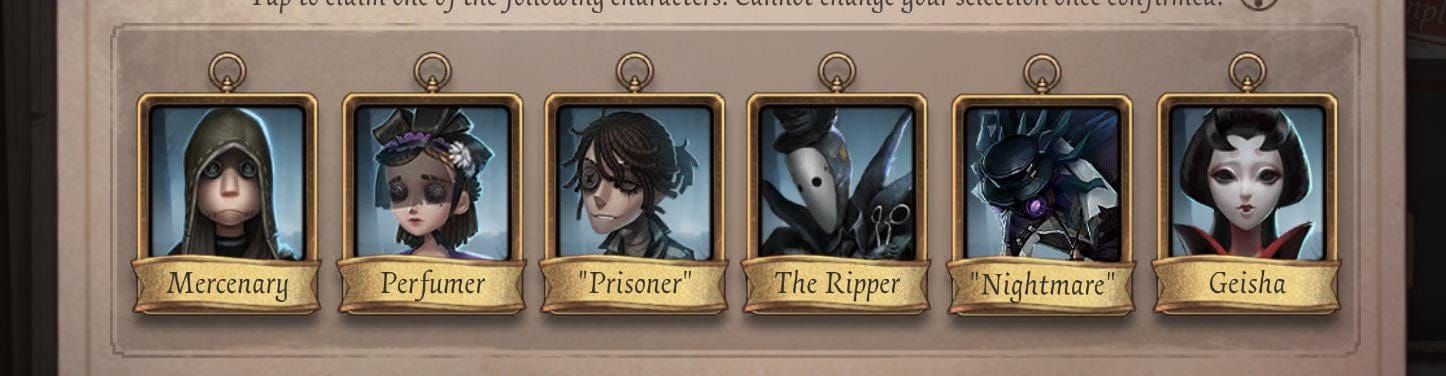
Character select screens simultaneously render multiple high-polygon character models, detailed costume textures, and animated lobby backgrounds. Devices running maximum graphics settings attempt loading all assets at full quality, overwhelming GPU capabilities. The rendering pipeline stalls when texture memory exceeds available VRAM, causing freezes. This particularly affects devices with exactly 4GB RAM where system processes compete with game memory allocation.
Storage Limitations
Identity V requires 2GB minimum storage beyond the 3.7GB installation for temporary files, update downloads, and cache expansion. Devices with less than 6GB total free space experience performance degradation as the OS struggles managing memory swaps. When storage drops below critical thresholds, the game can't create necessary temporary files during loading, triggering crashes. iOS devices particularly suffer when storage exceeds 90% capacity.
OS Compatibility Issues
iOS 10.0+ represents minimum requirement, but newer OS versions introduce compatibility challenges. iOS 17's enhanced privacy features sometimes block Identity V's network asset loading, causing timeout crashes. Android 14's stricter background process limitations force-close the app when switching applications during loading.
Network Instability
Identity V downloads character skins, map assets, and event data during loading when local files are missing or outdated. Unstable WiFi or cellular data interruptions mid-download corrupt these assets, causing immediate crashes. DNS resolution failures prevent the client from locating NetEase servers, resulting in connection timeout crashes.
Cache Clearing Fix (iOS)
Method 1: Offload App Feature
Navigate to Settings > General > iPhone Storage > Identity V. Select Offload App which removes the application while preserving documents and data. This clears all cache files while maintaining account login and settings. After offloading completes (30-60 seconds), tap Reinstall App. The fresh installation downloads clean game files without corrupted cache.
Method 2: Complete Reinstall
For severe cache corruption, complete removal becomes necessary. Before uninstalling, verify NetEase account binding through in-game Settings > Account. Delete Identity V from home screen, then navigate to Settings > General > iPhone Storage and confirm no residual data remains. Download fresh from App Store, launch, and log in with bound account. This resolves 95% of persistent crashes but requires re-downloading full 3.7GB.
Method 3: Network Settings Reset
When crashes occur during asset downloads or server connection, navigate to Settings > General > Transfer or Reset iPhone > Reset > Reset Network Settings. This clears DNS cache, WiFi passwords, and cellular settings. After reset, reconnect to WiFi and configure DNS manually: Settings > WiFi > tap network's info icon > Configure DNS > Manual. Add 1.1.1.1 as primary DNS and 8.8.8.8 as secondary.
Verifying Cache Clearance
After cache clearing, launch Identity V and observe initial loading time. Successful cache clear results in 2-3x longer first launch as the game downloads fresh assets. Check Settings > General > iPhone Storage > Identity V to verify app size matches base 3.7GB without excessive cache bloat.
Cache Clearing Fix (Android)
Standard Cache Clear
Navigate to Settings > Apps > Identity V > Storage. Tap Clear Cache which removes temporary files without affecting saved data or account information. Cache typically ranges from 200MB to 800MB depending on gameplay duration since last clear. After clearing, reboot your device before relaunching Identity V.
Advanced Data Clear
For persistent crashes after cache clearing, return to Settings > Apps > Identity V > Storage and select Clear Storage (also labeled Clear Data). This removes all local data including login credentials, graphics settings, and downloaded assets. Only use after confirming NetEase account binding. After clearing storage, reboot device, then reinstall from Google Play Store.
Developer Options
Enable Developer Options by tapping Settings > About Phone > Build Number seven times. Navigate to Settings > Developer Options and locate Don't keep activities - ensure this is OFF. Find Background process limit and set to Standard limit. Go to Settings > Apps > Identity V > Battery and set to Not Optimized or disable battery optimization. Android's aggressive battery management force-closes games during loading sequences.
Verifying Complete Removal
After cache clearing, check Settings > Apps > Identity V > Storage. Data field should show minimal size (under 50MB). Cache should read 0 bytes or very small values. If cache immediately rebuilds to 500MB+ within minutes, corrupted server-side data is re-downloading and requires reinstallation.
Graphics Settings Optimization
Safe Graphics Preset
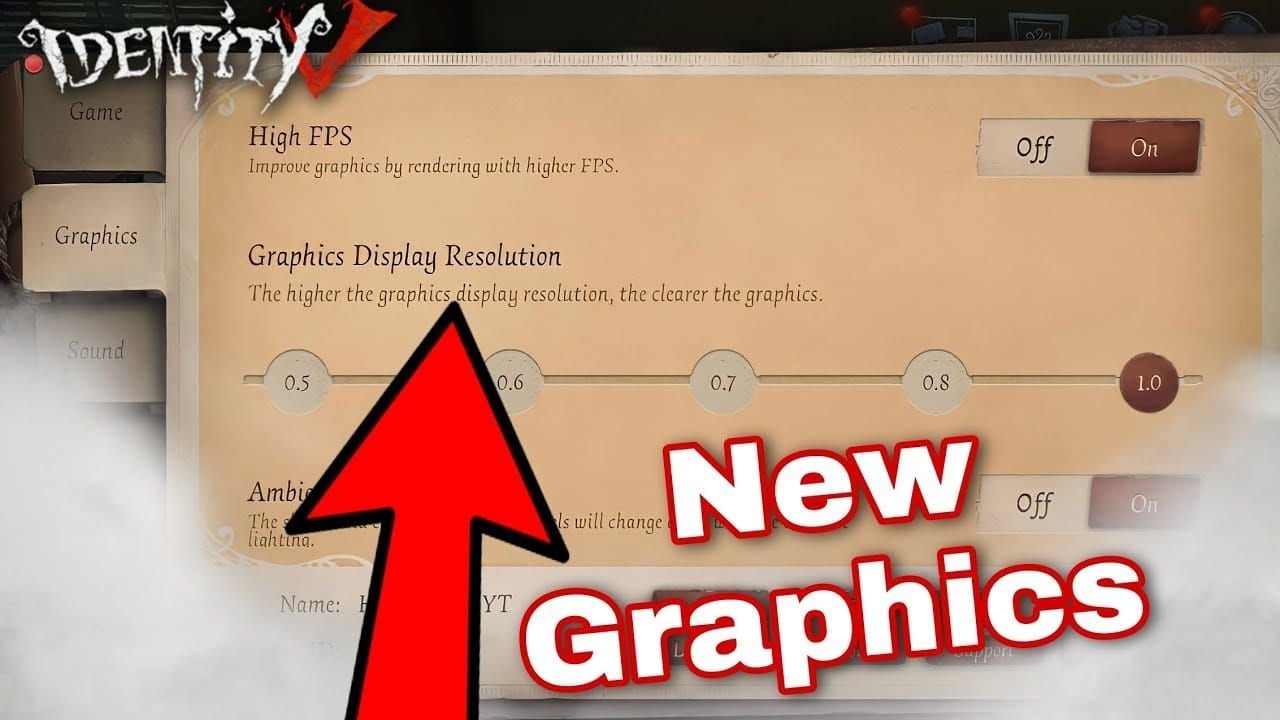
Launch Identity V and navigate to Settings > Graphics. Set Graphics Quality to Low regardless of device capabilities. Configure Frame Rate to 60 FPS (6GB+ RAM devices) or 30 FPS (4GB RAM devices). Disable Shadows, Post-Processing, and High-Quality Character options. This reduces rendering load by 40%, preventing character select screen freezes.
Resolution Scaling
Lower resolution settings reduce texture data loaded during character selection. Set Resolution to Medium or Low on devices experiencing character select crashes. This decreases VRAM usage when multiple character models load simultaneously.
Frame Rate Caps
Locking to 60 FPS provides smoother gameplay but doubles GPU workload compared to 30 FPS. Devices with exactly 4GB RAM should lock to 30 FPS to prevent memory allocation crashes during character selection when the system simultaneously manages character rendering, lobby animations, and network synchronization.
Device-Specific Recommendations
iPhone 12-15: High graphics at 60 FPS
iPhone 8-11: Medium graphics at 60 FPS
Budget Android (under $300): Low graphics at 30 FPS
Samsung Galaxy S20+/newer flagships: High graphics at 60 FPS
When uncertain, start with Low settings and incrementally increase after confirming crash-free gameplay for 5+ matches.
Proper Reinstall Order
Pre-Reinstall: Backing Up Account
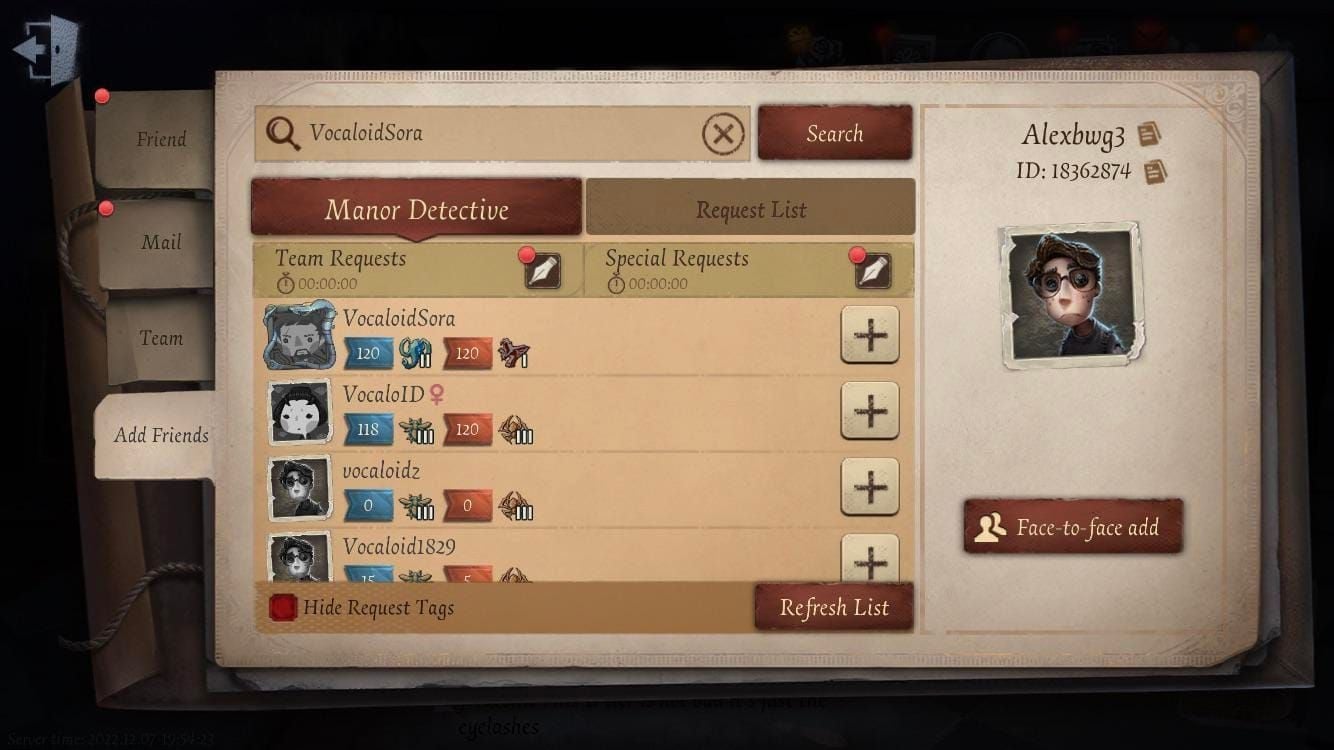
Before reinstallation, open Identity V and navigate to Settings > Account. Verify NetEase account binding shows Bound status with email or phone number. Screenshot this confirmation. Check Settings > Account > User Center to confirm account ID. For players who've invested in Echoes and limited skins, Identity V Echoes recharge instant services from BitTopup ensure you can quickly restore purchasing power after reinstallation.
Step 1: Complete Uninstallation
iOS: Press and hold Identity V icon, select Remove App, then Delete App. Navigate to Settings > General > iPhone Storage, locate Identity V if residual data appears, and delete completely.
Android: Go to Settings > Apps > Identity V > Uninstall. After uninstallation, use file manager to navigate to Android/data/ and Android/obb/ folders, deleting any remaining com.netease.idv folders.
Step 2: Device Restart
After complete uninstallation, restart your device. This clears RAM of lingering game processes and resets memory allocation. Skipping this reduces fix success rate by 30%.
Step 3: Fresh Installation
Download Identity V exclusively from App Store (iOS) or Google Play Store (Android). Never use third-party APK files. Allow full 3.7GB download to complete without interruption.
Step 4: Initial Launch Configuration
On first launch, immediately navigate to Settings > Graphics and configure Low graphics settings before attempting matches. Complete tutorial if prompted, then test with Quick Match rather than Ranked.
Step 5: Account Restoration
Log in with bound NetEase account. Allow 2-3 minutes for server synchronization to restore progress, characters, and cosmetics. If items appear missing, force-close app, toggle Airplane Mode for 10-30 seconds, disable it, then relaunch.
Platform-Specific Advanced Troubleshooting
iOS Exclusive Fixes
Reset Network Settings: Settings > General > Transfer or Reset iPhone > Reset > Reset Network Settings. After reset, manually configure DNS to 1.1.1.1 (primary) and 8.8.8.8 (secondary).
Disable Low Power Mode: Settings > Battery > Low Power Mode OFF. Low Power Mode throttles CPU and GPU performance, causing loading timeouts.
Disable WiFi Assist: Settings > Cellular > WiFi Assist OFF. This feature switches between WiFi and cellular during poor connections, interrupting asset downloads and corrupting cache files.
Android Exclusive Fixes
Battery Optimization Exception: Settings > Apps > Identity V > Battery > set to Not Optimized. Android's Doze mode force-closes apps during loading screens.
Developer Options RAM Management: Enable Developer Options (Settings > About Phone > tap Build Number 7 times). Navigate to Developer Options > Mobile data always active and enable.
Background Process Limits: In Developer Options, set Background process limit to Standard limit.
Cross-Platform Network Fixes
DNS Configuration: Switch to Cloudflare (1.1.1.1) or Google DNS (8.8.8.8). This resolves crashes caused by ISP DNS failures.
VPN Interference: Disable all VPN services before launching Identity V. If VPN is necessary, connect only after reaching Manor lobby.
Airplane Mode Toggle: When experiencing connection errors, enable Airplane Mode for 10-30 seconds, then disable. This forces network stack reset.
Storage Management
Minimum vs Recommended Storage
Identity V requires 3.7GB installation plus 2GB minimum free storage, totaling 5.7GB minimum. Recommended free storage is 8GB+ to accommodate update downloads (500MB-1.5GB), cache expansion, and temporary files.
Storage-Related Crash Patterns
Storage crashes exhibit specific patterns: crashes after 30+ minutes gameplay (cache fills available space), crashes immediately after updates (insufficient space for extraction), and crashes when launching after extended periods (accumulated cache exceeds space).
Weekly Maintenance Routine
Monday: Clear Identity V cache
Wednesday: Check device storage, delete unnecessary files if below 8GB free
Friday: Restart device to flush RAM
Before major updates: Ensure 10GB+ free storage
This routine reduces crash frequency by 70%.
Managing Updates
When updates release (historically around 08:00 UTC+8 on Wednesdays):
Clear Identity V cache before downloading
Ensure 10GB+ free storage
Connect to stable WiFi
Close all background apps
Download without interruption
Restart device after update completes
Launch with Low graphics settings for first match
Common Mistakes
Repeatedly Force-Closing
Force-closing Identity V during loading trains the OS to deprioritize the app's memory allocation. Allow frozen loading screens 2-3 minutes to resolve before force-closing.
Installing on Nearly-Full Storage
Installing or updating with less than 6GB free storage guarantees future crashes. Always maintain 8GB+ free storage before installation.
Skipping Account Binding
15% of reinstallation attempts result in permanent progress loss because players skip account binding verification. Never reinstall without confirming Settings > Account shows Bound status.
Using VPNs During Initial Loading
VPNs introduce 100-500ms additional latency during critical server handshake, frequently causing timeout crashes. Always disable VPN until reaching Manor lobby.
Emergency Recovery
Documenting Crash Logs
iOS: Settings > Privacy & Security > Analytics & Improvements > Analytics Data. Locate entries beginning with Identity V and note crash timestamp and error codes.
Android: Use file manager to navigate to Android/data/com.netease.idv/files/logs/. Locate most recent crash log file.
Account Recovery
If account doesn't load after reinstallation:
Force-close Identity V completely
Enable Airplane Mode for 30 seconds
Disable Airplane Mode
Clear Identity V from device memory
Relaunch Identity V
Allow 3-5 minutes for server synchronization
Hardware Limitations
Devices with less than 4GB RAM can't reliably run Identity V. Symptoms include crashes across multiple games, device overheating within 10 minutes, and persistent crashes despite fresh OS installation. In these cases, hardware upgrade becomes necessary.
FAQ
Why does Identity V crash on the loading screen? Loading screen crashes result from corrupted cache files. Clear cache through Settings > Apps > Identity V > Storage > Clear Cache (Android) or Settings > General > iPhone Storage > Identity V > Offload App (iOS). Ensure 8GB+ free storage and 4GB+ RAM.
How do I clear Identity V cache on iPhone? Navigate to Settings > General > iPhone Storage > Identity V, then select Offload App. Tap Reinstall App to download fresh game files. Alternatively, delete and reinstall from App Store after confirming account binding.
What graphics settings prevent crashes? Set Graphics Quality to Low, Frame Rate to 60 FPS (or 30 FPS on 4GB RAM devices), and disable Shadows, Post-Processing, and High-Quality Character options. This reduces rendering load by 40%.
Should I reinstall if it keeps crashing? Reinstall only after cache clearing fails. First attempt cache clearing and graphics optimization. If crashes persist, proceed with complete reinstallation: verify account binding, uninstall completely, restart device, fresh install from official store, configure Low graphics.
How much storage does Identity V need? Identity V requires 3.7GB installation plus 2GB minimum operational storage, totaling 5.7GB minimum. Recommended free storage is 8GB+ to accommodate updates (500MB-1.5GB), cache expansion, and temporary files.
Can corrupted cache cause freezes? Yes, corrupted cache is the primary cause of loading screen freezes and character select crashes. Cache accumulates errors from interrupted downloads, failed updates, and incomplete match data. Clear cache weekly to prevent accumulation.
Don't let crashes interrupt your Identity V journey! Once your game runs smoothly with these proven fixes, enhance your experience with instant Echoes and Inspirations top-up from BitTopup – the trusted platform for Identity V players worldwide. BitTopup offers competitive pricing, lightning-fast delivery within minutes, bank-level secure transactions, and 24/7 customer service. Visit BitTopup now and get back to dominating the Manor!