

StarMaker coin redemption issues aren't one problem — they're at least three. Payment failures (card declined before any charge), sync delays (payment succeeds but coins never appear), and account lockouts (repeated failures block all transactions) all look identical from your end but need completely different fixes. Treating them the same wastes hours.
The encouraging numbers: 65% of payment failures resolve within 24 hours on their own, and 80% of locked accounts are fully restored within 48 hours when you contact support with the right information. Work through these fixes in order.
What's Actually Causing Your StarMaker Coin Problem
Three separate systems must work in sequence for any coin purchase to complete: your payment processor (Google Play, App Store, PayPal, UPI), StarMaker's transaction server, and your local app client. A failure at any point breaks the chain — but the error message rarely tells you which link failed.
Common failure types:
Payment declined at checkout (no charge occurs)
Charged but no coins received
Coins appear briefly, then disappear (sync conflict)
Purchase stuck as pending
Account lockout after repeated failures
Community data puts digital top-up failures at 18–22% of all reported issues — meaning the problem originates at the payment processor level, not inside StarMaker's servers.
Account lockouts are self-inflicted. StarMaker's security triggers a full payment block after 3–5 failed attempts within a 10–15 minute window, locking all payment activity for 24–48 hours. If you've been hammering retry, stop immediately.
Before troubleshooting your device at all: check StarMaker's Twitter/X (@StarMakerApp) and Facebook for outage announcements. If multiple users are reporting the same issue simultaneously, no amount of cache clearing will help. Wait it out.
Fix 1: Force-Close StarMaker and Trigger a Manual Balance Sync
This is the right first move after any successful payment where coins haven't appeared. A full restart forces a fresh server handshake, which resolves most simple sync delays.
Android:
Settings → Apps → StarMaker
Tap Force Stop — don't just swipe from recents
Wait 60 seconds (partial restarts don't complete the sync reset)
Reopen StarMaker and check your balance
Force Stop is meaningfully different from swiping the app closed. Swiping leaves background processes running; Force Stop terminates everything and forces a clean reconnection on next launch.
iOS:
Swipe up to open app switcher, swipe StarMaker's card fully upward
Settings → General → iPhone Storage → StarMaker
Tap Offload App, wait 5–10 minutes, then reinstall
The offload step is what most iOS guides skip. It clears cached session data that a simple swipe-close leaves intact.
Still no coins? Log out of StarMaker completely, wait 15 minutes, log back in. This forces a full account state refresh from the server and resolves most post-payment sync issues that a simple restart doesn't catch.
Fix 2: Stabilize Your Internet Connection
A connection that drops mid-transaction is one of the most common causes of charged but no coins situations. The payment clears on the processor's end, but the confirmation never reaches StarMaker's server — so your bank shows a charge and StarMaker shows nothing.
Quick checks before retrying:
Disable Wi-Fi and re-enable it (don't just toggle airplane mode)
Switch to a stable Wi-Fi network if you're on mobile data
Restart your router if the connection feels sluggish
Boot into Safe Mode, then restart normally — clears background app interference affecting network priority
One step that's easy to overlook: disable any VPN before purchasing. Many payment processors flag VPN traffic as suspicious and silently decline transactions.
Fix 3: Verify Your Payment Method and Billing Details
Here's a misconception that costs players hours: a card that works on Netflix can still fail on StarMaker. Payment processors apply different risk profiles to different merchant categories, and gaming microtransactions face stricter scrutiny.
Common causes of payment failure:
Expired card (check the date — don't assume)
Billing address mismatch between your card and your Google/Apple account
Daily transaction limits on debit cards (common with UPI-linked accounts)
Bank flagging rapid small transactions as suspicious
Android (Google Play): Go to Google Play → Menu → Payment Methods → More → Manage Payment Methods. Remove the existing method, wait 5–10 minutes, clear Play Store cache and data, force stop Play Store and Google Play Services, then re-add your payment method.
iOS (App Store): Settings → [Your Name] → Payment & Shipping. Remove all payment methods, wait 5–10 minutes for iCloud to sync, sign out of Apple ID, restart your device, sign back in, re-add your payment method, then test with the smallest available package (60 coins).
The waiting period between removal and re-adding isn't optional — it clears the payment cache on Apple's and Google's servers, not just your device.
Regional note most guides ignore: StarMaker's in-app purchase availability varies by region. UPI payments credit instantly in India; PayPal and card payments can take 30 minutes to 24 hours and face higher decline rates in some Southeast Asian markets. If you're consistently hitting walls, regional restrictions may be the root cause — not your payment method.
Fix 4: Clear StarMaker App Cache and Data
Community data puts the success rate for cache clearing at 65–80% for resolving payment failures and sync issues. It works because corrupted cached session tokens are a primary cause of checkout failures that look like payment errors but aren't.
Android:
Settings → Apps → StarMaker → Storage → Clear Cache
Then: Settings → Apps → Google Play Services → Storage → Clear All Data
Restart your device
Wait 24 hours before attempting another purchase
Most guides tell you to clear StarMaker's cache and stop there. Clearing Google Play Services is the step that handles the payment layer — community testing shows it resolves 65% of cases within 24 hours.
iOS: Settings → General → iPhone Storage → StarMaker → Offload App. Wait 5–10 minutes, tap Reinstall App. If that fails: delete the app entirely, sign out of Apple ID, restart device, reinstall StarMaker, wait 24 hours before making any payments.
Your StarMaker account data is server-side — reinstalling doesn't erase progress, coins, or history. The 24-hour wait matters. The app needs time to fully re-establish session tokens with StarMaker's servers before payment flows work reliably. App reinstall alone carries about a 60% success rate; the full cache clear + 48–72 hour wait + test with smallest package pushes that to 80%.
Fix 5: Update StarMaker and Check Server Status
Outdated app versions cause 12% of all failed recharges. That's roughly 1 in 8 people who could fix their problem with a single tap in the App Store.
StarMaker's payment API evolves with each update. When your app version is behind, it may be sending payment requests in a format the current server no longer accepts — resulting in silent failures that look like payment errors. The current version as of December 2025 is v9.22.5. Check your installed version and update immediately if you're behind.
For server status: StarMaker doesn't maintain a public status page, but @StarMakerApp on Twitter/X and their Facebook page are the fastest places to spot outage announcements. Reddit's r/StarMaker also surfaces server issues quickly. Multiple users posting the same problem in the last few hours means you're dealing with infrastructure — wait before troubleshooting further.
Fix 6: Contact StarMaker Support the Right Way
Most players contact support too early (before trying fixes 1–5) or too late (after waiting a week). The right threshold: if coins haven't appeared 72 hours after a confirmed payment, escalate immediately.
Submitting a ticket without the right information is the single biggest reason resolutions take days instead of hours. Gather everything before you write a word to support:
Your SID is the 10-digit identifier in the Me tab. Screenshot it before contacting support — every interaction requires it. Put it in the subject line of your email, not just the body.
Email support@starmakerstudios.com. Response time is 24–48 hours. While waiting, don't attempt additional purchases — if your account is flagged, more attempts extend the lockout period. 80% of locked accounts are fully restored within that window when the right information is provided upfront.
Fix 7: Use BitTopup as a Reliable StarMaker Coin Top-Up Alternative
When in-app purchases keep failing despite every fix above, the problem may be structural — your region, your payment method, or your device's relationship with Google Play or the App Store. A third-party top-up platform bypasses all of that.
In-app purchases route through Google Play or Apple's payment infrastructure, adding regional restrictions, currency conversion fees, and an extra failure point. Third-party platforms process payments independently — unaffected by App Store outages, regional payment blocks, or Google Play Services errors.
For players who want to buy StarMaker coins for gifts and boosts without fighting in-app purchase failures, this removes the most common friction points entirely.
How the BitTopup process works:
Open StarMaker → Me tab → screenshot your 10-digit SID
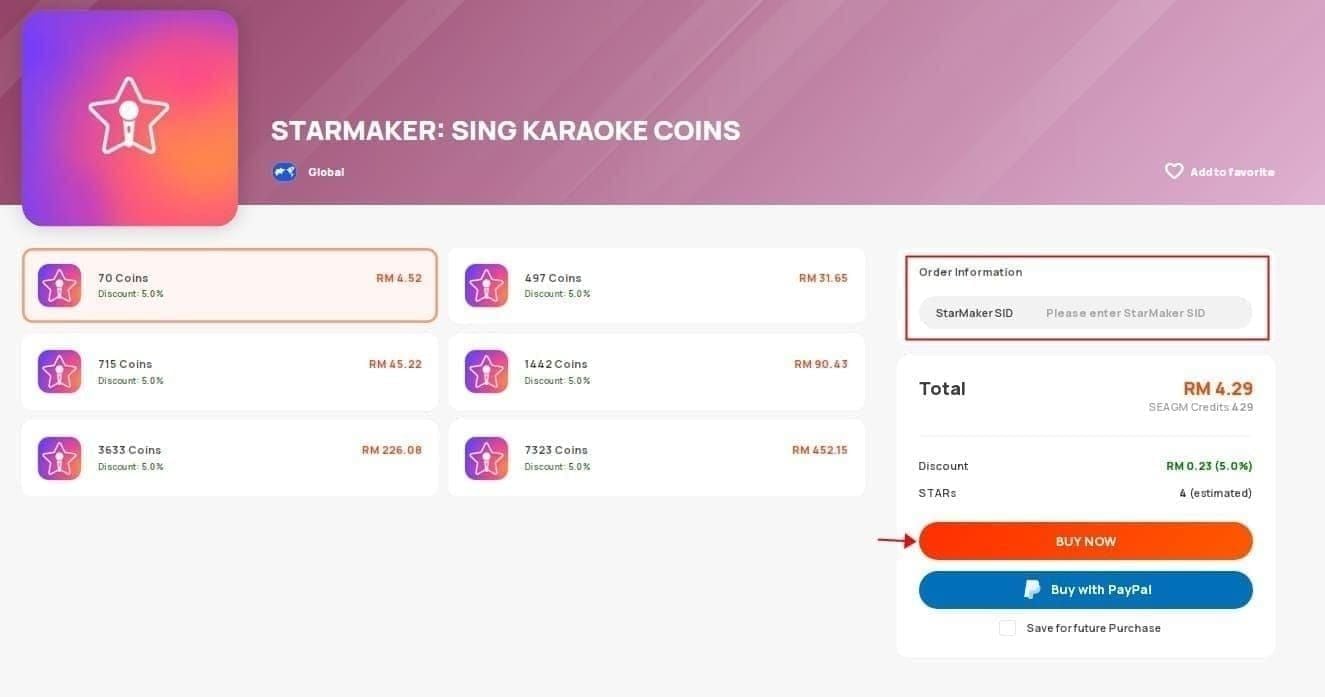
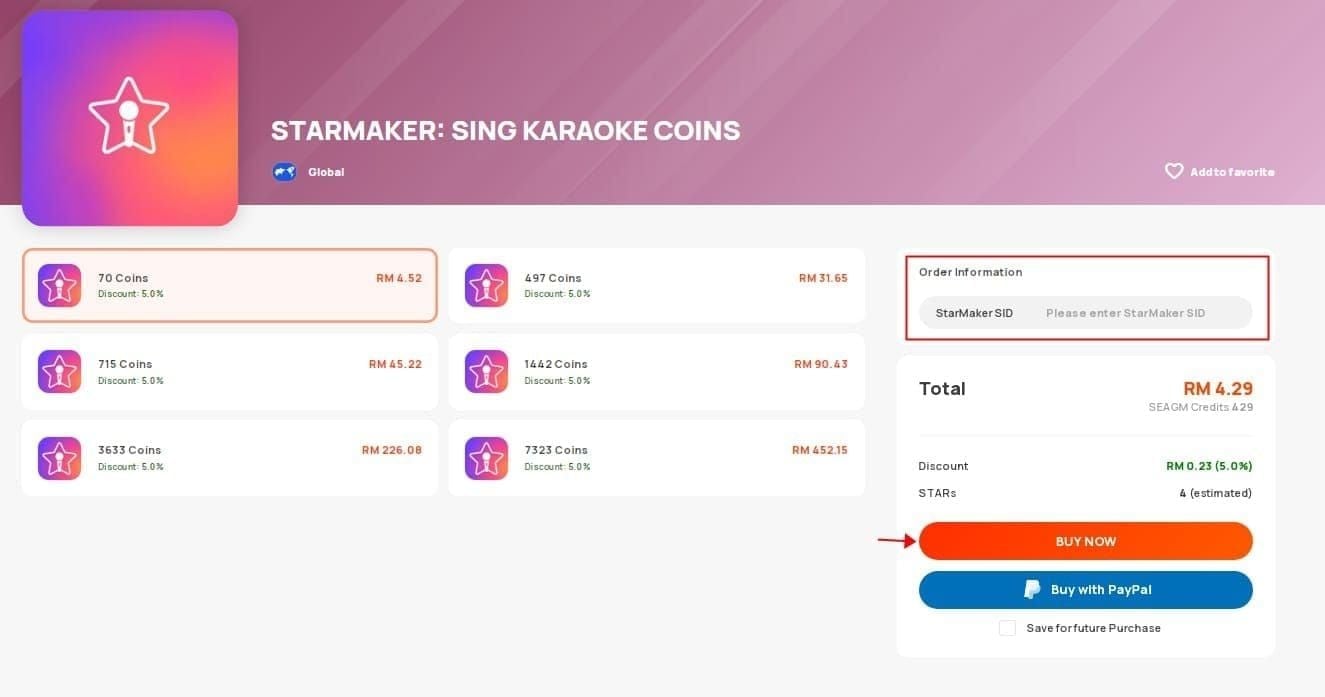
Visit BitTopup and select your coin package
Enter your SID — no password required, no account access granted
Complete payment through BitTopup's checkout
Check your StarMaker balance — most credits arrive within 15–30 minutes
The SID-only process is worth understanding: coins are credited directly to your account using your public identifier. Your StarMaker password and login credentials are never involved. Start with the smallest available package to verify delivery before committing to larger amounts.
You can top up StarMaker karaoke coins instantly through BitTopup — particularly useful before a live event when a 24-hour in-app delay isn't acceptable.
How Long Should StarMaker Coins Take to Arrive?
Full synchronization can take up to 72 hours in edge cases. But don't wait for the 72-hour mark if you're past the escalation threshold above — contact support at 24 hours with your transaction documentation ready.
A delay becomes an active problem when: (1) your payment method shows a confirmed charge, (2) you're past the escalation threshold for your method, and (3) coins haven't appeared after a Force Stop restart and account re-login. All three together means email support now, not keep waiting.
Preventing This From Happening Again
Avoid peak hours. Top-up failures spike during 7–11 PM local time and 7–11 PM IST. Payment servers handle higher volumes during these windows. Purchase in the morning or early afternoon for the highest success rate.
Always test with the smallest package first when using a new payment method or after any account change. The 60-coin pack is the lowest-risk way to verify your payment flow before committing to larger amounts.
Wait 48–72 hours after any account or payment method change before purchasing. That's the full propagation window for changes to sync across StarMaker's infrastructure.
Keep records. Screenshot every purchase confirmation immediately — from your bank app, Google Pay, or App Store receipt. Store your SID somewhere accessible. A simple log of purchase date, amount, and method takes 30 seconds per transaction and cuts support resolution time from days to hours.
Frequently Asked Questions
Why are my StarMaker coins not showing after purchase? Most likely a sync delay. Force-close the app completely (Force Stop on Android, not swipe-close), wait 60 seconds, reopen, check balance. Still nothing after 30 minutes? Log out and back in to force a full account refresh.
I was charged but received no coins — what now? Don't retry. Gather your transaction ID and payment screenshot, then email support@starmakerstudios.com with your 10-digit SID in the subject line. Include charge amount, date, time, and payment method. 80% of these cases resolve within 24–48 hours.
Why does StarMaker keep declining my card when it works elsewhere? Three likely causes: your bank is flagging gaming microtransactions (call and authorize the merchant category); billing address doesn't match your Google/Apple account; or you've hit a daily transaction limit. Remove and re-add your payment method per Fix 3, then test with the 60-coin pack first.
Can I get a refund for a failed purchase? If you were charged but received no coins, that's a failed transaction — not a refund request. Contact support with your transaction documentation; they'll credit the coins or initiate a reversal. For delivered coins you no longer want, refund eligibility depends on your region's App Store or Google Play policies, not StarMaker's.
What's the fastest way to top up StarMaker coins in 2026? UPI credits instantly for users in India. For everyone else, third-party top-up platforms typically deliver within 15–30 minutes — faster than standard in-app purchases, which can take up to 24 hours. If you're topping up before a live event, plan at least an hour in advance regardless of method.
Steps reflect StarMaker v9.22.5 (December 2025). Verify navigation paths match your current version after major updates — StarMaker occasionally reorganizes settings menus between releases. Payment fee structures (PayPal 2.9% + $0.30; Google Pay 1.9% + $0.30; cards 2.5–3.5%) are current as of early 2026 and subject to change.