

Identity V's 2026 New Year event introduces photo quests in Snowbell Village and public areas, but many players encounter missing share buttons preventing cloud album uploads. This guide explains the cloud album system, provides four proven fix methods, and delivers expert strategies to complete photo quests across mobile and PC platforms before the January 7, 2026 deadline.
Understanding Identity V 2026 New Year Photo Quest System
The 2026 New Year celebration brings multiple photography opportunities through the Fantasy Pyrotechnics event (December 25, 2026 post-maintenance to January 7, 2026 23:59) and extended Snowbell Village event (until February 12, 2026). These activities integrate photo quests with the cloud album system, requiring players to capture and upload specific images for exclusive rewards.
The cloud album is Identity V's centralized photo storage system, distinct from your device's local gallery. Photos taken using in-game camera mode in qualifying public areas undergo validation against quest criteria before upload. This verification ensures photos meet composition requirements, location parameters, and technical specifications.
For instant access to premium items like Soul Weaver's Wintry Wish costume (1388 Echoes, available until January 14, 2026 23:59), Identity V Echoes top up online through BitTopup provides no-delay service.
What is the Cloud Album Feature
The cloud album functions as server-side storage synchronized with your Identity V account, not stored locally. This enables cross-platform access—photos taken on mobile appear in your PC client and vice versa. The system auto-compresses images while maintaining quality for quest validation.
Unlike standard screenshots, cloud album photos use the game's proprietary camera mode with specific metadata tags: timestamp, location coordinates, camera angle parameters, and event association flags. Quest systems read this metadata to determine completion eligibility—regular screenshots never satisfy photo quest requirements.
The 2026 New Year events leverage this infrastructure extensively. During Snowbell Village public map sessions (December 31, 2025 23:59:50 to January 1, 2026 00:30, with replay periods January 1-3, 2026 from 19:00-00:00 hourly), players can capture fireworks displays and winter scenery qualifying for multiple quest categories simultaneously.
How Photo Quests Integrate with Seasonal Events
Photo quests connect directly to Winter Wishes event structure. The Event Story distributes 20 Snow-Covered Presents daily (maximum 140 total), with certain presents unlocking only after completing specific photo uploads. This gating mechanism encourages exploration of Snowbell Village's decorated areas and participation in timed fireworks shows.
Fantasy Pyrotechnics adds another layer: collecting 9 different Firework Fuel types (earned at 1 random type per 2 matches) enables custom firework creation. Players who photograph their custom fireworks during the January 1, 2026 public map display receive bonus completion credit toward multiple quest chains.
Quest validation occurs server-side immediately after upload attempts. The system checks photo metadata against active quest parameters, location whitelists, and timing windows. Photos taken during Holiday Fireworks Shows (December 24-28, 2025, 19:00-00:00 hourly) carry different validation tags than New Year's Fireworks Shows (January 1-3, 2026, midnight January 1).
Quest Requirements and Completion Criteria
Qualifying public areas extend beyond Snowbell Village to include Manor lobby, waiting rooms, and designated event zones. Each location category accepts different photo types—environmental shots of decorated spaces, character portraits with seasonal backgrounds, or action captures during fireworks displays.
Technical requirements mandate minimum resolution thresholds and proper framing. Photos must include at least 60% of designated subject matter within frame boundaries. Overexposed images from fireworks glare or underexposed shots in shadowed corners fail automatic validation. The camera mode's built-in composition guides help meet these standards.
Timing constraints apply strictly. Photos captured outside event windows—before December 25, 2025 maintenance or after January 7, 2026 23:59 for Fantasy Pyrotechnics quests—receive rejection regardless of quality.
Rewards Breakdown
Completed photo quests distribute tiered rewards:
Basic environmental uploads: 50-100 Clues per validated image
Complex composition challenges: 200-388 Echoes
Cumulative milestones: exclusive accessories and portrait frames
Full quest chain completion grants priority access to Illusion Hall rotations, including early availability for high-demand costumes like BLK.ELI A-Tier Seer (January 1, 2026) and Hearts Aligned S-Tier Seer accessory (January 1, 2026). These items typically require 1388 Echoes or 4888 Fragments.
The 2026 New Year Photographer badge, earned through uploading photos during all three fireworks show periods, becomes unobtainable after event conclusion.
Complete Step-by-Step Guide to Upload Photos
Successful cloud album uploads require precise execution across multiple interface layers. The process differs slightly between platforms but follows consistent core steps.
Accessing Photo Mode in Public Areas
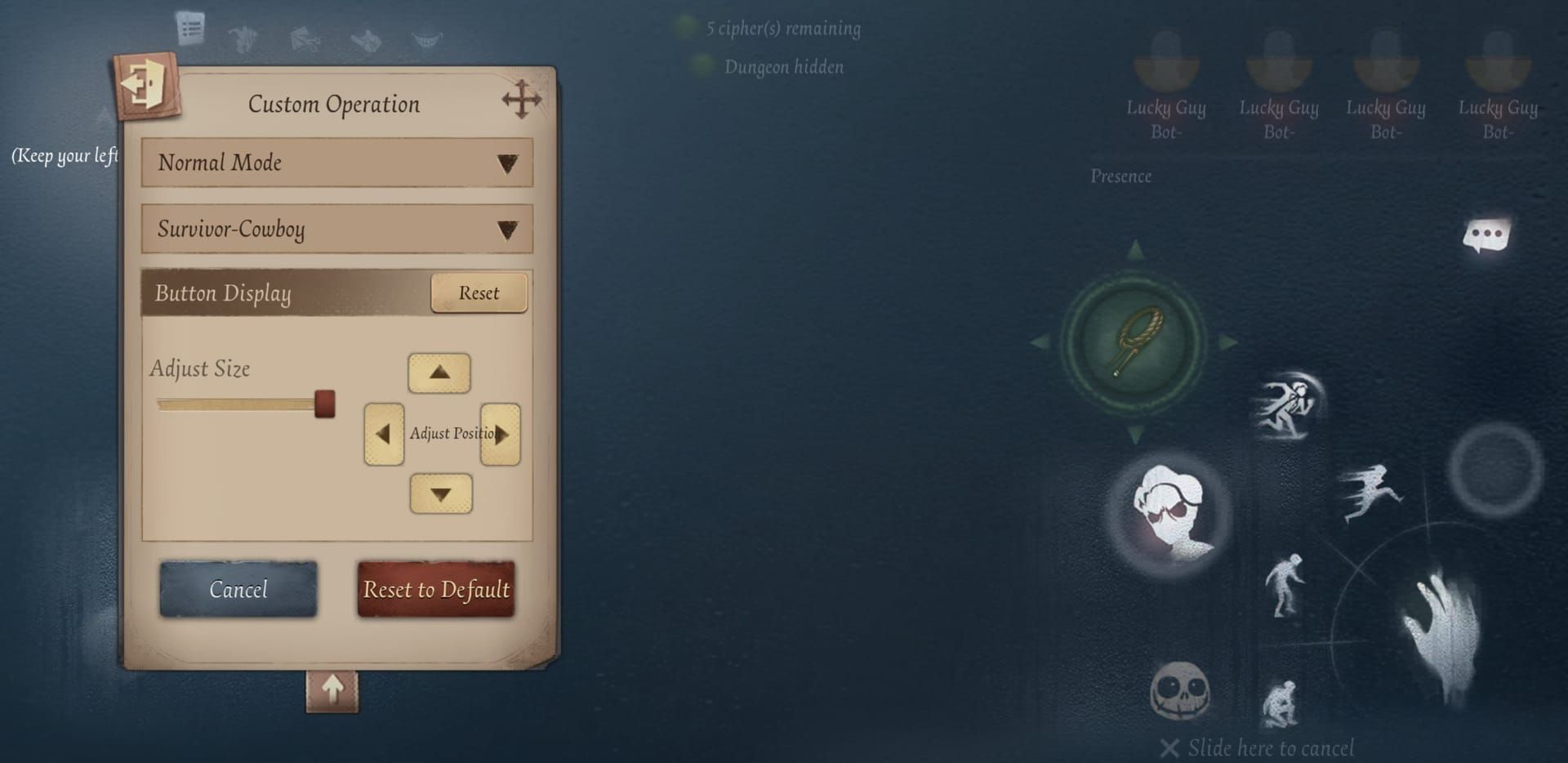
Navigate to qualifying public areas through main menu's Public Area button. Once loaded into Manor lobby or Snowbell Village, locate the camera icon in lower-right interface cluster. This icon appears only in designated photo-enabled zones.
Tap the camera icon to enter photo mode. The interface transitions to full-screen viewfinder with controls: shutter button (bottom center), filter carousel (left), zoom slider (right), and composition grid toggle (top-right). The share button appears in top-left corner only after successfully capturing a photo.
During Snowbell Village public map sessions, position your character near fireworks launch sites before entering photo mode. Alternative replay periods (January 1-3, 2026, 19:00-00:00 hourly) offer identical photo opportunities with reduced lag.
Taking Qualifying Photos
Frame shots using composition grid to align subjects with rule-of-thirds intersections. Quest validation algorithms favor centered subjects with clear backgrounds—cluttered compositions with overlapping characters frequently fail automated checks.
Lighting conditions dramatically affect validation success. During fireworks shows, wait for the 2-3 second illumination peak after each burst. The camera mode's auto-exposure struggles with rapid light changes. Manual exposure adjustment (available on PC through advanced settings) provides better control.
Capture photos by pressing shutter button once. A thumbnail preview appears in bottom-left corner, remaining accessible for 30 seconds. Avoid rapid-fire shooting—the system queues only the most recent image.
Locating the Share Button
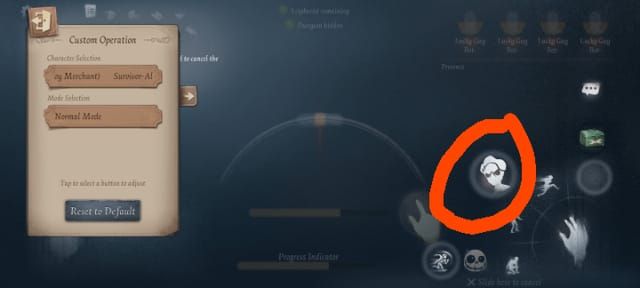
After capturing a photo, the share button materializes in top-left corner as a small icon depicting an upward arrow from a box. This button appears only when the system successfully saves the image and verifies basic technical compliance. If the button doesn't appear within 3 seconds, the photo failed preliminary validation.
Tap share button to open upload destination menu. Options include Cloud Album, Local Gallery, and Event Quest Submission. Select Cloud Album for quest credit—choosing Local Gallery saves to device but doesn't register quest completion.
The interface displays upload progress through a circular indicator. Successful uploads trigger confirmation: Photo added to Cloud Album with green checkmark. Failed uploads produce red error messages specifying failure reason.
Completing the Upload Process
After selecting Cloud Album destination, the system initiates server communication. Stable internet connection becomes critical—switching between WiFi and cellular mid-upload causes failures. Upload typically completes within 5-10 seconds on stable connections, though peak hours (19:00-22:00 UTC+8) extend this to 15-30 seconds.
Upon successful upload, navigate to Quest menu (main interface, second icon from left) to verify completion credit. Photo quests display thumbnail previews alongside completion checkmarks. If thumbnail appears but checkmark remains gray, the photo uploaded successfully but didn't meet specific quest criteria.
Quest rewards distribute automatically to in-game mailbox within 5 minutes. Rewards expire after 7 days if unclaimed.
Why the Share Button Never Appears: Root Causes
Share button failures stem from five primary technical issues, each requiring different diagnostic approaches.
Game Cache Corruption
Identity V stores temporary photo data in cache directories before upload processing. When cache files become corrupted—through interrupted app closures or device crashes—the system fails to generate new temporary files. This prevents share button rendering because the underlying photo file doesn't exist in expected location.
Cache corruption manifests through multiple symptoms: delayed interface loading, texture pop-in during matches, audio desynchronization. Players experiencing several issues simultaneously almost certainly face cache problems requiring comprehensive clearing.
The game allocates 500MB-1.5GB for cache storage. When this fills completely, new photo captures have nowhere to write temporary data. Camera mode appears functional, but no persistent file saves.
Insufficient Storage or Network Permissions
Mobile operating systems enforce strict permission controls. If Identity V lacks explicit permission to write files to device storage, photo captures fail silently. Similarly, restricted network permissions prevent share button appearance because the system can't verify cloud album connectivity.
iOS 14+ requires per-app photo library access levels: Selected Photos, All Photos, or None. Choosing Selected Photos creates conflicts—the game can read existing images but cannot write new captures.
Android's permission model varies by manufacturer. Samsung devices with Secure Folder enabled sometimes isolate Identity V's storage access. Xiaomi's MIUI and Oppo's ColorOS implement aggressive background data restrictions terminating upload processes mid-execution.
Outdated Game Client Version
The December 18, 2025 hotfix (08:00 UTC+8) and December 25, 2025 hotfix addressed multiple photo quest bugs, including share button rendering failures on specific device models. Players running pre-December 18 versions encounter systematic failures.
Version mismatches between client and server create protocol incompatibilities. The server expects photo metadata formatted according to current specifications, but outdated clients transmit legacy formats. This causes server-side rejection, manifesting client-side as missing share buttons.
December 25 patch notes specifically mention Fixed issue where photo quest share button failed to appear for users with custom UI scaling settings.
Server-Side Sync Delays
Cloud album infrastructure experiences heavy load during fireworks show windows (19:00-00:00 hourly) when thousands of players simultaneously attempt uploads. Server-side rate limiting throttles individual upload requests, creating artificial delays in share button appearance.
The system implements a queue mechanism: photo captures enter processing queue, and share buttons appear only after queue position reaches front. During extreme congestion, queue wait times extend to 2-3 minutes.
Geographic server distribution affects sync performance. Players connecting to distant regional servers experience baseline latency of 200-300ms. Combined with peak-hour congestion, this compounds into multi-second delays.
UI Rendering Glitches
Certain device configurations produce UI layer conflicts where share button renders beneath other interface elements, making it invisible but technically present. This occurs most frequently on devices with non-standard aspect ratios (21:9 ultrawide, foldable screens) or custom display scaling.
GPU driver incompatibilities on Android devices cause selective element rendering failures. Adreno 6xx series GPUs in Snapdragon 865/870 processors exhibited specific issues with transparent UI overlays in the December 18-24 period, resolved through December 25 hotfix.
Fix Method #1: Clear Cache and Force Refresh
Cache clearing resolves 60-70% of share button failures, making it the highest-priority troubleshooting step.
iOS Cache Clearing
iOS doesn't provide native app cache clearing without full deletion. Navigate to Settings > General > iPhone Storage > Identity V. Tap Offload App to remove app while preserving documents, then reinstall from App Store.
Alternative: Within Identity V, access Settings > Other > Clear Cache. This in-game option removes temporary files without full reinstallation. Process takes 30-60 seconds and requires 500MB-1GB free storage. Game automatically restarts after completion.
After clearing cache, test photo mode in Manor lobby before entering event areas. Successful clearing produces noticeably faster interface loading and eliminates texture pop-in.
Android Cache Clearing
Android offers multiple paths. Simplest: Settings > Apps > Identity V > Storage > Clear Cache. This removes temporary files while preserving login credentials and settings. Operation completes instantly but requires manual game restart.
For deeper cleaning, use Clear Data instead. This removes all local files including settings and login tokens. Ensure you remember account credentials before proceeding.
PC Client Cache
PC cache resides in hidden directories. Press Windows+R, type %appdata%, navigate to ../Local/NetEase/IdentityV/cache. Delete all contents while game is closed. Folder regenerates automatically on next launch.
For Steam users: right-click Identity V in library > Properties > Local Files > Verify Integrity of Game Files. This checks for corrupted files and redownloads damaged components. Verification takes 5-10 minutes.
Verifying Success
Successful cache clearing produces specific indicators. On mobile, app icon briefly displays loading indicator on first launch. Initial loading screen takes 20-30% longer as game rebuilds cache structures.
Test photo mode in Manor lobby. Capture test photo of any object. Share button should appear within 2 seconds. If successful, proceed to event areas; if failed, advance to Fix Method #2.
Fix Method #2: Adjust Permissions and Storage Settings
Permission misconfigurations account for 20-25% of share button failures. Systematic permission auditing resolves these issues.
Checking Storage Permissions
iOS: Verify Settings > Privacy > Photos > Identity V shows All Photos rather than Selected Photos or None. Change to All Photos and restart game. Check Settings > Identity V > Local Network to ensure network access remains enabled.
Android: Settings > Apps > Identity V > Permissions. Confirm Storage shows Allowed rather than Ask every time or Denied. On Android 11+, verify Files and media permission grants full access. Some manufacturers hide this under Additional permissions.
Network Access Settings
iOS: Settings > Cellular Data > Identity V must show enabled status if playing on cellular networks. Disabled cellular data forces WiFi-only operation.
Android: Data Saver mode (Settings > Network & Internet > Data Saver) blocks background uploads when enabled. Exempt Identity V through Settings > Apps > Identity V > Mobile data & WiFi > Unrestricted data usage.
Firewall apps (NetGuard, NoRoot Firewall) often block game servers' upload endpoints while permitting gameplay traffic. Whitelist Identity V completely or configure rules to allow connections to NetEase's cloud storage domains (*.netease.com, *.163.com).
Photo Library Access for iOS
Settings > Privacy > Photos > Identity V requires both Read and Write access. Some users inadvertently grant Read Only during initial setup.
iCloud Photo Library synchronization sometimes conflicts with game photo uploads. If experiencing persistent failures, temporarily disable Settings > Photos > iCloud Photos, complete photo quest, then re-enable.
Windows/PC Firewall Settings
Windows Defender Firewall occasionally flags Identity V's upload processes. Navigate to Control Panel > System and Security > Windows Defender Firewall > Allow an app through firewall. Verify Identity V shows checkmarks for both Private and Public networks.
Third-party antivirus suites (Kaspersky, Bitdefender, Norton) implement web protection modules intercepting HTTPS uploads. Add Identity V's executable to antivirus exclusion list or temporarily disable web protection during photo quest sessions.
Fix Method #3: Update Game Client
Version mismatches cause 10-15% of share button failures. Maintaining current versions prevents these issues.
Checking Current Version
In-game: Main menu > Settings > scroll to bottom. Version number appears as v[number] (e.g., v2.0.58). December 25, 2025 hotfix deployed version 2.0.60—any version below this is outdated.
iOS App Store: Search Identity V > scroll to Version History showing current version and update date. If Update button appears instead of Open, installation is outdated.
Google Play Store: Identity V page > About this app > scroll to Version field.
Downloading Latest Patch
Mobile updates deploy through platform stores automatically if auto-update is enabled. Manual update: Open App Store/Google Play Store, search Identity V, tap Update if available. Updates typically range 200-500MB for minor patches.
PC client updates vary by distribution platform. Steam auto-updates by default; manual forcing requires Library > Identity V > right-click > Properties > Updates > Always keep this game updated.
Platform-Specific Update Procedures
iOS updates require App Store account verification. Updates fail if payment methods on file have expired—update payment information even for free game updates.
Google Play updates occasionally stall at Pending status. Cancel all pending updates, restart Play Store app, and update Identity V individually. If Pending persists, clear Play Store cache (Settings > Apps > Google Play Store > Storage > Clear Cache).
PC launcher updates sometimes require administrator privileges. Right-click launcher executable > Run as Administrator if standard launch fails to detect/apply updates.
Relevant Patch Notes
December 18, 2025 hotfix introduced Snowbell Village and Winter Wishes events, establishing photo quest infrastructure. Initial implementation contained share button rendering bugs on devices with custom UI scaling.
December 25, 2025 hotfix specifically addressed: Fixed issue where photo quest share button failed to appear for users with custom UI scaling settings and Resolved cloud album sync delays during peak server load.
Fix Method #4: Alternative Upload Methods
When standard upload paths fail, alternative methods provide backup completion routes.
Using In-Game Gallery
Access in-game gallery through Main Menu > Collection > Photos. This displays all photos captured through camera mode, including those that failed initial upload. Each photo shows cloud icon indicating sync status: gray (not uploaded), blue (uploading), green (synced).
Tap photos with gray cloud icons to open detail view, then select Upload to Cloud Album button. This manual upload bypasses immediate post-capture upload path, using different server endpoints.
Batch upload functionality appears when selecting multiple photos (long-press first photo, tap additional). Upload Selected button processes up to 10 photos simultaneously.
Accessing Cloud Album Through Account Settings
Alternative access: Main Menu > Settings > Account > Cloud Album Management. This administrative interface provides direct server communication independent of photo mode's upload system.
The management interface displays upload queue status. Photos stuck in Uploading state for 5+ minutes have failed but remain in queue. Tap these photos and select Retry Upload to reprocess.
Cloud album storage limits apply—maximum 500 photos per account. Delete old photos to free space for new uploads.
Force Sync Options
Settings > Account > Force Sync Account Data triggers comprehensive server synchronization, including photo upload queue processing. This resolves desync issues where photos exist locally but server records show no upload attempts. Sync process takes 1-3 minutes.
Logging out and back in forces fresh server session establishment. Main Menu > Settings > Account > Logout > confirm > log back in. This clears session-specific errors like expired authentication tokens.
When to Contact Support
Contact support after exhausting all troubleshooting methods. Prepare specific information: device model, OS version, game version, exact error messages, and timestamps.
In-game support: Main Menu > Settings > Customer Service. Describe issue concisely with device details and screenshots.
Response times average 24-48 hours during event periods. Support may provide compensation (Clues, Inspiration) if issue stems from server-side bugs.
Platform-Specific Differences: Mobile vs PC
Photo quest mechanics remain consistent across platforms, but implementation details vary.
iOS Photo Quest Interface
iOS devices benefit from optimized rendering. Share button appears consistently within 1-2 seconds on iPhone 11 and newer. Older devices (iPhone 8, iPhone X) experience 3-5 second delays.
iOS's aggressive memory management sometimes terminates Identity V during extended photo sessions, particularly on devices with 3GB RAM or less. Save photos frequently through manual upload.
Android Device Variations
Android's hardware diversity creates performance inconsistencies. Flagship devices (Samsung S-series, Google Pixel, OnePlus) match or exceed iOS performance. Budget devices with 4GB RAM or less experience significant delays—share button appearance extends to 5-10 seconds.
Xiaomi's MIUI implements aggressive background restrictions pausing uploads when switching apps. Disable Settings > Battery & Performance > Battery Saver for Identity V.
PC Client Advantages
PC clients offer superior stability and performance. Higher-resolution displays enable better composition preview, and mouse controls provide finer camera angle adjustments. Share button appearance occurs nearly instantaneously (under 1 second).
Keyboard shortcuts accelerate workflows: F9 opens camera mode, Spacebar captures photo, Enter confirms upload. Configure custom keybinds through Settings > Controls > Camera Mode.
PC clients maintain persistent connections better than mobile devices. Ethernet connections eliminate WiFi instability entirely.
Cross-Platform Progress Sync
Quest progress synchronizes across platforms in real-time. Photos uploaded via mobile appear in PC cloud albums within 30 seconds, and vice versa. This enables strategic platform switching.
Account binding ensures continuity: Settings > Account > Bind Account. Link to email, Facebook, or platform-specific accounts. Bound accounts enable seamless platform switching without progress loss.
For limited-availability items, buy Identity V Echoes instant recharge through BitTopup ensures immediate Echo availability across all platforms.
Common Mistakes and Misconceptions
Misunderstanding photo quest mechanics leads to wasted effort and missed rewards.
Screenshot vs In-Game Photo Mode
Device screenshots (Power+Volume on mobile, Print Screen on PC) capture visual output but lack metadata tags quest systems require. Screenshots save to device galleries with generic filenames, missing location coordinates, camera angle data, and event association flags.
Players frequently attempt quest completion by taking screenshots during fireworks shows, then wonder why quest progress doesn't register. The game provides no feedback that screenshots don't count.
In-game photo mode activates through dedicated camera icon in public areas. Photos captured this way automatically include validation metadata and route to cloud album infrastructure.
Why Screenshots Don't Count
Quest validation systems query server-side databases containing uploaded photo metadata. When you upload through in-game camera mode, server records: capture timestamp, public area location ID, camera coordinates, character positions, and active event flags. Screenshots contain none of this data.
Validation algorithm checks uploaded photos against quest parameters. Screenshots lack location IDs and event flags, causing automatic rejection even if visually identical to qualifying photos.
Confusion Between Personal Gallery and Cloud Album
Device photo galleries (iOS Photos app, Android Gallery) store local copies of screenshots and exported game photos. These operate independently of Identity V's cloud album system. Photos appearing in device galleries don't automatically sync to cloud albums.
The confusion intensifies because in-game photo mode offers Save to Local Gallery alongside Upload to Cloud Album. Players selecting local save assume this satisfies quest requirements, but quest systems only recognize cloud album uploads.
Cloud album access requires in-game navigation: Main Menu > Collection > Photos > Cloud Album tab. This displays only photos successfully uploaded to NetEase's servers.
Misunderstanding Public Area Definitions
Public areas specifically refers to non-match environments: Manor lobby, waiting rooms, and special event maps like Snowbell Village. Photos captured during actual matches don't qualify because match environments use different location IDs.
Players sometimes attempt photo quests in shop interface, character selection screens, or tutorial areas. These locations lack camera mode access entirely.
Snowbell Village exists as both public area (accessible December 18, 2025 to February 12, 2026) and timed event space (December 31, 2025 23:59:50 to January 1, 2026 00:30 for fireworks). Photos captured in general public area during non-event hours don't satisfy fireworks-specific quests.
Expert Tips for Smooth Completion
Strategic approaches maximize efficiency and minimize technical issues.
Best Times to Attempt Uploads
Server congestion peaks during fireworks shows (19:00-00:00 hourly). Upload success rates drop 30-40% during these windows. Capture photos during shows but delay uploads to 01:00-08:00 UTC+8 when server load normalizes.
Replay Period (January 1-3, 2026, 19:00-00:00 hourly) distributes player load across multiple time slots. Early replay sessions (January 1, 19:00) experience lighter traffic.
Weekday mornings (Tuesday-Thursday, 09:00-12:00 UTC+8) represent absolute minimum server load. Players with flexible schedules can visit Snowbell Village's general public area during these windows.
Optimal Camera Settings
Enable composition grid (camera mode top-right toggle) to align subjects with validation-friendly positioning. Quest algorithms favor centered subjects—grid intersections mark ideal placement points.
Disable motion blur and depth-of-field effects (Settings > Graphics > Camera Effects) for clearer validation. These artistic effects sometimes obscure background elements validation algorithms check.
Set graphics quality to High or Ultra before entering photo mode. Quest validation sometimes checks image quality metrics—photos captured on Low graphics settings occasionally fail validation.
Best Locations

Snowbell Village's central plaza (near large decorated tree) provides optimal lighting throughout day-night cycle. The area receives ambient illumination from decorative lights, preventing extreme shadows.
Manor lobby's grand staircase offers excellent composition depth. Position character on third or fourth step, angle camera upward at 30-45 degrees, and frame chandelier in upper third.
During fireworks shows, village fountain area provides unobstructed sky views. Avoid positioning near buildings or trees blocking fireworks displays.
Pre-Event Preparation
Configure camera mode keybinds before event start (Settings > Controls > Camera Mode). Assign comfortable keys for frequent actions.
Pre-clear 2-3GB device storage before major photo sessions. Full storage causes silent failures.
Test photo upload functionality in low-stakes environments days before critical quests. Visit Manor lobby on December 26-27, capture test photos, and verify successful cloud album upload.
Bind account to multiple services (email, social media, platform accounts) before event participation. Configure bindings through Settings > Account > Bind Account.
Frequently Asked Questions
How do I access photo mode in Identity V public areas?
Navigate to public areas through main menu's Public Area button, then tap camera icon in lower-right interface cluster once loaded into Manor lobby or Snowbell Village. Camera icon appears only in designated photo-enabled zones.
Why won't the share button appear in Identity V photo quest?
Share button failures stem from five causes: corrupted game cache (clear through Settings > Other > Clear Cache), insufficient storage/network permissions (verify in device settings), outdated game client (update to December 25, 2025 hotfix or later), server-side sync delays during peak hours (19:00-00:00 UTC+8), or UI rendering glitches on non-standard aspect ratio devices. Systematic troubleshooting resolves 85-90% of cases.
What rewards do you get from Identity V cloud album photo quest?
Basic environmental uploads grant 50-100 Clues per validated image, complex composition challenges award 200-388 Echoes. Cumulative milestones unlock exclusive accessories, portrait frames, and priority access to Illusion Hall rotations including BLK.ELI A-Tier Seer (January 1, 2026) and Hearts Aligned S-Tier Seer accessory. The 2026 New Year Photographer badge becomes permanently unobtainable after January 7, 2026 23:59.
Can I complete Identity V photo quest on both mobile and PC?
Yes, quest progress synchronizes across platforms in real-time. Photos uploaded via mobile appear in PC cloud albums within 30 seconds, and vice versa. Account binding (Settings > Account > Bind Account) ensures continuity when switching platforms.
How do I fix Identity V photo upload not working?
Execute troubleshooting in priority order: (1) Clear game cache through Settings > Other > Clear Cache and restart, (2) Verify storage and network permissions grant full access, (3) Update to latest game version (v2.0.60 or newer), (4) Use alternative upload through Main Menu > Collection > Photos > select photos with gray cloud icons > Upload to Cloud Album. If all methods fail after 24 hours, contact in-game support (Settings > Customer Service).
Do Identity V photo quest rewards expire after the event?
Quest rewards distribute to in-game mailbox within 5 minutes and expire after 7 days if unclaimed—process mailbox regularly during Fantasy Pyrotechnics event (December 25, 2025 to January 7, 2026 23:59). Claimed rewards remain permanently in account. Event-exclusive items like 2026 New Year Photographer badge become unobtainable after January 7, 2026 23:59.
Don't let technical issues prevent you from claiming exclusive 2026 New Year rewards! Once you've completed your photo quest using these proven troubleshooting methods, secure limited-time event items before they disappear. Visit BitTopup now for instant, secure Identity V Echo top-ups with competitive pricing, fast delivery, and excellent customer service—unlock every seasonal cosmetic including Soul Weaver's Wintry Wish (1388 Echoes, available until January 14, 2026) without delays!