

Unlock 120 FPS in Honor of Kings on unsupported Snapdragon devices through config file modifications. This guide covers the _enc.lua editing method achieving 110-118 FPS on Snapdragon 855 and 778G chips with 120Hz displays, including performance metrics, thermal management, and rollback procedures.
Understanding 120 FPS Mode: The Competitive Edge
At 120 FPS, each frame renders in 8.33ms vs 16.67ms at 60 FPS, reducing input lag by 8-12ms. This allows faster combo execution and precise reactions that standard frame rates can't match.
Since the June 20, 2025 global launch, Honor of Kings restricts 120 FPS to flagship chipsets despite mid-range Snapdragon processors handling higher frame rates. Restrictions stem from thermal management policies, not hardware limits. Snapdragon 855, 778G, and 870 chips maintain 110-118 FPS when properly configured, though official support remains limited to Snapdragon 8 Gen 3 and Dimensity 8200 Ultimate.
Real-world testing shows substantial improvements: Snapdragon 855 devices achieve 115-118 FPS on 120Hz displays with optimized settings, while Snapdragon 778G maintains 110-115 FPS with high graphics quality. These frame rates provide smoother camera panning during teamfights, clearer tracking of fast-moving assassins, and more responsive skill execution.
For competitive players, top up HoK Tokens through BitTopup for premium skins and battle passes while optimizing device performance.
Frame Rate Impact on Gameplay
120 FPS influences three critical metrics: visual clarity during rapid movement, input response time, and ability execution precision. The continuous visual feedback lets you track multiple enemies during chaotic teamfights—significantly harder at 60 FPS where motion blur obscures positioning.
Input lag reduction of 8-12ms seems minimal, but compounds across hundreds of actions per match. Marksmen benefit most, as precise kiting and attack-move commands require frame-perfect timing.
The gap becomes apparent during high-intensity moments: dodging skill shots, landing critical CC, or executing animation cancels requiring split-second timing. Players accustomed to 120 FPS consistently report difficulty returning to 60 FPS due to perceived sluggishness.
Why Tencent Restricts 120 FPS
Thermal throttling after 45 minutes of continuous 120 FPS on flagship devices like iPhone 15 Pro demonstrates genuine thermal challenges. Mid-range Snapdragon chips with less sophisticated cooling face greater thermal stress, potentially causing performance degradation or hardware damage.
Power consumption increases 40-60% at 120 FPS vs 60 FPS, creating battery drain concerns. Tencent's conservative approach protects users from mid-match battery depletion or device overheating during extended sessions.
Device fragmentation across Android complicates universal 120 FPS support. While Snapdragon 870 in Poco F5 and Exynos 1380 in Galaxy A54 technically support 120 FPS, variations in display quality, thermal design, and RAM create inconsistent experiences.
Performance Data: 60 vs 90 vs 120 FPS
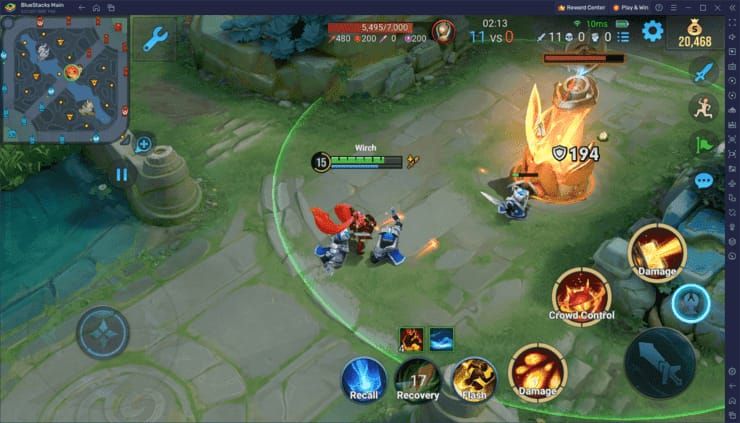
At 60 FPS, baseline performance delivers playable experience with noticeable frame pacing during rapid camera movements. 90 FPS smooths these transitions significantly, reducing visual stutter during teamfights.
The jump from 90 to 120 FPS offers subtle refinements competitive players appreciate but casual users might overlook. Additional smoothness primarily benefits players who leverage reduced input lag through superior mechanical skill.
Flagship devices reach 40-45°C at sustained 120 FPS vs 35-38°C at 60 FPS under identical conditions. This thermal overhead requires active management through external cooling or periodic breaks.
Touch Response and Input Lag
Touch sampling rate synchronization with display refresh creates the most responsive experience. Devices with 120Hz displays typically feature 240Hz+ touch sampling, meaning screens register finger movements more frequently than displaying new frames. At 120 FPS, this minimizes delay between touch input and visual feedback.
Latency reduction of 30-50% with network optimization using DNS 180.76.76.76 compounds benefits. Combined with optimized settings, players experience ping reductions from 250ms to 120ms.
The cumulative effect creates measurable advantages in skill-dependent scenarios: improved success rates with flicker dodges, precise skill shot predictions, and animation cancels requiring frame-perfect execution.
Device Compatibility Check
Before modifications, verify minimum requirements: 120Hz display, minimum 6GB RAM for Snapdragon 855+, and Android 6.0+ (Android 10+ recommended for stability).
Check actual refresh rate capability through developer options, not manufacturer specs. Some devices advertise 120Hz but implement adaptive refresh rates capping gaming performance lower. Navigate to Settings > About Phone, tap Build Number seven times to enable developer options, then verify maximum refresh rate under Display.
Thermal baseline assessment: run game at max settings for 30 minutes while monitoring temperature. If device exceeds 50°C at 60 FPS, attempting 120 FPS will trigger aggressive throttling. Devices maintaining below 45°C demonstrate adequate thermal headroom.
Official Support List
Native 120 FPS support:
Snapdragon 8 Gen 3
Dimensity 8200 Ultimate
Infinix GT 20 Pro (device-specific optimization)
Capable through modifications:
Snapdragon 855, 778G, 870 variants
Hardware Requirements
Adreno GPU architecture determines rendering capability more than CPU specs. Snapdragon 855's Adreno 640 GPU handles 120 FPS at high graphics when thermal conditions permit, while Snapdragon 778G's Adreno 642L maintains 110-115 FPS with optimized settings.
RAM capacity impacts frame stability during memory-intensive scenarios. 6GB minimum for Snapdragon 855+ ensures sufficient headroom preventing frame drops during complex visual effects, though 8GB provides noticeably more consistent performance.
Display specs extend beyond refresh rate. True 120Hz panels with minimal response times deliver smoothest experience, while adaptive refresh displays may introduce frame pacing inconsistencies creating micro-stutters.
Testing Refresh Rate Capability
Enable Display FPS in Battle Settings > Graphics to monitor real-time performance. Test 120 FPS in Training Mode before ranked matches—this controlled environment allows systematic evaluation without competitive pressure.
Monitor frame rate stability during simulated teamfights by activating multiple abilities while moving camera rapidly. Consistent frame rates above 110 FPS indicate your device maintains acceptable performance during actual matches, while frequent drops below 100 FPS suggest thermal or hardware limitations requiring graphics adjustments.
Thermal Baseline Assessment
Play three consecutive matches at current frame rate while monitoring temperature. Note when throttling begins—typically indicated by sudden frame rate drops or reduced touch responsiveness.
External cooling reduces temperatures by 10-15°C, extending stable 120 FPS duration significantly. Phone cooling fans or passive heatsink attachments provide measurable benefits for sustained high frame rate gaming.
Ambient temperature affects thermal performance substantially. Gaming in air-conditioned environments allows devices to maintain higher frame rates longer than warm rooms.
Method 1: Config File Modification (Non-Root)
The _enc.lua configuration file (106.47 KB) contains frame rate parameters the game reads during initialization. Modifying MaxFrameRate values unlocks higher performance tiers hidden in standard settings.
Before proceeding: Backup entire /Android/data/com.levelinfinite.hok.gp/ folder to external storage or cloud. This allows complete restoration if modifications cause instability.
Navigate to game's data directory using file manager with root-level access. Locate _enc.lua within configuration subdirectory, create duplicate copy before editing.
Prerequisites and Backup
Android 6.0+ required
2GB+ free storage
File manager capable of accessing data directories
Screenshot current graphics settings for reference
Editing _enc.lua
Open _enc.lua with text editor preserving file encoding
Search for all MaxFrameRate instances
Change all MaxFrameRate values to 120 (ensure consistency across every instance)
Save while preserving original encoding and file permissions
In-Game Settings Adjustment
Launch Honor of Kings
Navigate to Settings > Graphics > Frame Rate
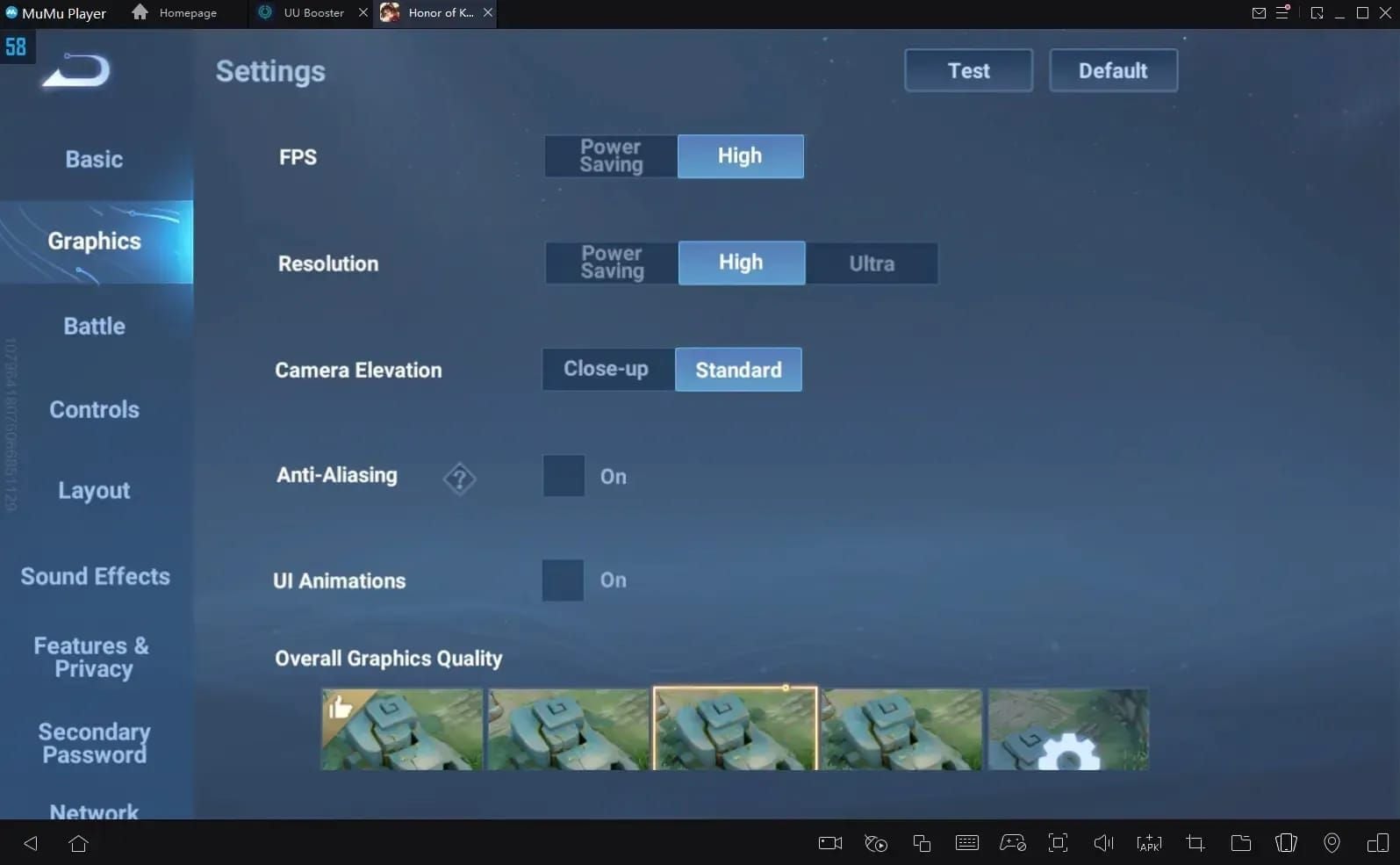
Select 120 FPS option (now visible)
Tap Apply
Restart game completely for proper initialization
For enhanced gaming experience, Honor of Kings Tokens buy through BitTopup offers competitive pricing and instant delivery.
Verification Steps
Enable Display FPS in Battle Settings > Graphics. On-screen counter should display 110-120 FPS during gameplay.
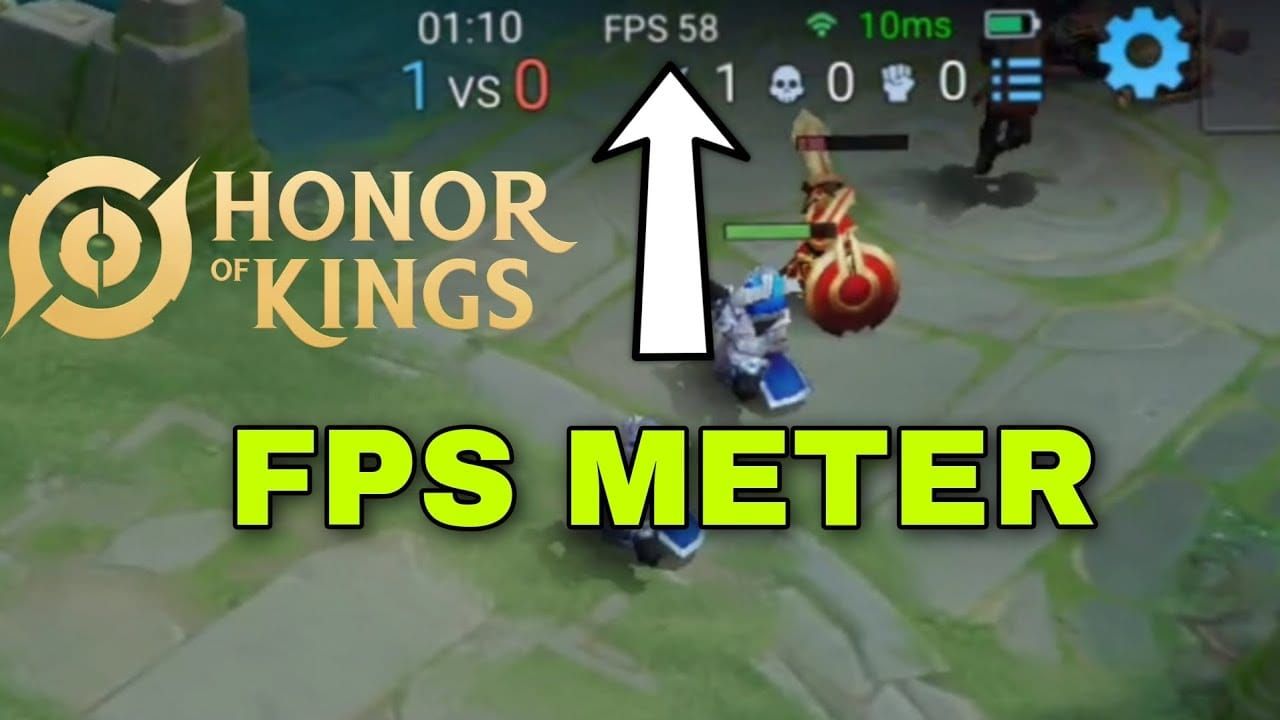
Test in Training Mode: standing idle, moving camera rapidly, activating multiple abilities, engaging practice dummies. Consistent frame rates above 110 FPS confirm successful activation.
Monitor during actual match to assess real-world performance. Teamfights with five heroes executing abilities simultaneously represent most demanding scenarios—maintaining above 100 FPS indicates adequate handling for ranked play.
Alternative: P4tch V2.0.zip
Released February 8, 2025, P4tch V2.0.zip (200KB) enables 60-144 FPS through automated configuration modification. Reduces manual editing requirements while providing broader frame rate flexibility for displays exceeding 120Hz.
Automated approach reduces user error risks. However, requires more frequent updates following game patches that might overwrite modified files.
Installation: extract patch files to game directory, execute included script. Process completes in seconds with automatic backup creation.
Optimizing Graphics Settings
Achieving 120 FPS is half the equation—maintaining stability requires balanced graphics settings.
Optimal configuration:
Resolution: High
Anti-Aliasing: ON
Graphics Quality: High
UI Animations: OFF
Particle Effects: Medium
Shadow Quality: Medium
This prioritizes gameplay-critical visuals while reducing resource-intensive effects. UI Animations OFF eliminates unnecessary rendering overhead. Particle Effects Medium maintains sufficient visual feedback without excessive density during teamfights. Shadow Quality Medium provides adequate depth perception while avoiding substantial GPU load.
Recommended Graphics Config
Resolution High: Sharp character models and clear ability indicators essential for precise targeting. Reducing creates blurriness hampering visual clarity more than improving frame rate.
Anti-Aliasing ON: Smooths jagged edges, improving clarity during rapid camera movements. Minimal performance cost on modern Snapdragon chips.
Graphics Quality High: Maintains detailed textures helping distinguish heroes during chaotic teamfights. Lower quality reduces visual distinctiveness between similar heroes.
Balancing Quality with Stability
Monitor frame rate consistency rather than peak values. Stable 110 FPS provides superior experience vs fluctuating 90-120 FPS—inconsistency creates micro-stutters disrupting timing and visual tracking.
Reduce Particle Effects to Low if frame drops occur during teamfights with multiple mages. Reduced visual density maintains adequate ability tracking while eliminating rendering overhead.
Shadow Quality represents most performance-intensive setting with minimal competitive impact. Reducing to Low or OFF provides substantial improvements while barely affecting gameplay-relevant visual information.
Background Process Management
Clear cache through Settings > Apps > Honor of Kings > Storage > Clear Cache before sessions
Close background apps before launching (social media, streaming, cloud backup)
Disable automatic app updates and notifications during gameplay
Game Turbo Optimization
Enable Network Optimization with DNS 180.76.76.76 to reduce ping from ~250ms to ~120ms—30-50% latency reduction complementing frame rate improvements.
Activate Game Turbo or equivalent performance modes to prioritize system resources. These boost CPU/GPU clock speeds while restricting background processes.
Configure Free Attack Mode to Advanced with Target Prioritization: Lowest HP, Enemy Avatar Display: OFF. Reduces UI rendering overhead while improving combat efficiency.
Thermal Management
Thermal throttling represents primary limitation preventing sustained 120 FPS on mid-range Snapdragon chips. Snapdragon chips throttle when internal temperatures exceed 45-50°C, reducing clock speeds to prevent hardware damage.
Proactive thermal management through external cooling, strategic breaks, and environmental control maintains consistent 120 FPS throughout ranked sessions.
Snapdragon Throttling Behavior
Throttling typically begins after 20-30 minutes of sustained 120 FPS without active cooling. Initial throttling reduces frame rates by 10-15%. Continued buildup triggers more aggressive throttling reducing rates by 30-40%.
Throttling curve varies between devices based on thermal design. Phones with vapor chamber cooling or graphite thermal pads maintain higher performance longer than devices relying solely on passive heat dissipation.
Monitor temperature through system utilities. When approaching 45°C, take brief break or reduce graphics settings temporarily to prevent severe throttling.
Cooling Solutions
External cooling fans: Reduce temperatures by 10-15°C, effectively doubling/tripling stable 120 FPS duration. Attach to phone's back panel for active heat dissipation.
Passive cooling: Metal heatsink cases provide 5-8°C reductions. Work best in air-conditioned environments where ambient temperature remains low.
Remove phone cases during gaming to improve heat dissipation. Most cases insulate device and trap heat, accelerating thermal buildup.
Software Temperature Control
Reduce screen brightness to 70-80% to decrease display power consumption
Enable battery saver mode when playing while connected to power to limit charging-related heat
Schedule intensive sessions during cooler parts of day (evening/early morning)
Monitoring Tools
Enable developer options to access CPU/GPU monitoring overlays displaying real-time temperature. Track trends across multiple matches to identify thermal ceiling and typical time-to-throttle.
Correlate frame rate drops with temperature spikes to confirm thermal throttling as cause rather than software/network issues.
Battery Optimization
Power consumption increases 40-60% at 120 FPS vs 60 FPS. Understanding power management balances performance demands against battery longevity.
Power Consumption Analysis
Typical battery drain at 120 FPS: 15-20% per hour on 4500-5000mAh batteries vs 8-12% per hour at 60 FPS. This limits unplugged sessions to ~4-5 hours at max frame rates vs 8-10 hours at standard settings.
Display power consumption represents largest contributor. Reducing brightness to minimum comfortable levels provides most effective conservation without impacting frame rate.
WiFi connections consume less power than mobile data for equivalent performance—prefer WiFi gaming for battery conservation.
Adaptive Frame Rate Techniques
Reduce to 90 FPS during casual matches, reserve 120 FPS for ranked
Enable automatic frame rate reduction during low-action periods if available
Monitor battery percentage, reduce frame rate preemptively when below 30%
Charging While Gaming
Use original manufacturer chargers or certified alternatives to minimize heat generation. Low-quality chargers generate excessive heat compounding thermal load.
Avoid fast charging while gaming at 120 FPS—combined thermal load creates temperatures degrading battery longevity. Standard charging speeds provide adequate power with less heat.
Remove cases during charging gameplay sessions to improve heat dissipation from both processes.
Battery Health Preservation
Maintain charge between 20-80% during regular use for maximum long-term health
Avoid gaming while charging overnight or extended periods at 100%
Replace batteries showing significant degradation after 500-800 charge cycles (18-24 months intensive use)
Troubleshooting Common Issues
Frame Drops During Teamfights
Reduce Particle Effects to Low/OFF if drops occur during ability-heavy teamfights
Lower Shadow Quality to OFF if stuttering persists
Clear game cache and restart device if stuttering appears suddenly
Screen Tearing and Visual Artifacts
Enable VSync or equivalent frame synchronization
Verify display's actual refresh rate matches configured frame rate
Reduce to 90 FPS if tearing persists—some display controllers handle non-native refresh rates poorly
Game Crashes or Boot Loop
Delete modified _enc.lua, restore backup copy
Clear all game data through Settings > Apps > Honor of Kings > Storage > Clear Data
Reinstall Honor of Kings completely if crashes persist
Reverting to Stock Settings
Restore backup of /Android/data/com.levelinfinite.hok.gp/ folder for complete reversion. Alternatively, delete only modified _enc.lua and allow game to regenerate default configuration.
Verify frame rate returns to standard options by checking Settings > Graphics > Frame Rate menu—120 FPS option should disappear.
Pro Player Insights
Professional players leverage 120 FPS most effectively through hero selections capitalizing on improved responsiveness and visual clarity. Assassins and marksmen benefit disproportionately due to reliance on precise positioning and timing-critical ability execution.
Skill Execution Improvements
Animation cancels become more consistent at 120 FPS due to tighter timing windows. Techniques requiring precise input sequences within narrow time windows benefit from reduced input lag and more frequent visual feedback.
Flicker dodging and reaction-based defensive techniques see measurable success rate improvements. Reduced visual latency allows recognizing incoming threats earlier and executing defensive responses before abilities land.
Kiting and attack-move optimization for marksmen reaches peak efficiency through smoother visual feedback during rapid input sequences.
Hero-Specific Benefits
Assassins (Ling, Lancelot): Improved ability combo execution and enhanced visual tracking during high-mobility engagements. Smoother frame delivery maintains visual orientation during rapid dashes/blinks.
Marksmen (Huang Zhong, Marco Polo): More precise kiting and positioning adjustments through reduced input lag. Consistent attack-move patterns see particular improvements in damage output consistency.
Mages (Wang Zhaojun, Diao Chan): Land skill shots more consistently due to improved visual tracking. Additional visual information helps predict enemy positioning more accurately.
Tournament-Level Optimization
Competitive players combine 120 FPS with optimized control settings: Camera Sensitivity Fast, Equipment Position Right, Minimap Left for maximum information accessibility and input efficiency.
Network optimization through gaming VPNs or optimized DNS complements frame rate improvements by reducing latency. Combined optimization creates comprehensive enhancement greater than either improvement individually.
Hardware selection prioritizes proven thermal performance and sustained 120 FPS capability over peak specs. Reliability and consistency matter more than maximum theoretical performance in competitive scenarios.
When 120 FPS Matters Most
High-stakes ranked matches in Diamond+ see greatest competitive impact, as opponents possess mechanical skills to exploit small performance edges. Lower-tier matches hinge more on strategic decision-making than mechanical execution.
Teamfight-heavy compositions benefit more than split-push or poke-oriented strategies. Chaotic visual environment during 5v5 engagements creates scenarios where superior visual clarity provides maximum advantage.
Late-game scenarios where single mistakes determine outcomes justify battery and thermal costs more than early-game laning. Strategic frame rate management reserves maximum performance for critical moments.
FAQ
Can forcing 120 FPS damage my phone?
Forcing 120 FPS doesn't directly damage hardware but increases thermal stress and power consumption by 40-60%. Sustained temperatures above 50°C can accelerate battery degradation and reduce component lifespan. Using external cooling and monitoring temperatures below 45°C mitigates risks effectively.
What's the difference between 90 FPS and 120 FPS?
The jump from 90 to 120 FPS reduces frame delivery time from 11.1ms to 8.33ms, decreasing input lag by 8-12ms. Visual smoothness improves during rapid camera movements and teamfights, though more subtle than 60 to 90 FPS upgrade. Competitive players with refined mechanical skills benefit most.
Will 120 FPS drain battery faster?
Yes, 120 FPS increases consumption by 40-60% vs 60 FPS, reducing typical session duration from 8-10 hours to 4-5 hours on 4500-5000mAh batteries. Reduce screen brightness, use WiFi instead of mobile data, and enable battery saver while charging to mitigate drain. Reserve 120 FPS for ranked matches.
How to prevent overheating at 120 FPS?
External cooling fans reduce temperatures by 10-15°C. Remove phone cases, reduce brightness to 70-80%, play in air-conditioned environments. Take 5-minute breaks every 30-45 minutes. Monitor temperatures and reduce graphics if exceeding 45°C.
Can I get banned for forcing 120 FPS?
Configuration file modifications don't trigger anti-cheat systems as they alter client-side rendering, not game logic or network communication. No documented ban cases exist for frame rate modifications. Use caution with third-party tools and avoid modifications altering gameplay mechanics.
How to revert changes if 120 FPS causes problems?
Delete modified _enc.lua from /Android/data/com.levelinfinite.hok.gp/ and restore backup. Alternatively, clear game data through Settings > Apps > Honor of Kings > Storage > Clear Data to force regeneration of defaults. Game reverts to stock frame rate options automatically.