

The April 2026 patch changed everything. Aftershock and Space City 2.0 brought dense particle systems, destructible geometry, and complex lighting that older guides simply don't cover. Getting stable 60+ FPS on low-end hardware — or pushing 144-200+ on mid-to-high-end rigs — requires map-aware settings, correct upscaling config, and driver-level tweaks. Not just "set everything to Low."
Why 2026 Demands a Fresh Approach
Most guides floating around were written before the engine overhaul. On Aftershock or Space City 2.0, they're not just outdated — they're actively misleading.
TiMi Studio Group's Team Jade shipped two maps that stress the DirectX 12 engine in completely different ways. Aftershock hammers your GPU with urban explosion particle loads and destructible geometry. Space City 2.0 punishes you with open sightlines, reflective surfaces, and complex global illumination. The same settings that work on older maps can cost you 30-40 FPS here.
The December 2025/2026 engine update also changed texture streaming and shader compilation behavior. Community testing on r/DeltaForceGlobal and r/OptimizedGaming has documented 2-3 second stutters every 15-20 seconds on AMD GPUs specifically — a problem that didn't exist before this revision.
Frame time consistency matters more than peak FPS. A player averaging 144 FPS with stable 1% lows beats someone spiking to 200 then dropping to 45 in firefights. Unoptimized settings hurt your reaction time, aim tracking, and target reading — not just your experience.
System Requirements
Official specs plus real-world FPS expectations from community benchmarking:
One caveat: the GTX 660 minimum spec was defined before Aftershock and Space City 2.0 existed. Treat the GTX 1060 / RX 5500 XT tier as the practical minimum for 2026 content.
In-Game Settings: Every Option That Matters
Display
Run Fullscreen Exclusive — not Borderless Window. Borderless adds measurable input lag and can interfere with G-Sync/FreeSync. Set native resolution, then use Render Scale to manage rendering load.
Render Scale
This is the single most impactful setting. Dropping from 100 to 80 recovers 15-25% FPS with minimal visual impact when paired with DLSS or FSR.
GTX 1060 class: Render Scale 80-90 + DLSS/FSR Quality → 60-90 FPS stable
RTX 3060 / RX 6700: Render Scale 100 + DLSS/FSR Balanced → 100-144 FPS
RTX 4080+: Render Scale 100 + DLSS Quality + Frame Generation → 200+ FPS
Shadow Quality
Second most impactful setting, and the trade-off is favorable. Community testing shows 10-25% FPS gains on Aftershock when dropping shadows from High to Medium or Low. The competitive visibility loss is minimal — explosion effects already obscure shadows in close-quarters combat.
There's genuine community disagreement here: some guides say Medium, others say Low for Aftershock. My take — test both. On Aftershock, go Low. On Space City 2.0 where lighting complexity affects target visibility, Medium is worth the cost.
Anti-Aliasing
TAA is the default recommendation, but the 2026 engine update introduced ghosting artifacts for some players. If you're seeing blurring on fast-moving targets, switch to FXAA. Less effective at edge smoothing, but it eliminates the ghosting entirely. Test in the firing range before committing.
Texture Quality and VRAM
Space City 2.0 will overflow your VRAM budget. On 6-8GB cards, VRAM overflow doesn't look like gradual slowdown — it's sudden 2-3 second freezes with texture pop-in. If that's happening specifically on Space City 2.0, drop Texture Quality one tier and set Streaming to Low.
Effects and Post-Processing
Post-Processing: Low. This is a free performance gain. The effects it removes — depth of field, lens flare, chromatic aberration — actively hurt target visibility. Turn it off.
Motion Blur: Off. Always. No exceptions. It reduces your ability to track targets and adds perceived input lag. There's no scenario where a competitive player should have this on.
Volumetric Fog: Low. Outsized performance cost on Aftershock where smoke and explosion effects interact with the fog system. One of the highest-value changes you can make on that map.
Full Settings Preset Table
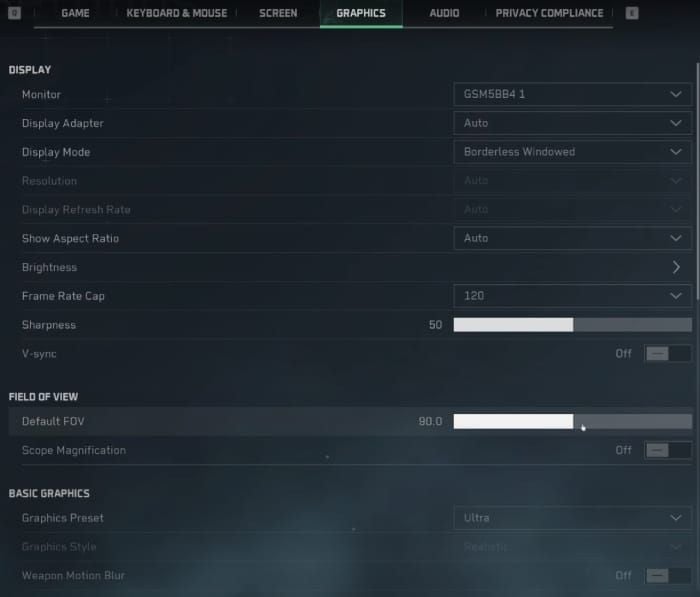
Map-Specific Optimization
This is where most guides fall short — and where you'll find the biggest real-world gains.
Aftershock
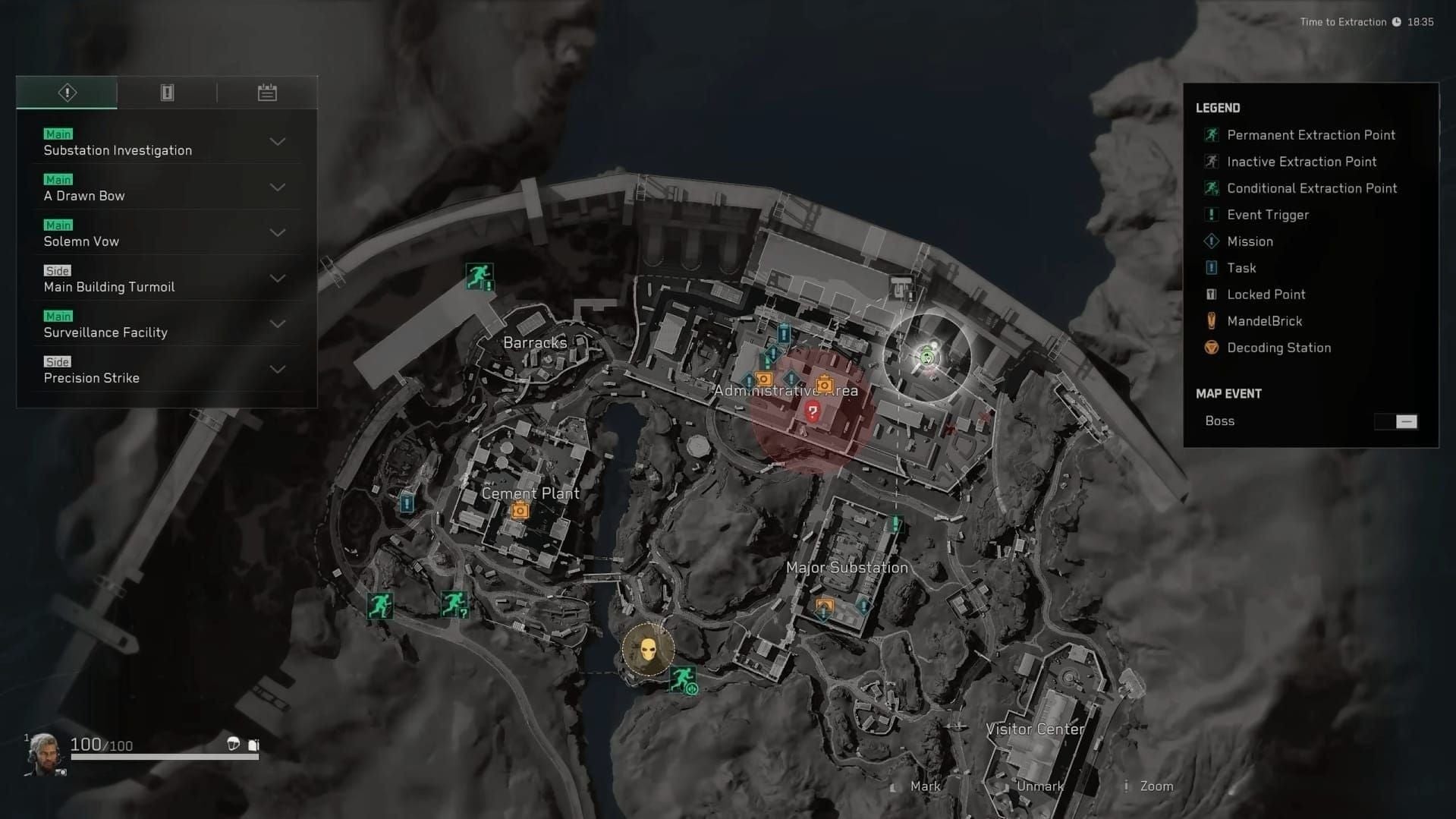
The bottleneck is the particle system. Urban close-quarters combat means constant grenade explosions, gunfire effects, and destructible debris stacking particle draw calls simultaneously. Reddit threads document FPS swings from 120 to under 30 on the same hardware within seconds.
Aftershock-specific settings:
Particles: Low (non-negotiable — this is the primary bottleneck)
Volumetric Fog: Low
Shadow Quality: Low (10-25% FPS gain; explosions already obscure shadows)
Post-Processing: Low
Space City 2.0
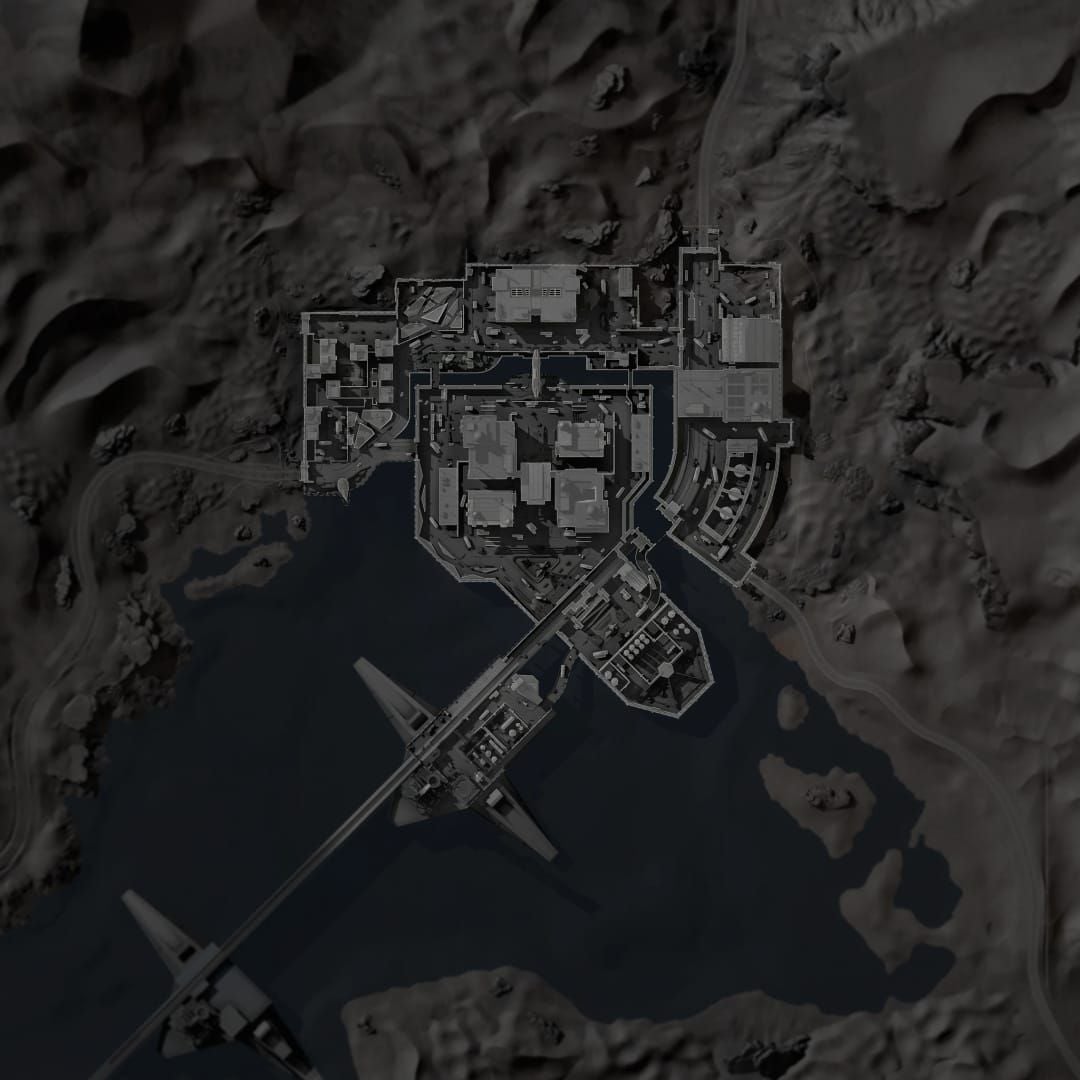
Different problem entirely. Open geometry means your GPU renders large map portions simultaneously. Reflective surfaces — glass, metal, wet pavement — trigger expensive screen-space reflection calculations. VRAM overflow is common on 6-8GB cards here.
Space City 2.0-specific settings:
Reflections: Low or Off (primary bottleneck)
Global Illumination: Low
Render Scale: Drop to 80 on mid-range hardware
Texture Streaming: Low if on 6-8GB VRAM
Should You Switch Settings Per Map?
Honestly, yes — if you're willing to spend 60 seconds between matches. The performance difference between Aftershock-optimized and Space City 2.0-optimized settings can be 15-30 FPS on mid-range hardware. Think of it as two mental presets: Particle Mode for Aftershock (everything particle-related to Low) and Reflection Mode for Space City 2.0 (reflections and GI to Low, particles can go Medium).
Upscaling: DLSS, FSR, and XeSS
DLSS 3 (NVIDIA RTX 40 series): Frame Generation confirmed working in Delta Force 2026. Community testing shows 200+ FPS on RTX 4080 at Ultra with Frame Generation on. For competitive play, use DLSS Quality — best balance of clarity and performance. Pair with NVIDIA Reflex On/Boost to counteract any latency Frame Generation adds.
FSR 3 (AMD / any GPU): Works well, but AMD users have a complicated situation in 2026. The engine update introduced shader compilation issues on AMD specifically. See the AMD stutter fix section below.
Ranked by image quality (community testing):
DLSS 3 Quality — best clarity, best latency with Reflex
FSR 3 Quality — excellent, slight softness vs DLSS
Intel XeSS — solid on Arc hardware, less community data
FSR 2 / FSR 1 — avoid if FSR 3 is available
GPU Driver and Control Panel Settings
NVIDIA Control Panel
Program Settings → Add Delta Force:
Low Latency Mode: Ultra limits the pre-rendered frame queue to 1, reducing input-to-screen gap. Combined with in-game Reflex, this is the lowest-latency NVIDIA configuration available.
AMD Radeon Software
Gaming → Delta Force profile:
Keep Enhanced Sync off — community testing shows it causes frame drops on the 2026 engine.
Windows System Optimization
HAGS, Game Mode, and XMP
This combination fixes most stuttering complaints in 2026:
Game Mode: On (Settings → Gaming → Game Mode)
HAGS: Off for AMD users, On for NVIDIA. The 2026 DX12 pipeline has a documented conflict with HAGS on AMD that drops GPU utilization below 10% intermittently.
XMP/EXPO: Enable in BIOS. Runs RAM at rated speed instead of default 2133MHz. Community testing shows 10-15% CPU performance improvement in CPU-bound scenarios — free performance that a surprising number of players leave disabled.
Power Plan
Set to High Performance or Ultimate Performance. The Balanced plan throttles CPU clocks dynamically, creating frame time spikes during the sudden load bursts that Aftershock firefights generate.
Background Processes to Kill Before Launching
Discord overlay (run Discord without overlay)
Xbox Game Bar / Game DVR (Settings → Gaming → Xbox Game Bar → Off)
Background recording (Settings → Gaming → Captures → Off)
Browser tabs with video
RGB software that polls hardware sensors frequently
Virtual Memory (8GB RAM Systems)
Set manually: System → Advanced System Settings → Performance → Virtual Memory. Set minimum and maximum to 1.5x your RAM (12,288 MB for 8GB). Windows' automatic management can cause stutters when it dynamically resizes the pagefile mid-match.
Fixing Common Issues
The AMD Stutter Fix
If you're on AMD and experiencing 2-3 second freezes every 15-20 seconds:
Roll back to AMD driver 24.8.1 (available on AMD's driver archive)
Add -dx11 to Delta Force launch options
Disable HAGS in Windows Settings → System → Display → Graphics
Clear shader cache: Radeon Software → Performance → Tuning → Reset Shader Cache
Set Texture Streaming to Ultimate and Shadow Quality to Low
Relaunch and test
The -dx11 flag bypasses the DX12 pipeline issues from the 2026 engine update. You lose some performance headroom but gain stability. For most AMD users below RX 6700 class, that trade-off is worth it.
VRAM Overflow
Sudden 2-3 second freezes with texture pop-in, most common on Space City 2.0 with 6-8GB cards. Diagnose with GPU-Z or MSI Afterburner — if you're hitting 95%+ VRAM utilization, you're at overflow risk. Fix: drop Texture Quality one tier, set Streaming to Low.
Shader Compilation Stutters
The 1-2 second hitches when you first encounter a new effect or weapon. The 2026 engine made this worse. Mitigation: play a few rounds on less demanding maps first to pre-warm the shader cache. Stutters diminish significantly after the first session.
CPU vs GPU Bottleneck: Identify Before You Fix
Applying the wrong fix for your bottleneck does nothing. This is what separates real optimization from a generic settings list.
GPU at 99%, CPU at 40%: GPU-bound. Lower graphics settings. Closing background apps won't help.
CPU at 95%, GPU at 50%: CPU-bound. Lowering graphics settings won't help much. Close background processes, disable overlays, enable XMP.
Delta Force 2026 is generally GPU-bound at medium-to-high settings, but Aftershock's particle system creates CPU spikes during large firefights — particularly on older quad-core CPUs. If you're on an i5-6500 or Ryzen 5 1500X, you may hit CPU bottlenecks specifically during Aftershock's most chaotic moments. The fix there isn't graphics settings.
How to check: Run MSI Afterburner with an in-game overlay. Monitor GPU and CPU utilization simultaneously during a match.
Network Optimization
Wired connection: Ethernet eliminates 5-15ms wireless overhead and removes packet loss from interference. If you're on Wi-Fi with rubber-banding, this single change can feel like a hardware upgrade.
Server selection: Matchmaking doesn't always pick the lowest-latency server. Manually check available regions and select the one with consistently lowest ping.
QoS on router: Prioritize gaming traffic to prevent downloads or streaming from spiking your ping mid-match.
ExitLag and similar tools: Community testing suggests measurable ping reduction for players consistently above 80ms. Worth testing.
Laptop-Specific Optimization
Thermal throttling is the silent FPS killer on laptops. When your device overheats, CPU and GPU reduce clock speeds — and your FPS drops 20-40% with no warning.
Prevention:
Elevate your laptop for airflow
Clean vents every 3-6 months
Repaste CPU/GPU if the laptop is 2+ years old
Cap FPS slightly below your thermal throttle point — 90 FPS stable beats 120 that drops to 60 when hot
Always run High Performance power plan when plugged in. Verify the dedicated GPU (not integrated graphics) is selected for Delta Force in NVIDIA/AMD laptop software.
Competitive Settings Philosophy
The competitive meta is built on one principle: frame time consistency over peak FPS, clarity over visual fidelity.
Pro players sacrifice shadows, reflections, and effects because those settings actively interfere with target acquisition. Every visual effect you disable is one less thing competing for your attention in a firefight.
Community-validated competitive settings (based on high-rank player testing on Reddit and channels like BareFox):
All shadows: Low
All effects: Low
Reflections: Off or Low
Post-Processing: Low
Motion Blur: Off
Particles: Low
Upscaling: DLSS/FSR Quality (not Performance — clarity matters for target ID)
Reflex/Anti-Lag: On
VSync: Off, G-Sync/FreeSync at monitor level
Mouse sensitivity: Community consensus is 5-8 in-game at 800-1600 DPI, Vertical Sensitivity at 1.0. Don't just copy someone else's numbers — test in the firing range.
But if you're playing casually, Medium textures and shadows on Space City 2.0 look genuinely good and won't cost you matches. Calibrate to your actual goals.
If you're investing in seasonal content while you optimize, Delta Force top up discount 2026 options through BitTopup let you get Delta Coins without the hassle.
Frequently Asked Questions
Can I run Delta Force 2026 on a GTX 1060 or RX 5500 XT? Yes. With DLSS/FSR Quality, Render Scale 80-90, and the low-end preset above, community testing confirms 60-90 FPS stable. Expect the lower end during heavy Aftershock firefights.
Why does Delta Force stutter every 15-20 seconds on my AMD GPU? Documented issue from the 2026 engine update. Fix: roll back to AMD driver 24.8.1, add -dx11 to launch options, disable HAGS, clear shader cache.
Does Delta Force support DLSS, FSR, and XeSS in 2026? Yes. DLSS 3 including Frame Generation (RTX 40 series), FSR 3, and Intel XeSS are all confirmed. DLSS 3 Quality delivers the best image quality; FSR 3 Quality is the best option for AMD and non-RTX users.
Is Delta Force more CPU-intensive or GPU-intensive? Generally GPU-bound at medium-to-high settings. Aftershock's particle system creates CPU spikes on older quad-core processors. Monitor both during gameplay to identify your actual bottleneck.
Should I use -dx11 or DirectX 12? NVIDIA users: stick with DX12. AMD users experiencing stutters: -dx11 is the current recommended workaround. You lose some performance headroom but gain stability.
How often should I update GPU drivers? NVIDIA: update when drivers specifically mention Delta Force optimizations. AMD: exercise caution — the 24.8.1 rollback exists because newer drivers introduced Delta Force-specific issues. Check r/DeltaForceGlobal before updating after any major patch.
Final Checklist
✅ Windows Power Plan → High Performance / Ultimate Performance
✅ Game Mode On, Game DVR and background recording Off
✅ HAGS: Off for AMD, On for NVIDIA
✅ XMP/EXPO enabled in BIOS
✅ GPU Control Panel: Low Latency Ultra (NVIDIA) / Anti-Lag On (AMD)
✅ Apply hardware-tier preset from the settings table
✅ Map adjustment: Particles Low for Aftershock, Reflections Low for Space City 2.0
✅ DLSS/FSR Quality enabled with Reflex/Anti-Lag
✅ VSync Off in-game; G-Sync/FreeSync at monitor level
✅ Close Discord overlay, browser tabs, RGB software before launching
Transparency note: No official developer optimization guide for Delta Force 2026 exists as of this writing. All hardware-specific recommendations come from community testing on r/DeltaForceGlobal, r/OptimizedGaming, and creators like BareFox. Official specs are confirmed from TiMi Studio Group's published documentation. Where community sources conflict — like the Shadows Medium vs Low debate — I've flagged it so you can test on your specific hardware.
Performance optimization is iterative. Check your GPU/CPU utilization, identify your bottleneck, apply the relevant fix, test again. The settings above are starting points. For staying stocked on seasonal content while you grind, Delta Force cheap recharge options through BitTopup keep your account ready without interrupting the process.