

Aftershock — introduced in the April 2026 patch — is the most demanding map in Delta Force. Community testing documents FPS swings from 120 down to under 30 during clustered explosions. The fix: set Particles, Shadows, and Volumetric Fog to Low, drop Render Scale to 80% with DLSS 3 (NVIDIA) or FSR 3 (AMD), turn VSync Off, enable XMP in BIOS, and run a High Performance power plan. Everything below breaks that down tier by tier.
Why Aftershock Destroys FPS on Every Other Map
Most Delta Force maps tax your GPU predictably. Aftershock doesn't.
It's a dense urban CQC map built around destructible environments and high player counts. When grenades cluster — which happens constantly — the engine simultaneously processes destruction physics, debris particles, volumetric smoke, and dynamic shadow recalculation for every fragment. That combination is the bottleneck, not texture resolution or draw distance.
An RTX 3060 running 110 FPS on Space City can drop to 28 FPS in a single Aftershock firefight. That's not a GPU limitation — it's an unoptimized settings profile hitting Unreal Engine 5's particle system at full load.
The April 2026 patch built high visual density into Aftershock as a deliberate design choice. The engine won't scale it back automatically. The performance gap between optimized and unoptimized setups runs 15–30 FPS lower than open maps — and widens sharply during peak combat.
System Requirements: Real Expectations by Hardware Tier
Forget the minimum spec as a playability target.
Community-validated numbers, not marketing benchmarks. An unoptimized RTX 3060 will underperform a well-tuned GTX 1060 in certain Aftershock scenarios.
Diagnose Your Bottleneck First
Run MSI Afterburner during an Aftershock match. CPU at 95%+ while GPU sits around 50%? You're CPU-bound — lower Particles and Scene Details, not texture resolution. GPU pegged at 99% with CPU relaxed? You're GPU-bound — render scale reduction is your primary lever. The wrong fix makes things worse.
In-Game Graphics Settings: Full Tier Presets
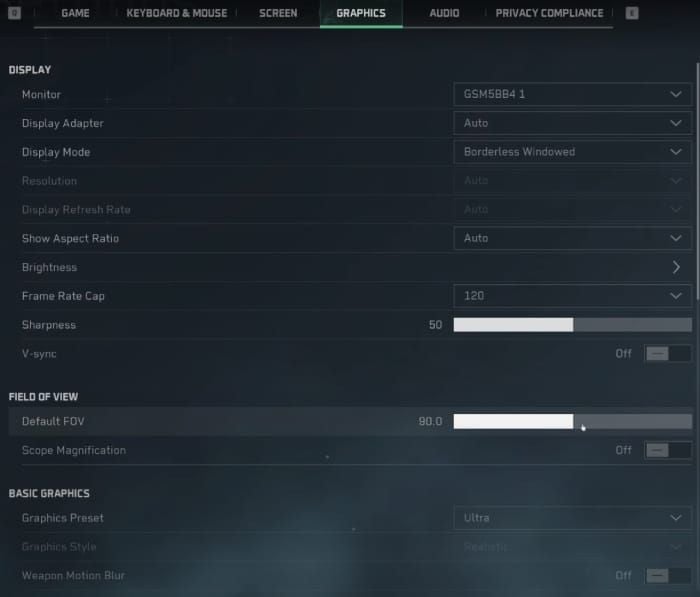
Not all settings cost the same FPS. Some are nearly free visually but expensive on performance. Knowing which is which is the whole game.
Render Scale: Your Biggest Single Lever
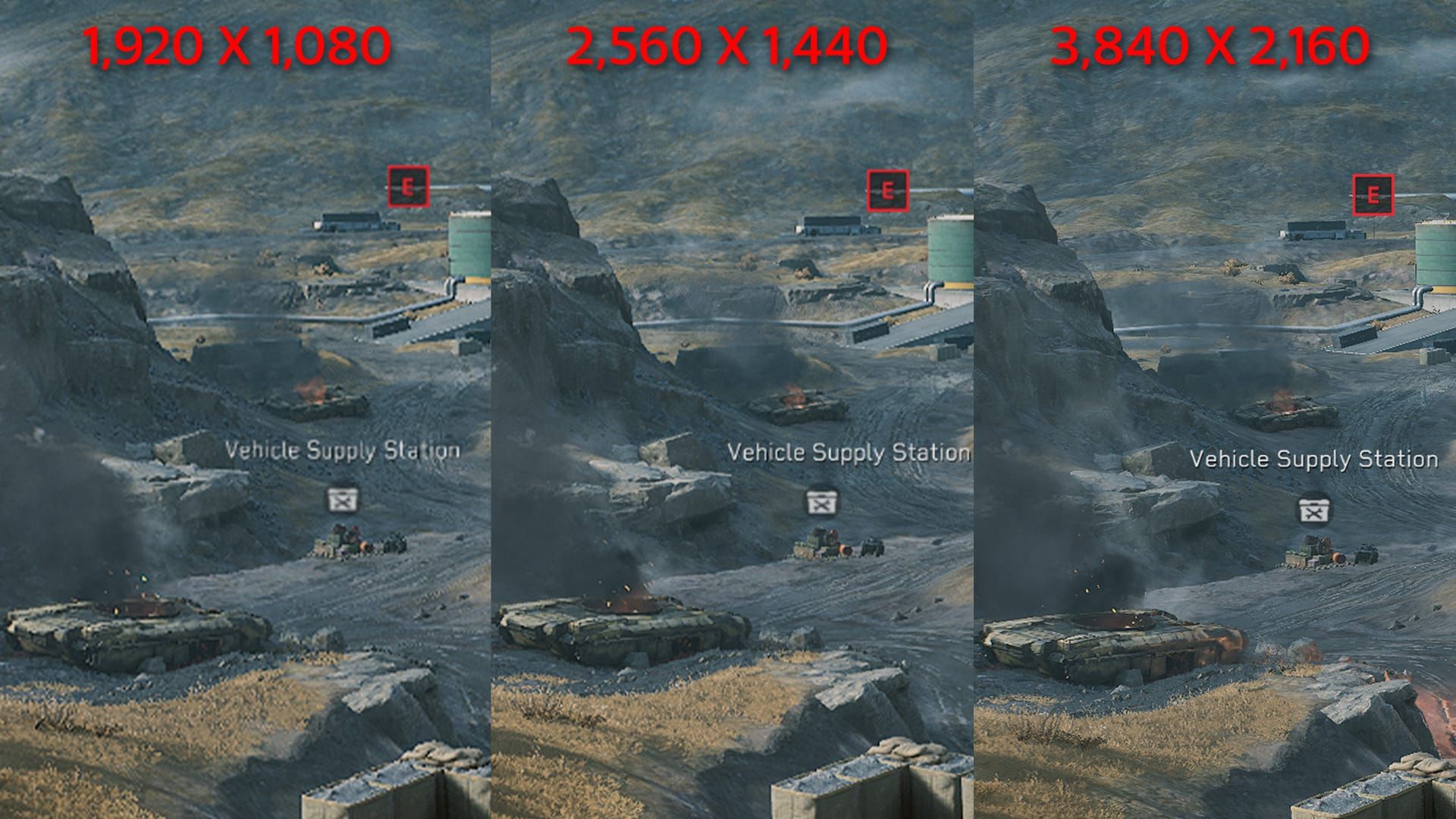
Dropping from 100% to 80% with quality upscaling active recovers 15–25% FPS with minimal visible degradation. The key phrase is "with upscaling" — 80% without DLSS or FSR produces a noticeably blurry image. With DLSS 3 Quality or FSR 3 Quality active, the reconstructed image is sharper than native TAA at 100% on most hardware. Touch this setting first on low-end hardware.
Particles: The Aftershock Non-Negotiable
Community consensus is unambiguous. Particles to Low is not optional if you want stable performance on Aftershock. It's the primary CPU/GPU bottleneck during urban CQC explosions. The visual difference between Low and Medium is real — the performance difference is enormous: expect 20–40% FPS improvement in heavy combat from this one setting alone.
Shadows and Volumetric Fog: The Hidden 25% Gain
Here's what most guides miss: during Aftershock's explosion-heavy phases, volumetric smoke obscures shadows almost entirely. You're paying a massive performance cost for shadow detail that's literally invisible behind the smoke. Setting both to Low yields a community-confirmed 10–25% FPS gain — and in the moments it matters most, you won't see the visual difference.
Textures: Don't Over-Cut
Texture quality is cheap on performance but expensive on VRAM. With 6GB+ VRAM, keep textures at High or Medium. Dropping to Low saves minimal FPS but makes the game look noticeably worse. GTX 1060 5GB users: use Medium to avoid VRAM overflow stutters.
Motion Blur, Depth of Field: Always Off
These are competitive killers. Motion blur reduces target visibility during fast movement. Depth of Field blurs peripheral vision. Neither has meaningful performance cost — both actively hurt your ability to track enemies.
DLSS 3 vs FSR 3 vs XeSS: Right Choice by GPU
DLSS 3 (NVIDIA RTX 40-Series)
The clear winner for RTX 40-series owners. Superior image clarity versus FSR 3 at equivalent quality modes, lowest latency when paired with NVIDIA Reflex, and Frame Generation pushes competitive hardware past 200 FPS on Aftershock. Always enable Frame Generation alongside Reflex — Frame Gen adds latency on its own, but Reflex counteracts it, resulting in net-neutral or improved latency versus running without Frame Gen.
FSR 3 (AMD and Budget NVIDIA)
Solid choice for AMD Radeon users and non-RTX NVIDIA owners. Slight softness versus DLSS at equivalent modes — noticeable on distant targets — but the performance gains are real. Pair with AMD Anti-Lag for best latency on Radeon hardware. FSR 3 is hardware-agnostic, so GTX 1060 and RX 5500 XT users can use it too.
XeSS (Intel Arc)
Functional on Arc hardware, ranks below both DLSS and FSR 3 in image quality for Delta Force 2026. Use it on Arc — it beats TAA alone. On non-Arc hardware, FSR 3 is the stronger option.
Quality Mode Guide
Quality mode is the competitive sweet spot for most hardware. Balanced is acceptable if you're still CPU-bottlenecked after other optimizations.
Aftershock Hotspots: Where FPS Collapses
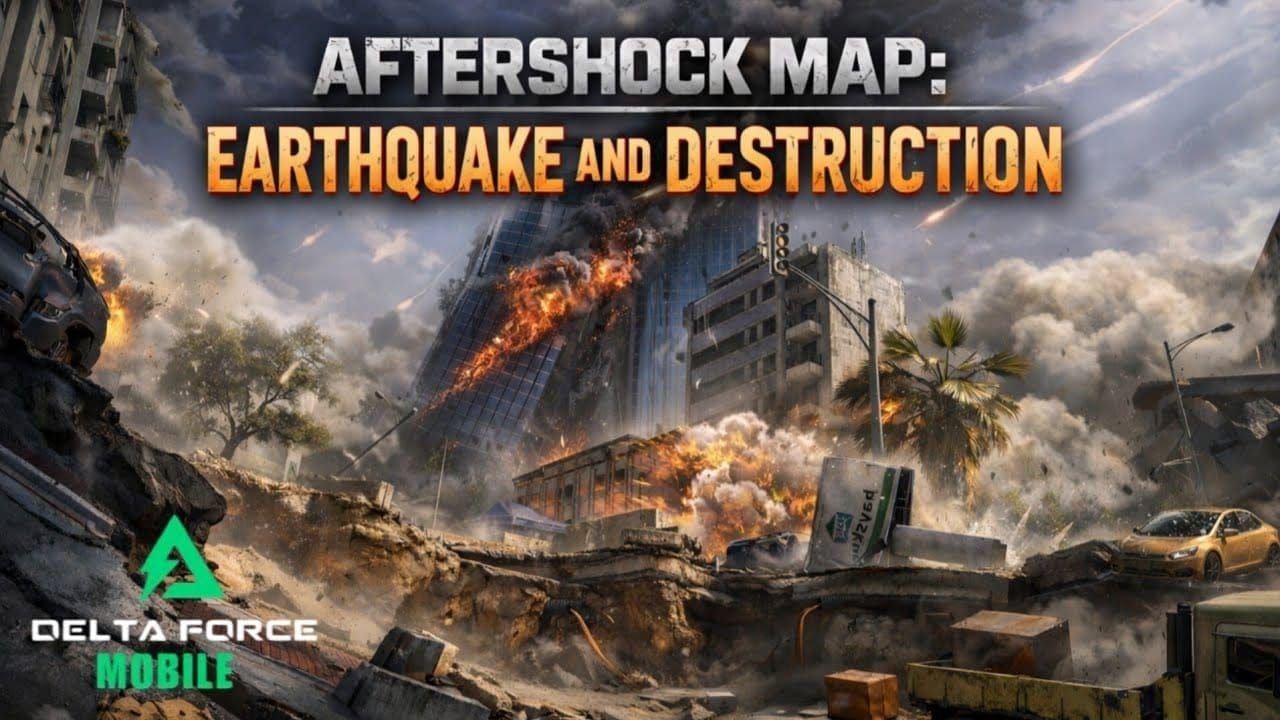
Three factors combine uniquely on this map: high player counts in confined urban space, destructible geometry generating physics on every hit, and a particle system designed for dense explosion feedback. Any one stresses hardware. All three simultaneously creates the 120-to-30 FPS swings community testing has documented.
Central Market Area: Highest player density on the map. Multiple squads converging triggers the worst CPU load — player model rendering, explosion particles, and destruction debris simultaneously. Even optimized systems see 15–20 FPS drops here. Particles Low and Scene Details Low are your primary defenses.
Building Collapse Corridors: Destruction physics are most active in these narrow passages. Each structural collapse triggers debris particle cascades and shadow recalculations. Volumetric Fog Low is especially critical — smoke from collapses fills these corridors and fog rendering cost spikes sharply.
Rooftop Sightlines: Counterintuitively, rooftop positions spike GPU load from draw distance and reflection calculations across the urban skyline. Reflections Low and Global Illumination Low are the targeted fixes here.
The Shader Pre-Compilation Fix Nobody Mentions
Delta Force compiles shaders on first encounter. Aftershock's new particle effects from the April 2026 patch cause 1–2 second hitches mid-match as shaders compile — exactly when you can't afford them.
The fix: play 1–2 rounds on lighter maps first after any patch. This pre-compiles the shader cache before you're in a competitive match. After major patches, clear your shader cache and verify game files to prevent corrupted cache entries. The-dx11 launch option stabilizes AMD systems experiencing 2–3 second stutters post-patch, though it carries a small performance cost.
GPU Driver Settings: Free FPS Most Players Ignore
NVIDIA Control Panel (Program Settings → Delta Force)
Low Latency Mode: Ultra
Power Management Mode: Prefer Maximum Performance
Texture Filtering Quality: High Performance
Vertical Sync: Off
Shader Cache Size: Unlimited
HAGS: Enable — improves frame time consistency on NVIDIA in Delta Force's DX12 implementation
AMD Radeon Software (Delta Force Profile)
Anti-Lag: On
AMD Chill: Off
Enhanced Sync: Off
Shader Cache: Enabled
Radeon Boost: Off (interferes with upscaling)
HAGS: Disable — AMD hardware shows GPU utilization drops below 10% with HAGS enabled in Delta Force's DX12 pipeline. Known conflict, not a general HAGS rule.
AMD stutter note: if you're experiencing 2–3 second stutters after the 2026 update, roll back to driver version 24.8.1. Certain post-2026 AMD drivers cause DX12 utilization drops below 10% — a driver bug, not a settings issue.
Windows Optimizations: 10 Minutes, Permanent Gains
Update GPU drivers (or roll back to 24.8.1 for AMD if stuttering)
Enable XMP/EXPO in BIOS
Set Power Plan to High Performance (or Ultimate Performance via PowerShell)
Enable Windows Game Mode; disable Xbox Game Bar and Game DVR recording
Enable HAGS in Windows Graphics Settings (NVIDIA only)
Close Discord overlay, RGB software, and background recording apps
That last point deserves emphasis. Discord overlay, RGB lighting software, and background recording collectively cost 10–20% on 1% low FPS figures. They don't show in average FPS — they show up as stutters that feel like network lag but aren't.
RAM: The Free 10–15% Gain Most Players Miss
Dual-channel RAM with XMP/EXPO enabled improves CPU performance by 10–15% in Aftershock's CPU-bound scenarios. It costs nothing if you already have two sticks — you just need to enable the profile in BIOS.
Check two things: are your sticks in the correct dual-channel slots (usually slots 2 and 4, not 1 and 2 — check your motherboard manual)? And is XMP/EXPO actually enabled? Most systems ship with it disabled, running RAM below rated speed.
16GB is the practical minimum for Aftershock. 32GB eliminates memory pressure during large-scale combat entirely.
Fixing Stutters and Frame Pacing
High average FPS means nothing with inconsistent frame times. A 144 FPS average with 50ms spikes feels worse than a locked 90 FPS.
FPS cap strategy: cap slightly below your monitor's refresh rate — 138 FPS for a 144Hz monitor. This prevents the GPU from racing ahead and creating frame time irregularities. Use RTSS for the most precise cap.
VSync/G-Sync/FreeSync: optimal setup is G-Sync or FreeSync enabled, VSync Off in-game, FPS cap slightly below refresh rate. Tear-free output with low latency. Running VSync On in-game adds 1–2 frames of input lag — noticeable in competitive play.
Diagnosing 1% low spikes — check in this order:
Shader compilation hitches — run the pre-warm workflow above
Background processes — overlays and recording software
VRAM overflow — textures set too high for your VRAM, causing streaming from system RAM
Thermal throttling — GPU or CPU hitting temperature limits mid-match
Network: What Graphics Optimization Can't Fix
Select server region by ping, not habit — the in-game server browser shows latency before connecting. A 20ms difference matters in CQC with sub-100ms reaction windows.
Wired ethernet is non-negotiable for competitive Aftershock. Wi-Fi jitter manifests as rubber-banding and hit registration issues that no graphics setting can address.
Enable QoS on your router and prioritize your gaming PC's traffic. On shared networks, bandwidth spikes from other devices cause packet loss during high-player-count matches. MTU optimization (1492 for PPPoE, 1500 for direct ethernet) reduces packet fragmentation on large servers.
Laptop-Specific: Thermal Management First
Laptops introduce a variable desktop guides ignore: thermal throttling. A laptop dropping from 90 FPS to 55 FPS after two minutes isn't a settings problem — it's a heat problem.
Monitor CPU and GPU temperatures with MSI Afterburner during a full Aftershock match. Temperatures climbing above 90°C with simultaneous FPS drops confirm throttling. The fix is thermal management, not lower graphics settings.
Practical steps:
Clean dust from vents every 3–6 months
Elevate the rear for airflow
Use a cooling pad — community testing shows 5–10°C reduction, recovering 10–15 FPS on throttling systems
Enable dedicated GPU mode to prevent iGPU switching overhead
Cap at 90 FPS stable rather than chasing 144 — consistent 90 beats 120 that drops to 40 every few minutes
Use the low-end desktop preset regardless of your laptop's GPU tier. A laptop RTX 3060 under sustained load performs closer to a desktop RTX 2060.
Mobile Tips
Lower resolution scale is the primary lever — equivalent to render scale on PC. Disable shadows and volumetric fog entirely on mid-range devices. Use adaptive frame rate rather than a fixed target.
High-end mobile: medium textures, shadows off, particles low, adaptive frame rate targeting 60 FPS. Long Aftershock sessions will cause thermal throttling regardless of settings — take breaks between matches, remove phone cases during extended play, and don't charge while playing.
Audio: Competitive Awareness Without CPU Tax
Keep HRTF On with Headphones mode — it provides genuine directional awareness for footsteps and gunfire on Aftershock's multi-level terrain. Then reduce music and UI sound effects to minimum. They contribute nothing to competitive awareness and consume CPU audio processing budget.
Disable "enhanced" audio processing in your headset software (virtual surround, bass boost) — these add latency and degrade HRTF spatial accuracy. Community testing suggests boosting the 4–9kHz range by +3–4dB on your EQ improves footstep audibility on Aftershock's hard surfaces.
What High-Level Players Actually Run
The competitive meta for 144 FPS Aftershock play:
Fullscreen Exclusive mode (borderless windowed adds latency)
VSync Off, G-Sync/FreeSync On, FPS cap at refresh rate minus 6
FOV 110–120
Particles, Shadows, Fog, Post-Processing: all Low
DLSS/FSR Quality mode
Reflex Boost enabled
Motion Blur, Depth of Field, Chromatic Aberration: all Off
Textures: High (if VRAM allows — this is the one visual setting pros keep up)
Texture quality affects target identification at range. A blurry enemy model is harder to track. The VRAM cost is worth it with 6GB+.
The most common optimization mistake: dropping textures to Low while leaving Particles at Medium. Saves minimal FPS, actively hurts target visibility. Correct priority order: Particles → Shadows → Fog → Post-Processing → Textures (last).
Second common mistake: running DLSS/FSR in Performance mode to chase higher FPS numbers. The image quality degradation makes distant targets harder to identify. Quality mode is the correct competitive choice for most hardware.
If you're gearing up for competitive Aftershock play and want to unlock operators without grinding, Delta Force cheap recharge deals at BitTopup offer a cost-effective way to stay equipped. For ongoing savings, check Delta Force top up discount options there too.
Frequently Asked Questions
Why does Aftershock drop FPS so much more than other maps? Destruction physics, dense particle systems, and high player counts in a confined space all stress CPU and GPU simultaneously. The combination is uniquely demanding — 15–30 FPS lower than open maps like Space City even on identical hardware. Particles, Shadows, and Volumetric Fog to Low addresses the primary bottlenecks.
Does Delta Force support DLSS 3 and FSR 3? Yes. DLSS 3 including Frame Generation for RTX 40-series. FSR 3 for AMD and non-RTX NVIDIA. XeSS for Intel Arc. Use Quality mode for competitive play.
Best render scale for competitive play? 80–85% with DLSS or FSR Quality active. Recovers 15–25% FPS with minimal quality loss. Never run reduced render scale without upscaling — it produces noticeable blur.
How do I fix mid-match stutters on Aftershock? Almost always shader compilation hitches. Play 1–2 rounds on lighter maps first after any patch. Clear shader cache and verify files after major updates. AMD users: try rolling back to driver 24.8.1 or use the-dx11 launch option.
Should I enable HAGS? NVIDIA: yes — improves frame time consistency in Delta Force's DX12 implementation. AMD: no — causes GPU utilization to drop below 10%, a known DX12 conflict.
CPU is bottlenecking. What helps most? Lower Particles to Low and reduce Scene Details — these are the primary CPU costs on Aftershock. Enable XMP/EXPO in BIOS for dual-channel RAM. That alone improves CPU performance 10–15% in CPU-bound scenarios, and it's free if you already have two sticks installed.
Minimum hardware for 60 FPS on Aftershock? i5-6500 or Ryzen 5 1500X, GTX 1060 5GB or RX 5500 XT, 16GB dual-channel RAM with XMP enabled, FSR 3 Quality mode, full optimization stack applied. That combination hits 60–90 FPS on optimized low-medium settings.
Aftershock is genuinely demanding, and the gap between optimized and unoptimized setups is larger here than anywhere else in Delta Force 2026. The core stack — Particles Low, Shadows Low, Volumetric Fog Low, Render Scale 80% with quality upscaling, VSync Off, XMP enabled, High Performance power plan — targets the actual bottlenecks rather than just lowering everything indiscriminately.
The players who perform best on Aftershock aren't running the highest FPS numbers. They're running the most consistent frame times, with settings tuned specifically for the map's destruction-heavy combat. That's the real target.