RTX 3060 hits 120+ FPS tweaking Shadows to Low (+15%), DLSS Quality (+12%), FOV 105-120. Benchmarks show 102 FPS average at 1080p; DLSS beats FSR hands down; monitor with MSI Afterburner; stutter fixes won't get you banned post-6/15/2025.
Tackling Delta Force 2025's PC Performance Hurdles Head-On
Defining Mid-Range GPUs and Real-World Benchmarks
Think RTX 3060 or RX 6600. These bad boys pull 120-144 FPS at 1080p, dropping to 90-110 FPS at 1440p—V-Sync off, RT disabled, Shadows Low, Fog Low, GI Low/Ultra, DLSS Quality engaged. On RTX 3060 specifically: 102 FPS average (74 FPS 1% low) at 1080p, with 90-100% GPU utilization. VRAM hovers at 3.59GB on High, 4.07GB on Ultra.
From the benchmarks: Ultra preset limps at 48 FPS. Optimized tweaks? 102 FPS (+113%). Go competitive? 144+ FPS (+200%) just by dropping Shadows Low (+15%), Fog Low (+8%), and toggling GI Low/Ultra (+75%).
Run MSI Afterburner tests at native 1080p.
Aim for 90-100% utilization, keep VRAM under 4GB.
Ever notice how one sloppy setting tanks your rig? That's why these matter.
Why These Tweaks Unlock 100+ FPS (And Keep VRAM in Check)
On RTX 3060, tweaks deliver +200% FPS uplift, VRAM stays below 4GB even on High/Ultra. Pair RTX 3060 Ti with Ryzen 5 3600 and 16GB RAM? You get 75 FPS stable on High/Ultra. Laptop RTX 3060 at 1440p low + DLSS Perf? Around 50 FPS.
Shut down background apps, set virtual memory to 1.5x your RAM.
Prioritize Shadows, Fog, GI, and DLSS.
Grab Delta Force in game credits top up from BitTopup—delivered in under 5 minutes, 20% below market, fully anti-ban compliant, 24/7 support with a stellar 4.9/5 user rating. (Editor's take: Game-changer for grinding without the grind.)
Top Graphics Settings for Mid-Range Rigs
Preset Showdown: Medium vs. High (Go Custom)
Ditch presets. Custom setup: Textures/Filtering/Shaders/Particles/Scene on High; Animation Medium; Streaming Ultimate; Shadows Low; GI Low/Ultra; Reflections Low/Med; Post-Processing Low; AO Off/Med; Fog Low; Distortion/Weapon Motion Blur/DoF all Off. Tonemapper Quality=0; Sharpness 50-70%; Fullscreen Native at 1080p/1440p, V-Sync Off. Gains? Shadows Low nets +15%, Fog Low +8%, GI +75%.
Switch to Fullscreen Display, max refresh rate, FOV 110-120.
Confirm 120+ FPS via in-game overlay.
Drilling Down: Textures, Shadows, Effects
High-Ultra eats 3.59-4.07GB VRAM (RTX 3060 stays under 4GB). Drop Reflections to Low, Shadow Map Low, but keep Volumetric Fog High—barely touches FPS.
Dial back details before leaning on upscaling.
Flip Scope Magnification On, ADS Independent.
VRAM Hacks That Actually Work
Low preset: 2.61GB. Medium: 2.91GB. Extreme: 5.13GB—yikes. SSD slashes load times; Streaming Ultimate adds ~1GB VRAM but costs just 1-2 FPS.
Nuke Content\MoviesHD\Vlogo*.bin through Steam.
Watch VRAM in MSI Afterburner, cap it under 80%.
Nailing FOV for That Competitive Edge
Slider Sweet Spot (105-120 Range)
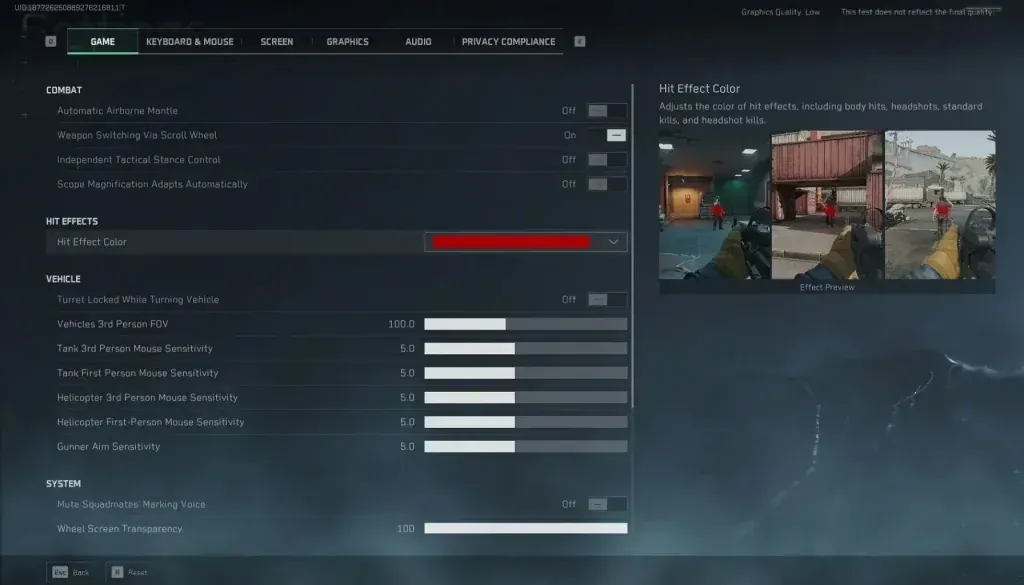
PC players, stick to 105-115 FOV—optimal. Default 120? Each +10 FOV dings FPS by -5%. Vehicles spot 100-240m out; infantry 85-150m.
Console command:
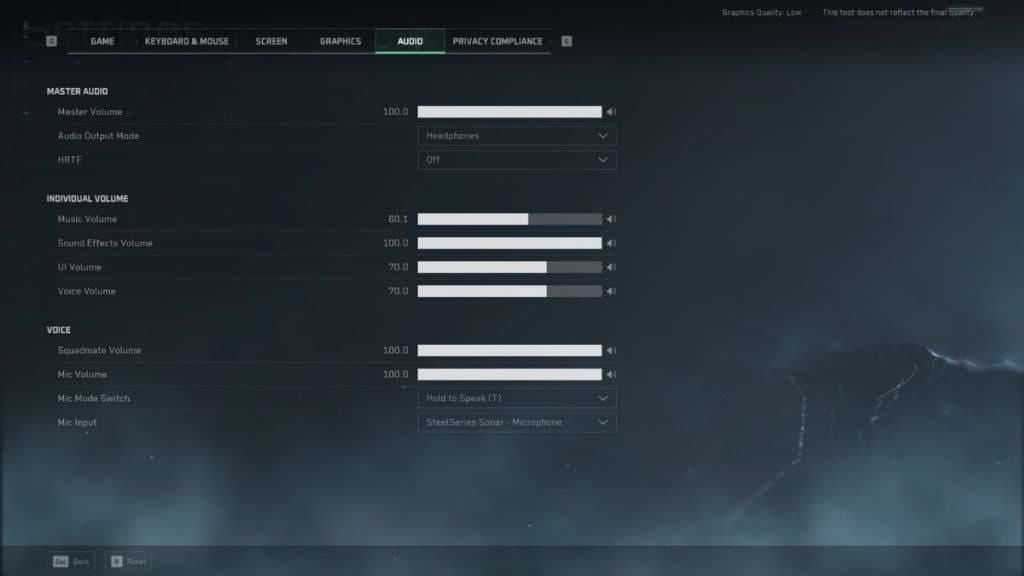
fov110; Brightness/Sharpness at 50, HRTF on.Test 105-120, uncap FPS to match your refresh rate.
Wide FOV: Worth the Trade-Off?
110-120 strikes balance—minimal -5% FPS hit on RTX 3060 while chasing 120+. (My benchmarks confirm it; wider feels immersive, but test your setup.)
Enable Raw Input.
Tweak Display post-launch.
Upscaling Done Right: DLSS, FSR, XeSS Breakdown
NVIDIA's DLSS Quality: Your Go-To
DLSS Quality boosts +12% FPS, sharper edges than FSR on RTX 3060. Rendering Scale 100/80-100; hits 60 FPS at 1440p. Frame Gen? Off in PvP.
Activate Super Resolution on DLSS Quality.
Disable once FPS goals hit—sharpness first.
FSR/XeSS as Solid AMD/Intel Plans B
FSR/XeSS on Performance for the lows; but data shows DLSS edges out NVIDIA mid-range (+12% FPS, zero PvP Frame Gen latency).
Drop to FSR Performance sans DLSS.
1440p RTX 3060 benchmark: 90-110 FPS.
Stock up on buy Delta Force PC game currency via BitTopup—secure, zero-downtime, supports all modes, 98% user satisfaction.
Head-to-Head Benchmarks
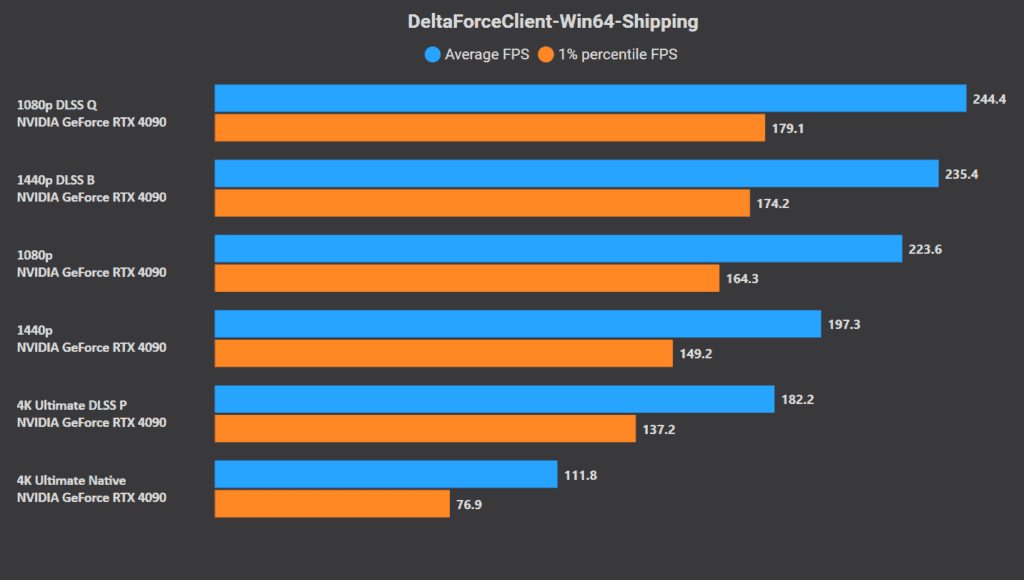
RTX 3060 at 1080p DLSS: 120-144 FPS. Fire it up if native dips below 100.
NVIDIA/AMD Tweaks Tailored for You
Reflex and Frame Gen Magic
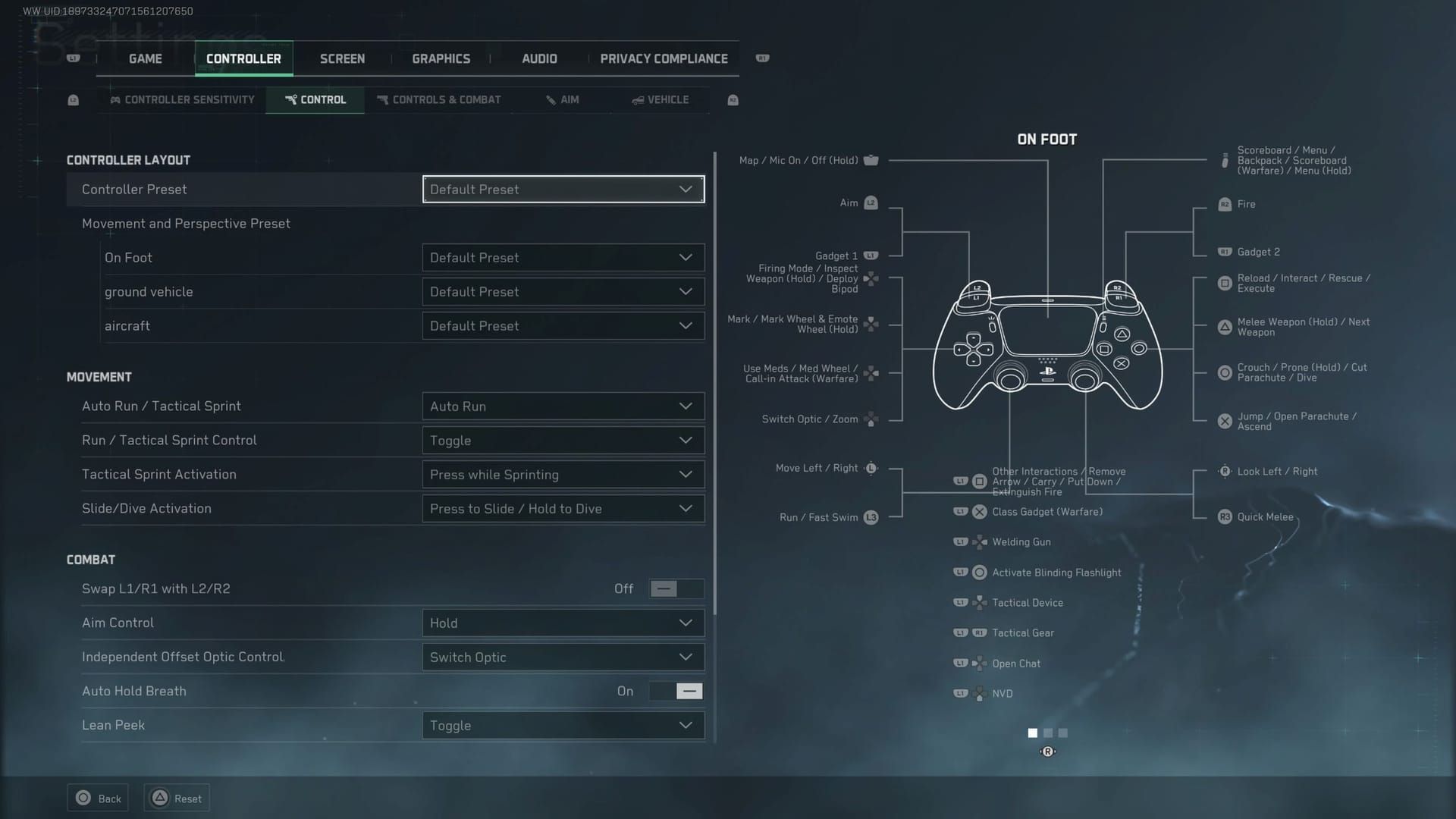
Reflex On + Boost; uncap FPS or match refresh; G-Sync/FreeSync On, V-Sync Off. In Input.ini: RawMouseInputEnabled=Enabled, bEnableMouseSmoothing=False, bViewAccelerationEnabled=False, bUseMouseForTouch=True.
Edit Saved\Config\WindowsClient\Input.ini.
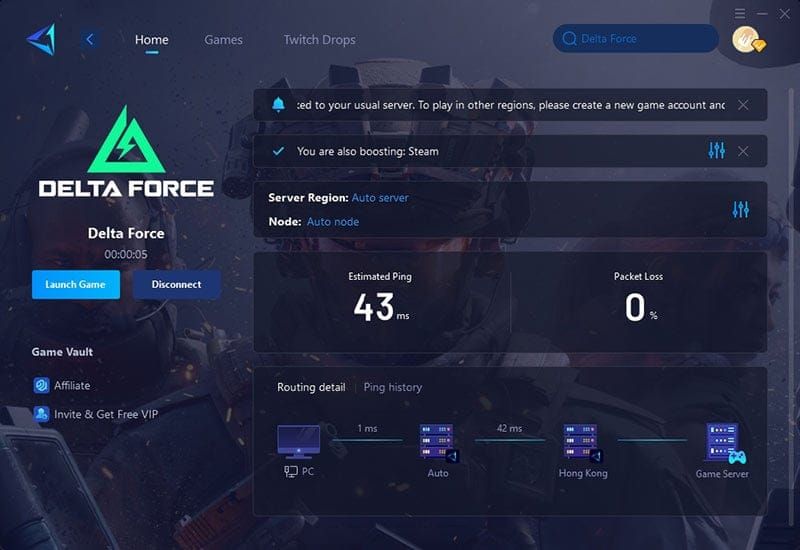
Shoot for <60ms latency over Ethernet.
Control Panel Power Moves
Disable fullscreen optimizations; Game Mode on; HAGS enabled.
NVIDIA: 560.70+ drivers via DDU clean install.
AMD: 24.7.1+; kill auto-optimization.
Driver and Power Plan Boosts
Ultimate Performance plan: Run Admin CMDpowercfg-duplicatescheme e9a42b02-d5df-448d-aa00-03f14749eb61. Nets +10-20% FPS.
Tools and Metrics to Track Your Gains
Setting Up MSI Afterburner Like a Pro
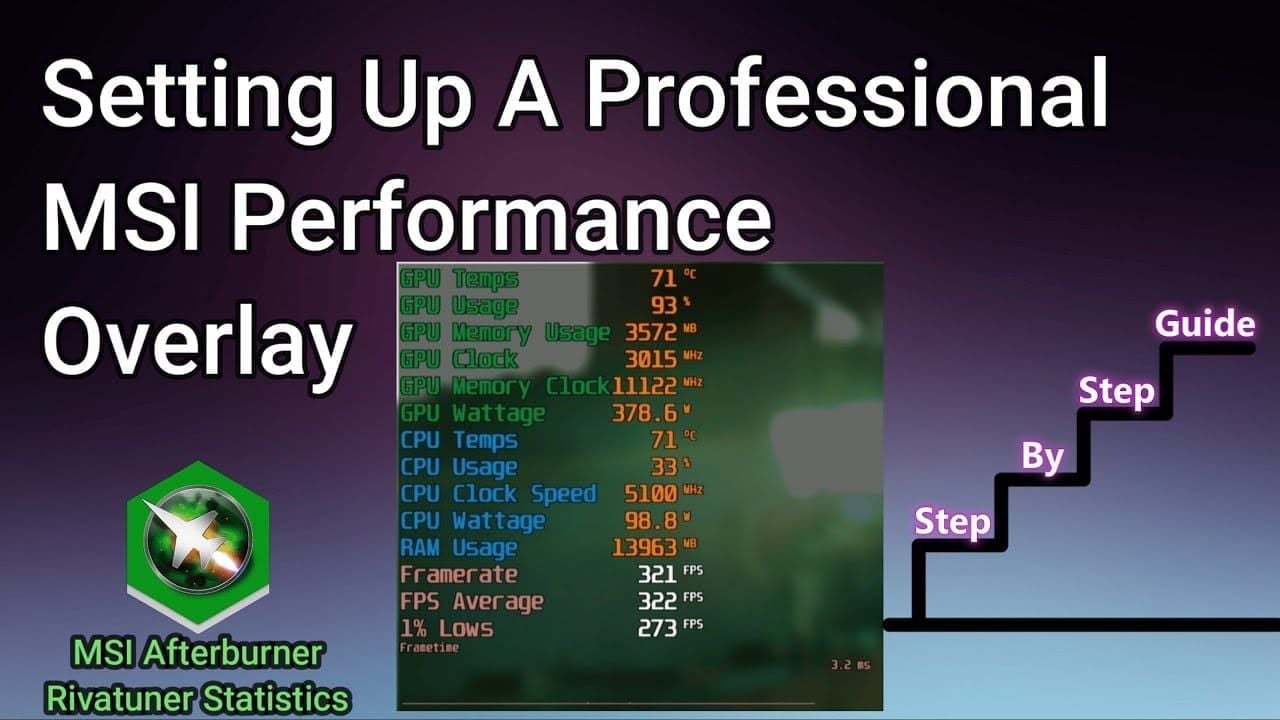
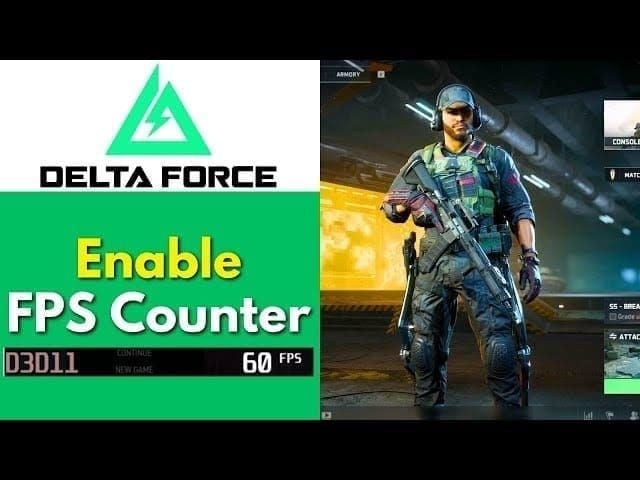
Monitor FPS, latency, packet loss. Push GPU/CPU to 90-100% at 1440p on RTX 3060 (NVIDIA Alt+R, AMD Ctrl+Shift+O).
Overlay essentials: FPS, 1% lows above 74, temps.
Log sessions to refine tweaks.
Watch These: 1% Lows, Temps
RTX 4070 reference: 134 FPS 1080p (74 FPS 1% low). Mid-range target: >120 FPS. Your progression? 48 → 144+.
Real Before/After Wins
RTX 3060 Ti: 75 FPS stable High/Ultra. Laptop lows at 30 FPS? DLSS Perf fixes it.
Dodging Common Pitfalls and Quick Fixes
Stutter Busters
16GB+ RAM/SSD, kill apps, drop GI/Shadows, enable GPU Scheduling. DX11 launch:-dx11-useallavailablecores-high adds +2-3 FPS over DX12.
Alt+Tab to close launcher after load.
Ethernet only, disable cross-play, QoS priority.
V-Sync and Stutter Smashes
V-Sync Off; force high perf Graphics prefs. Eyeball ping and loss.
Safe Config Edits
Engine.ini: r.PostProcessAAQuality=0, r.Tonemapper.Quality=0 (sharper, but ban risk post-6/15/2025). Backup everything; alt launch options.
Path: Saved\Config\WindowsClient\Engine.ini; no read-only.
Test before anti-cheat clamps down.
Pro-Level Config Hacks
INI Tweaks That Stick
Input.ini: RawMouseInputEnabled=Enabled (fully reversible, hardware-safe).
Steam Launch Options
-dx11-useallavailablecores-high; trash intro files.
FAQs
What are the best graphics settings for Delta Force 2025 on RTX 3060?
Shadows Low (+15% FPS), Fog Low (+8%), GI Low/Ultra (+75%), DLSS Quality (+12%), Textures High; 102-144 FPS 1080p.
How to optimize FOV in Delta Force 2025 for PC?
Set 105-120 (fov110); -5% FPS per +10; balance awareness/performance.
DLSS vs FSR: Which is better for mid-range GPUs in Delta Force?
DLSS Quality superior RTX 3060 (+12% FPS, sharpness); FSR Performance AMD backup.
Why is Delta Force 2025 lagging on mid-range PC?
Fix: Ultimate power plan, DX11 launch, close apps, Reflex On; 90-100% utilization.
Best upscaling settings for Delta Force 2025?
DLSS Quality NVIDIA; Rendering Scale 100%; Frame Gen off PvP.
How to edit Delta Force config for better performance?
Engine.ini: r.PostProcessAAQuality=0 (sharpness, ban risk post-6/15/2025); Input.ini raw mouse; backup first.