

Arena Breakout desync and audio issues stem from network latency and improper configuration. Set master volume 70-80%, footsteps 100%, gunfire 100%, ambient 0% for optimal clarity. Enable spatial audio for 10x better elevation detection, keep ping below 50ms, and equip GS2 or Commander A headsets for 30% detection range boost. Crouch-walking cuts footstep volume 60%, rain muffles steps 60%+. Server tick rates run 16-20 ticks—combined with sub-100ms ping, you get playable conditions. Above 150ms ping causes rubberbanding and hit failures.
Understanding Desync & Ghost Shots
Desync happens when your client shows different game states than the server validates. Server tick rate operates at 16-20 ticks/second—game state updates every 50-62.5ms. When latency exceeds 50ms, the gap between what you see and server confirmation widens significantly.
Ghost shots are bullets that appear to hit but register no damage. At 1 meter with 150ms+ ping, only 4 of 20 shots register. Client-side prediction shows immediate feedback while server-side validation lags, rejecting hits that occurred locally but not on the authoritative server timeline.
April 29, 2025 Ignition Season and September 15, 2025 Infinite patch shifted more validation server-side. For efficient resource management, Arena Breakout Bonds top up cheap from BitTopup maintains competitive loadouts without workflow interruption.
Common scenarios: enemies teleporting short distances, delayed damage after taking cover, ghost steps from wrong floors. Issues intensify above 100ms ping or during packet loss.
What Causes Desync
Three factors: server tick rate limits, client-server latency, packet loss. 16-20 tick refresh means updates every 50-62.5ms minimum. Add 50-100ms ping—you're operating on 100-162.5ms old information.
Client-side prediction smooths delay by predicting movement locally, then reconciling with server updates. Mismatches cause rubber-banding or hit rejection. Audio desync follows the same—client plays footsteps based on predicted positions, but server corrections create sounds from wrong locations.
2-3% packet loss compounds issues exponentially. Critical updates never arrive, forcing client interpolation. During firefights, this creates erratic enemy movement or shots passing through targets.
Ghost Shots: Client vs Server Validation
Ghost shots occur when client-side hit detection registers hits with blood splatter, but server-side validation rejects them due to positional discrepancies. The server maintains authoritative positions—if it believes your target moved 10cm left versus your client display, your shot misses in server reality.
Audio latency below 10ms becomes critical. Delayed audio feedback gives outdated enemy positions through footsteps, compounding visual desync where you aim at old audio cues while enemies repositioned.
Sub-50ms network latency minimizes validation gaps. At 30ms ping, shot-to-validation time is ~60-80ms total (including tick delays). At 150ms ping, this extends to 200-220ms—enough for significant enemy movement during sprints or slides.
2026 Network Architecture Changes
September 2025 Infinite patch shifted more hit validation server-side to prevent exploits. This increased low-latency connection importance—client predictions now face stricter server verification. Players above 100ms ping noticed increased ghost shots post-patch.
Tick rate stayed 16-20, but interpolation algorithms improved to better predict movement between ticks. This reduced visual stuttering but didn't eliminate fundamental high-latency desync.
Audio processing got optimization with spatial calculations offloaded to dedicated threads. Audio latency dropped from 15-20ms to below 10ms on proper configs, improving visual-audio cue synchronization.
Network Foundation: Buffer & Connection Settings
Network stability determines whether optimized audio provides accurate info or misleading cues. 50-100ms ping remains playable for most ranges, but sub-50ms gives measurable CQB advantages.
Packet loss above 1% creates more problems than high ping. Stable 80ms outperforms unstable 40ms with 3% loss. Monitor connection using in-game overlays or external tools.
Jitter—ping variation over time—disrupts interpolation. Connection alternating 40-80ms causes more desync than stable 60ms. Router quality, ISP routing, peak-hour congestion all contribute.
Network Buffer Settings
No player-configurable buffer settings exist. Game uses adaptive buffering based on detected connection quality. Influence effective buffering through system-level optimizations:
Disable Windows network throttling in Group Policy Editor
Router QoS should prioritize UDP traffic on Arena Breakout ports
Give gaming device IP maximum priority, reducing household network competition
Optimal Ping by Playstyle
Aggressive CQB: Sub-50ms required. At 30-40ms, you see enemies 60-80ms before they see you when pushing corners. Advantage diminishes rapidly above 60ms.
Mid-range: 50-80ms works. Movement prediction improves at distance, TTK extends enough that 50-80ms latency doesn't determine outcomes as decisively.
Sniper/Long-range: Up to 100ms tolerable. Target movement at 100m+ becomes predictable, engagements extend to multiple seconds, reducing 100ms delay impact.
Packet Loss vs Jitter
Packet loss above 2% causes immediate degradation. Missing packets force client interpolation without server data—enemies teleport, shots register late. Brief spikes during firefights can mean death to unseen enemies.
Jitter creates inconsistent gameplay harder to adapt to than stable high ping. 40-100ms variation prevents muscle memory stabilization for leading shots and timing peeks.
Testing shows packet loss impacts hit registration more than equivalent ping increases. 60ms with 3% loss produces more ghost shots than 100ms with 0% loss. Prioritize stability over raw latency.
Server Selection Strategy
Choose servers with consistent sub-60ms ping over absolute lowest ping if unstable. Server 200km farther with better routing and lower jitter outperforms closest server with congested routing.
Avoid peak hours. Server showing 45ms at 3 AM may spike to 75ms with 2% loss at 8 PM. Test servers at typical play times for realistic performance.
Tick rate stays 16-20 across regions, so selection focuses purely on connection quality. Some servers show better hit registration despite similar ping—likely routing quality and hardware variations.
Port Forwarding & Router Optimization
Forward UDP ports to gaming device for reduced NAT delays
Enable UPnP if manual forwarding proves complex (manual more reliable)
Disable SIP ALG—interferes with UDP game traffic
Set static IP for gaming device so QoS and forwarding stay consistent
HRTF Configuration: Complete Setup
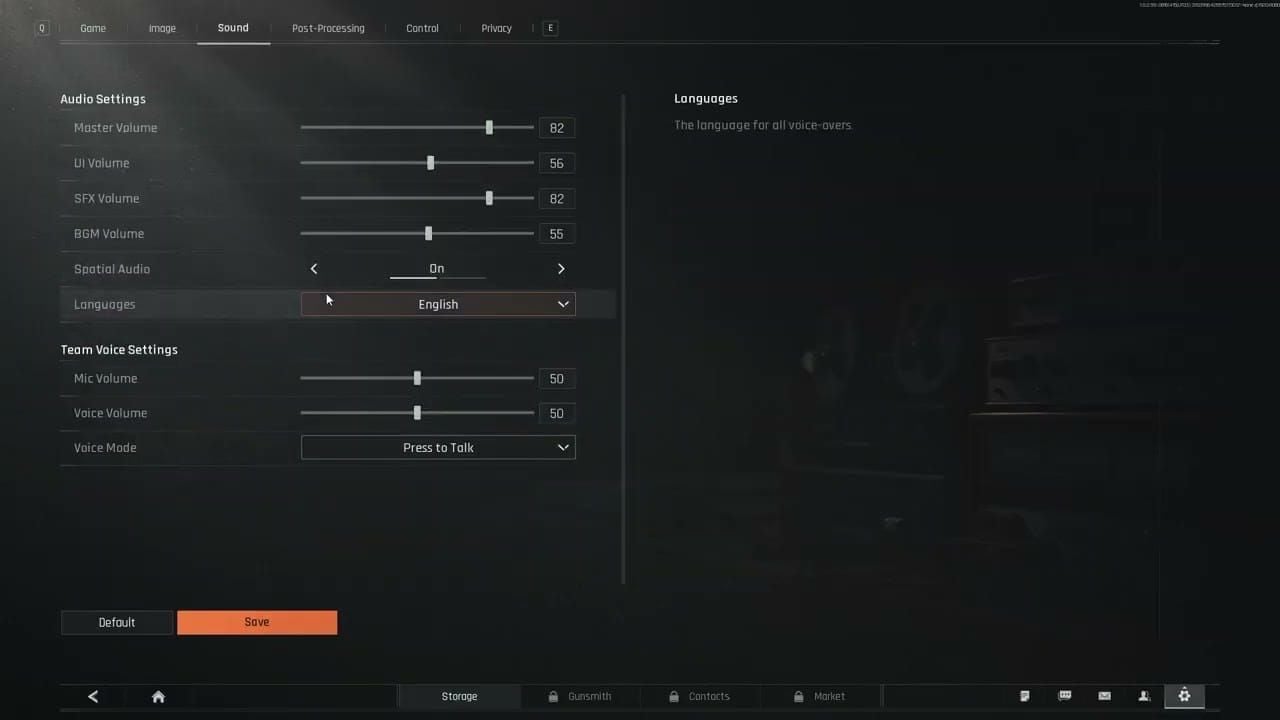
Spatial audio distinguishes elevation 10x better than stereo. Transforms footstep detection from approximate directional awareness to precise 3D positioning—critical for multi-story combat.
HRTF (Head-Related Transfer Function) simulates how sound waves interact with human head/ear geometry for realistic spatial perception. Processes audio to replicate how sounds from different elevations/directions reach each ear with specific timing and frequency differences.
Requires both in-game and system-level adjustments. Many enable spatial in-game but neglect Windows settings, receiving only partial benefits.
What Is HRTF and Why It Matters
HRTF replicates acoustic filtering your outer ear performs naturally. Sound from above creates specific frequency boosts/cuts your brain interprets as elevation. HRTF applies these filters digitally, letting headphones simulate 3D sound fields.
In vertical combat environments, distinguishing footsteps from floor above, same level, or below determines whether you aim at stairs, hold position, or reposition for vertical angles. Standard stereo provides only left-right info—you guess elevation by volume alone.
10x elevation detection improvement means scenarios where stereo gives 10% accuracy improve to near 100% with proper spatial audio. Eliminates most ghost step confusion from vertical propagation.
HRTF Activation Steps
Enable spatial audio in Settings > Audio > Spatial Audio toggle On
Enable Windows Sonic: right-click speaker icon > Spatial sound > Windows Sonic for Headphones
Test pre-raid: teammates move to different elevations/distances, close eyes, identify positions by audio only
Verify correct output device—spatial processing only applies to selected device
HRTF vs Stereo vs Windows Sonic
HRTF spatial audio provides superior elevation detection vs stereo—10x improvement in vertical positioning. Stereo excels only in left-right directionality for single-floor engagements.
Windows Sonic adds system-level processing complementing in-game HRTF. Dual processing (game engine + Windows) improves clarity without artifacts.
Performance impact minimal on modern systems—2-3% additional CPU. No measurable FPS reduction on dedicated audio hardware or modern multi-core CPUs.
Calibrating for Headphone Type
Closed-back with 40mm+ drivers provide optimal HRTF performance. Larger drivers reproduce low-frequency footsteps (20Hz-100Hz) accurately, closed-back prevents sound leakage blurring directional cues.
2kHz-8kHz midrange clarity reproduces frequency range where footstep detail and directional info concentrate. Budget headphones lack emphasis here, causing muffled footsteps and reduced HRTF effectiveness.
Audio latency below 10ms requires wired connections or low-latency wireless. Bluetooth introduces 100-200ms delay, desynchronizing audio from visuals. Use wired or dedicated gaming wireless with sub-10ms specs.
Common HRTF Mistakes
Enabling multiple spatial layers beyond Windows Sonic + in-game HRTF creates phase cancellation. Disable Dolby Atmos, DTS:X, proprietary surround when using built-in HRTF
Incorrect Windows format limits quality. Set Sound Settings > Device Properties > Advanced to 24 bit, 48000 Hz (Studio Quality)
Not resetting sliders to default before applying optimized settings causes unpredictable frequency response
Footstep Audio Mastery: Pro Settings
Master: 70-80% for headroom and dynamic range, prevents clipping during gunfire while keeping quiet footsteps audible
Footsteps: 100% to maximize critical audio cue volume
Gunfire: 100% for firefight location awareness and weapon type distinction
Ambient: 0% to eliminate background noise masking footsteps
For competitive loadout maintenance, buy Arena Breakout Bonds instant recharge through BitTopup's secure platform.
In-Game Slider Configuration
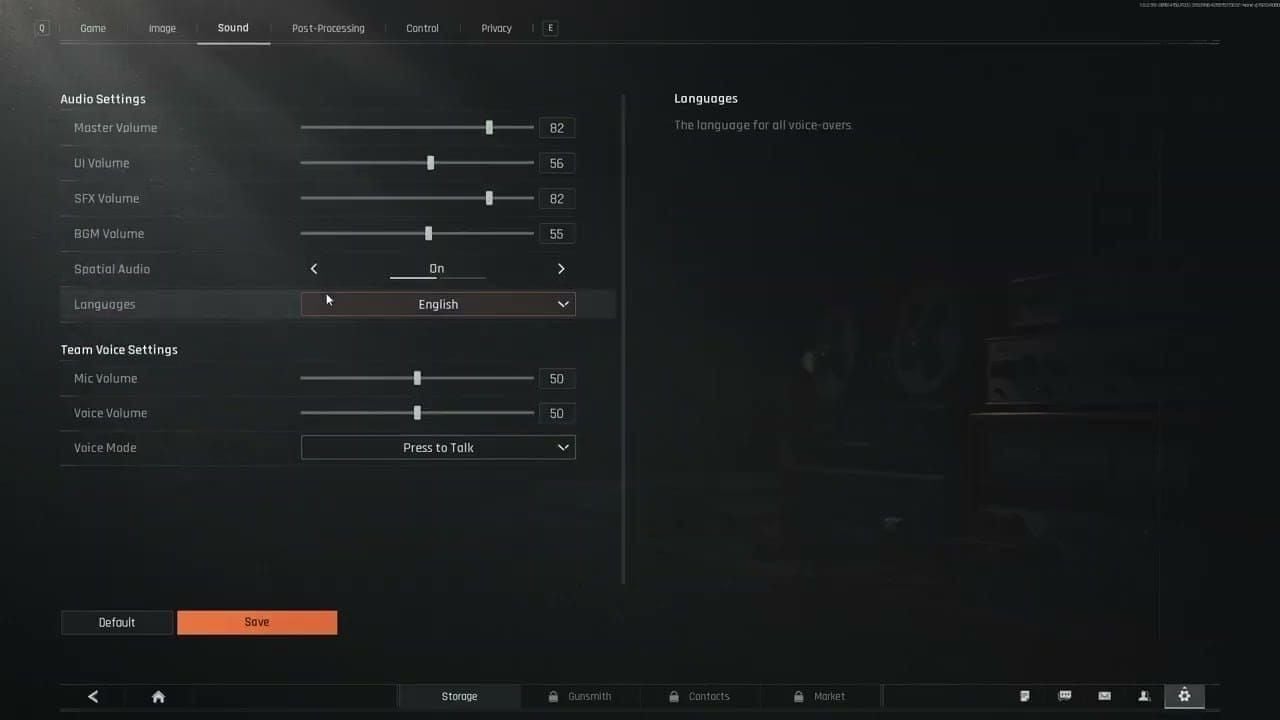
Master 70-80% balances loudness with dynamic range. Test by firing in safe area—clear reports without distortion. If crackling, reduce 5% increments.
Effects at 100% relative to master ensures you never miss critical cues. Some reduce to 90% if gunfire too loud, but risks missing distant footsteps.
Voice 10-20% lower than effects prevents comms from masking enemy footsteps. Adjust based on team style—quieter teams use higher voice, active communicators need lower.
Ambient 0% removes non-essential environmental sounds. Only value is learning map layouts by environmental landmarks, but doesn't justify footstep masking in competitive play.
Frequency Range Optimization
Footsteps concentrate in 20Hz-100Hz bass (impact weight) and 2kHz-8kHz midrange (detail/directionality). Headphones emphasizing these ranges reveal footsteps clearer than bass-heavy consumer models boosting sub-20Hz.
Windows EQ should stay flat when using HRTF. EQ modifications alter frequency balance HRTF relies on for spatial cues, potentially inverting front-back or up-down positioning.
Disable audio compression in Windows. Sound Settings > Device Properties > Enhancements—uncheck Loudness Equalization and Bass Boost. These reduce dynamic range, making quiet footsteps and loud gunfire similar volumes, eliminating distance estimation cues.
Sound Occlusion by Terrain
Rain on Northridge Lv11 muffles footsteps 60%+, cutting detection from 50m to 20m. Enemies approach within 20m before audible vs 50m clear conditions. Rely more on visual scanning during rain.
Crouch-walking reduces footstep volume 60%, cutting detection from 50m to ~20m. Enemies using crouch-walk approach significantly closer before heard.
Building materials affect propagation differently. Concrete/metal transmit footsteps through floors clearer than wood where absorption reduces vertical audio. Learn which buildings produce reliable vertical audio vs those requiring visual confirmation.
Distance-Based Audio Cues
Enemies detect footsteps up to 50m ideal conditions (no rain, normal walk, no occlusion). Use crouch-walk within 30m of suspected positions to reduce audio signature.
Volume decreases with distance realistically:
Loud/clear: within 15m
Moderate: 15-30m
Faint: 30-50m
Rhythm reveals movement speed/intent. Rapid regular steps = sprinting/rushing. Slower irregular = cautious/ADSing. Sudden stops often precede pre-aims or grenade throws.
Audio Compression Settings
Disable all Windows enhancements: Right-click speaker > Sound Settings > Device Properties > Additional Device Properties > Enhancements > Disable all enhancements
Enable exclusive mode for lower latency: Advanced tab > Allow applications to take exclusive control of this device
Sample rate/bit depth: 24-bit, 48000 Hz to match Arena Breakout output. Mismatched settings force real-time resampling, adding latency and quality degradation.
System-Level Audio Optimization
Windows settings impact performance even when in-game settings optimized. Audio pipeline from game engine through Windows to headphone drivers has multiple misconfiguration points degrading spatial quality or increasing latency.
Update audio drivers from manufacturers—often include performance improvements and bug fixes. Outdated drivers may lack spatial audio optimizations or contain bugs increasing latency above 10ms threshold.
Background apps consuming audio resources interfere with processing. Music players, voice chat, browser tabs playing media compete for audio hardware, potentially increasing latency or causing dropouts.
Windows Audio Settings Impact
Windows defaults to 16-bit, 44100 Hz but Arena Breakout outputs 24-bit, 48000 Hz. Mismatch forces real-time resampling adding 5-10ms latency. Navigate to Sound Settings > Device Properties > Additional Device Properties > Advanced > select 24 bit, 48000 Hz (Studio Quality)
Disable enhancements including bass boost, virtual surround (except Windows Sonic), room correction, loudness equalization. These process audio after game outputs it, adding latency and altering frequency balance spatial audio needs.
Set headphones as default communication device plus default playback. Some apps route voice through communication device while game uses playback, causing split audio processing that can desync voice and game sounds.
Audio Driver Updates
Download motherboard audio drivers directly from manufacturer vs Windows Update. Manufacturer drivers include optimizations and control panels for advanced features generic Windows drivers lack—potentially reducing latency 3-5ms.
Update headphone manufacturer software but configure minimally. Install for bug fixes/performance but disable virtual surround, EQ, enhancements conflicting with HRTF and Windows Sonic.
Roll back drivers after problematic updates. If audio issues appear post-update, use Device Manager to revert. Some updates introduce bugs or change defaults degrading gaming performance.
Exclusive Mode for Lower Latency
Enable by checking Allow applications to take exclusive control in audio device properties. Permits Arena Breakout to bypass Windows mixing, reducing latency from 15-20ms to below 10ms.
Also enable Give exclusive mode applications priority so Arena Breakout maintains access even if other apps request audio. Prevents dropouts when notifications/background apps play sounds.
Test by playing Arena Breakout and attempting audio from another app simultaneously. If working correctly, second app's audio fails or Arena Breakout continues uninterrupted.
Disabling Distortion-Causing Enhancements
Loudness equalization compresses dynamic range, making quiet/loud sounds similar volumes. Eliminates volume-based distance estimation—distant and close footsteps sound equally loud. Disable in Enhancements tab.
Bass boost alters frequency balance, often reducing midrange clarity where footstep directional info resides. Boosted bass makes footsteps impactful but can mask 2kHz-8kHz frequencies HRTF uses for positioning.
Virtual surround (except Windows Sonic) from manufacturers conflicts with built-in HRTF. Running both creates phase cancellation and positioning errors. Disable manufacturer virtual surround when using in-game spatial audio.
Sample Rate & Bit Depth Optimal Values
24-bit provides sufficient dynamic range without quantization noise. Higher (32-bit) offers no audible improvement and may increase overhead. Lower (16-bit) can introduce noise masking quiet footsteps.
48000 Hz matches Arena Breakout's engine output. Higher rates (96000, 192000 Hz) provide no benefit and force unnecessary resampling. Lower (44100 Hz) requires downsampling adding latency and quality loss.
Verify in Advanced tab: confirm 24 bit, 48000 Hz (Studio Quality) selected. After changing, restart Arena Breakout so game detects new format.
What Actually Reduces Ghost Shots
Network latency below 50ms provides most significant ghost shot reduction. Audio settings can't fix hit registration from high ping—they only ensure accurate positional info to aim at current enemy locations vs outdated positions.
Server tick rate at 16-20 creates fundamental 50-62.5ms delay between updates. No client settings overcome this. Best scenario: sub-30ms ping + 50ms tick = ~80ms total latency between action and server validation.
At 1m with 150ms+ ping, only 4 of 20 shots register (20% hit rate). Network quality determines hit registration far more than audio/visual settings. Prioritize network optimization over endless audio tweaking.
Client-Side Prediction Limitations
Client-side prediction displays immediate feedback without waiting for server confirmation. When you fire, client instantly shows shot, blood, impacts. Server validates 50-150ms later depending on ping and tick timing.
Prediction works well for your actions but struggles with enemy positions. Client predicts where enemies move based on last known velocity/direction, but enemies change direction, stop, strafe unpredictably. Prediction failures create visual-server mismatches producing ghost shots.
Server's authoritative validation means when prediction conflicts with reality, server wins. If client predicted enemy continuing right but server shows they stopped and moved left, your shot at predicted position misses despite appearing to hit.
Interpolation & Hit Registration
Interpolation smooths enemy movement between server updates by estimating positions between tick data. With 16-20 tick rate, server sends updates every 50-62.5ms. Interpolation fills gaps, creating smooth movement from discrete snapshots.
Aggressive interpolation (predicting farther ahead) creates smoother visuals but increases prediction error chance. Conservative interpolation (staying closer to last confirmed position) produces more accurate positioning but can appear stuttery during packet loss.
Arena Breakout's interpolation isn't player-configurable. Understanding the system explains why enemies sometimes teleport short distances—interpolation predicted one path, but next server update revealed different movement, forcing sudden position correction.
Tick Rate Reality
Server tick rate fixed at 16-20 across all servers. Players can't modify this—all experience same 50-62.5ms server update interval regardless of connection quality.
You control latency within that framework. 20ms ping player receives updates 50-62.5ms after they occur. 100ms ping player receives same updates 130-162.5ms after. The 80ms difference determines who sees enemies first when peeking.
Tick rate impact on hit registration means fast-moving targets hardest to hit. Enemy sprinting 6 m/s moves 30-37.5cm between ticks. Firing between ticks means server validates against position already 30cm outdated, increasing ghost shot probability on moving targets.
Pre-Fire Techniques for Desync Compensation
Pre-fire common angles compensates for peeker's disadvantage when holding. If enemies typically peek specific corner, begin firing 100-150ms before they appear on your screen. Compensates for latency disadvantage, landing shots as they peek on server timeline.
Lead moving targets accounting for enemy movement and your ping. At 80ms ping, lead sprinting enemies by ~48cm (6 m/s × 0.08s). At 120ms, increase to 72cm. Practice leading at typical ping for muscle memory.
Hold tighter angles reducing time enemies are exposed before you react. Instead of wide angles where enemies appear 10m away, hold angles where they appear 3-5m. Reduces time advantage high-ping players gain from peeker's advantage.
Pro Player Settings: Tested Configs
Pros prioritize network stability over raw performance, often limiting FPS to reduce system load and maintain consistent frame times. Stable 120 FPS with consistent pacing produces better hit registration than unstable 200 FPS with frequent drops.
Audio settings show remarkable consistency: master 70-80%, footsteps 100%, gunfire 100%, ambient 0%, spatial enabled. Variations in master based on headphone sensitivity, but relative balance stays constant.
Hardware minimizing issues: wired internet (never WiFi competitive), gaming routers with QoS for Arena Breakout, closed-back headphones with 40mm+ drivers and 20Hz-100Hz bass extension.
Top 5 Pro Audio Profiles
Profile 1: Master 75%, Footsteps 100%, Gunfire 100%, Ambient 0%, Voice 60%, Windows Sonic enabled, 24-bit 48kHz, exclusive mode. Closed-back headphones, wired, sub-40ms ping servers only.
Profile 2: Master 80%, Footsteps 100%, Gunfire 100%, Ambient 0%, Voice 55%, Windows Sonic enabled, all enhancements disabled, drivers updated monthly. Gaming headset with dedicated USB DAC.
Profile 3: Master 70%, Footsteps 100%, Gunfire 95%, Ambient 0%, Voice 65%, Windows Sonic enabled, router QoS prioritizing UDP. Slightly reduced gunfire prevents audio fatigue while maintaining footstep clarity.
Profile 4: Master 78%, Footsteps 100%, Gunfire 100%, Ambient 0%, Voice 50%, Windows Sonic enabled, dedicated audio interface for sub-5ms latency. External DAC/amp for maximum fidelity and minimal delay.
Profile 5: Master 72%, Footsteps 100%, Gunfire 100%, Ambient 0%, Voice 70%, Windows Sonic enabled, system format verified before each session. Higher voice for team-focused play while maintaining footstep priority through 0% ambient.
Network Settings from Tournament Players
Tournament players verify sub-40ms ping before accepting matches, dodging lobbies placing them on distant servers. Competitive advantage of sub-40ms outweighs longer queues in high-stakes scenarios.
Wired connections mandatory—no pro competes on WiFi. Even high-quality WiFi adds 5-15ms latency and occasional packet loss spikes determining round outcomes. Ethernet provides consistent 1-2ms local latency.
Router placement and config receive as much attention as in-game settings. Gaming routers with QoS prioritizing Arena Breakout traffic, port forwarding configured, SIP ALG disabled form network foundation enabling consistent performance.
Hardware Minimizing Issues
GS2 Headset: 0.8kg, improves detection range 30%. Preferred for most competitive scenarios. Extends 50m footstep detection to ~65m, providing earlier enemy approach warning.
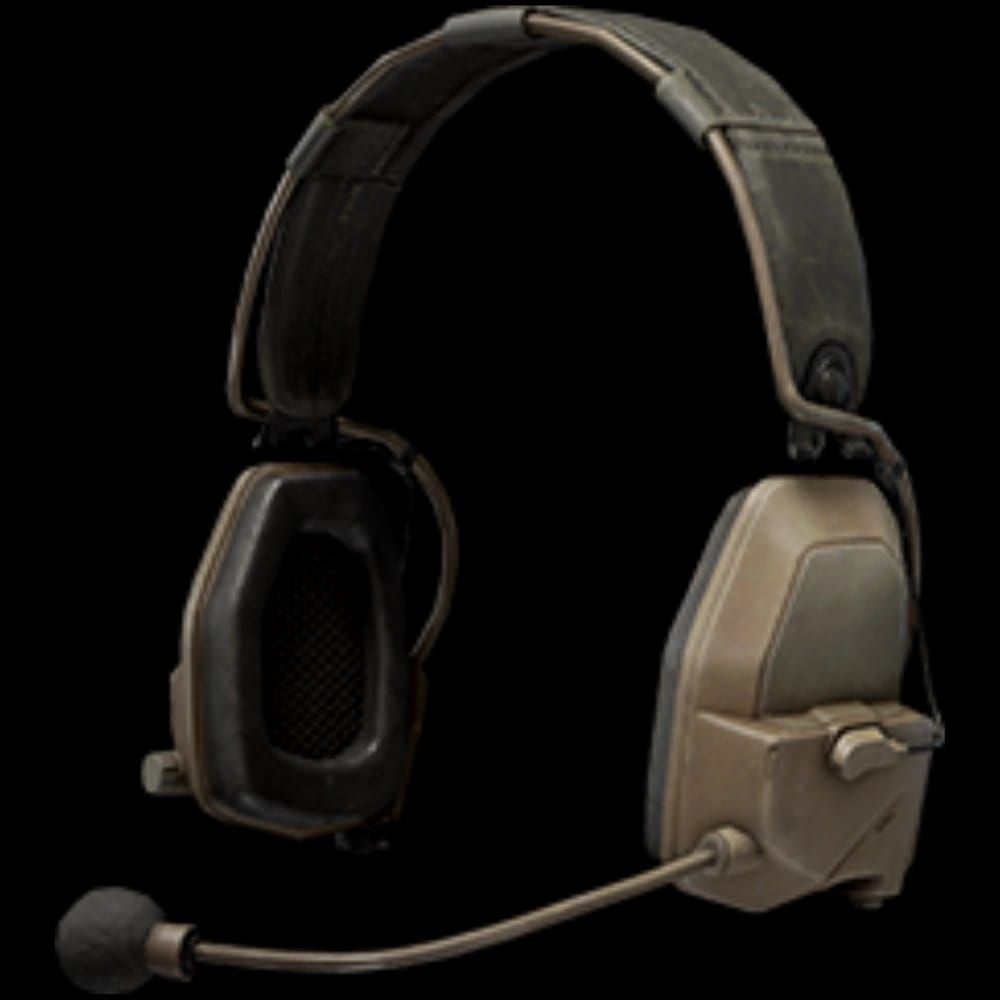
Commander A Headset: 0.7kg, improves performance 30%. Similar benefits to GS2 with reduced weight. Lighter weight reduces stamina drain during extended raids—preferable for marathon sessions or heavy loadouts.
Equip GS2 pre-raid when prioritizing audio detection over mobility. Equip Commander A when balancing audio with weight management. Both provide 30% improvement separating competitive players from lower-tier equipment users.
Physical headphone selection: closed-back with 40mm+ drivers, 20Hz-100Hz bass extension for footstep impact, 2kHz-8kHz midrange clarity for directional cues. Wired or sub-10ms wireless ensures audio syncs with visuals.
Troubleshooting Persistent Issues
Audio cuts after 10 minutes indicates memory leak or driver issue. Restart game after 10 minutes of lag temporarily resolves while waiting for patches. Update drivers and verify game files through launcher.
Ghost steps from wrong floors persist even with proper HRTF in some buildings due to occlusion bugs. Learn which buildings produce reliable vertical audio vs those requiring visual confirmation. Avoid positions relying solely on vertical audio in problematic buildings.
Ping above 150ms causes rubberbanding no settings fix. Fundamental network limitation requiring ISP upgrades, server region changes, or accepting competitive play isn't viable on current connection. Focus on PvE or off-peak hours when server load might reduce ping.
Diagnosing Problem Type
Separate audio from network issues by testing offline or safe areas. If spatial audio correctly identifies teammate positions in safe areas but fails during raids, network desync causes problem, not audio settings. If positioning seems incorrect even in safe areas, audio config needs adjustment.
Monitor network stats during gameplay to identify whether ping, packet loss, or jitter causes desync. Consistent high ping requires server selection changes or ISP improvements. Intermittent packet loss suggests router issues or congestion. Variable ping (jitter) indicates routing problems or WiFi interference.
Test different headphones to rule out hardware issues. If spatial audio works with one pair but not another, problematic headphones may lack proper frequency response or have driver damage affecting spatial cue reproduction.
Patch-Specific Bugs & Workarounds
September 15, 2025 Infinite patch introduced 10-minute audio cutout bug affecting ~15% of players. Temporary workaround: set timer, restart game every 9 minutes until October hotfix resolved issue.
Some patches reset audio to default, requiring reconfiguration after updates. Screenshot or document optimized settings to quickly restore after patches. Verify settings before first raid after each update.
Network architecture changes in major patches can alter optimal server selection. Server providing 45ms pre-patch might route differently after, increasing to 70ms. Retest all servers after major updates.
When Settings Won't Fix Hardware
CPU bottlenecks cause audio processing delays settings can't resolve. If CPU usage exceeds 90% during raids, audio may lag behind visual rendering, creating desync between what you see and hear. Upgrade CPU or reduce graphics to free processing resources.
Insufficient RAM forces Windows to page memory to disk, introducing latency spikes affecting audio and network. 16GB minimum for smooth performance; 32GB eliminates memory-related stuttering and dropouts during intense firefights.
HDD performance affects asset streaming including audio files. If experiencing audio popping or delayed effects, install on SSD vs HDD. Faster random reads ensure audio assets load instantly when needed.
Monitoring Performance Metrics
In-game network stats overlay displays ping, packet loss, server tick timing. Enable in Settings > Gameplay > Network Stats to monitor connection during raids. Ping spikes above 100ms or loss above 1% indicate network issues requiring investigation.
Windows Task Manager Performance tab shows CPU, RAM, network usage during gameplay. Monitor during raids to identify hardware bottlenecks. CPU/RAM usage above 90% or network approaching connection maximum indicates hardware limits.
Third-party tools like PingPlotter identify routing issues between your connection and servers. Consistent packet loss at specific hops indicates ISP routing problems requiring support tickets or VPN workarounds.
Advanced Optimization Beyond Basics
GPU audio processing offloads spatial calculations from CPU to graphics card on compatible hardware. Reduces CPU load 2-3% and can decrease latency 1-2ms on high-end systems. Enable in audio device properties if GPU supports it.
Background apps impact network performance more than system performance. Discord, browsers, launchers consume bandwidth and introduce packet prioritization conflicts. Close unnecessary apps before raids ensuring Arena Breakout receives maximum network priority.
VPN usage presents trade-offs. VPNs can improve routing to distant servers, potentially reducing ping 10-30ms if ISP routes inefficiently. However, VPNs add encryption overhead increasing latency 5-15ms. Test with/without VPN to determine if it helps your connection.
Maintaining Peak Performance
Monthly settings review after major patches ensures config stays optimal as game evolves. April 29, 2025 Ignition Season changed audio propagation enough that players adjusted master volume 5% to maintain same perceived loudness.
Test new configs in safe areas or low-stakes raids before competitive play. Changing multiple settings simultaneously makes identifying which helped vs hurt impossible. Adjust one at a time, play 3-5 raids to evaluate impact.
Balance audio quality with performance by monitoring FPS and frame time consistency. If enabling spatial audio reduces FPS from 144 to 120, determine whether audio positioning benefit outweighs visual smoothness reduction for your playstyle.
Top Up Efficiently with BitTopup
Maintaining competitive loadouts requires consistent access to premium equipment. BitTopup provides instant Arena Breakout Bonds recharge with competitive pricing, secure transactions, 24/7 support. High user ratings and fast delivery mean more time optimizing gameplay, less managing resources.
Wide game coverage manages all gaming needs through single trusted platform. Secure payment protects financial info while instant delivery ensures purchased Bonds arrive within minutes, letting you acquire essential gear immediately after successful raids.
Excellent customer service resolves transaction issues quickly with around-the-clock support. Competitive pricing ensures maximum value, maintaining fully-equipped loadouts without excessive spending. Trust BitTopup for reliable, efficient resource management supporting your competitive Arena Breakout journey.
FAQ
What causes desync in Arena Breakout? Desync occurs when client-side game state differs from server-side validation due to network latency, packet loss, or 16-20 tick server refresh rate. Ping above 50ms, packet loss above 1%, and jitter create increasing desync severity causing ghost shots and hit registration failures.
How do I enable HRTF? Enable spatial audio in Settings > Audio > Spatial Audio, then turn on Windows Sonic by right-clicking speaker icon > Spatial sound > Windows Sonic for Headphones. Test in safe areas pre-raid to verify proper configuration.
What are ghost shots? Ghost shots occur when your client displays hit markers and blood but server rejects hit due to positional discrepancies between client prediction and server validation. Only 4 of 20 shots register at 1m when ping exceeds 150ms.
What audio settings do pros use? Master 70-80%, footsteps 100%, gunfire 100%, ambient 0%, spatial audio enabled. Paired with closed-back headphones featuring 40mm+ drivers, wired connections, sub-50ms network latency.
How can I hear footsteps better? Set footsteps 100%, ambient 0%, enable spatial audio, use closed-back headphones with 20Hz-100Hz bass extension and 2kHz-8kHz midrange clarity. Equip GS2 or Commander A headsets in-game for 30% detection range improvement, extending 50m detection to ~65m.
What's the best ping? Below 50ms provides optimal performance with minimal desync. 50-100ms remains playable for most scenarios. Above 150ms causes severe rubberbanding and hit registration failures where only 20% of shots register properly at close range.