

Identity V players hitting 999ms ping spikes on Asia Server can drop latency to 190-250ms through DNS optimization (1.1.1.1 or 8.8.8.8), Airplane Mode toggling, and network tweaks. Hunters need under 150ms, survivors under 200ms for competitive play. Wired connections beat WiFi by 220-300ms. This guide covers tested mobile and PC solutions.
Why 999ms Spikes Happen on Asia Server
Asia Server routes through Singapore, Hong Kong, and Japan based on location. 999ms ping means complete communication breakdown with NetEase's idv.163.com servers—packet routing failure, not congestion.
For uninterrupted resource access during connection issues, Identity V Echoes top up safe maintains service quality.
Asia Server baseline: 100ms minimum due to distance. Typical range: 150-999ms during peak hours. Quick Match averages 400ms, Custom Match hits 500ms. Asymmetric design hurts hunters more—they need faster response than survivors.
What 999ms Means in Gameplay
Color codes: green (sub-100ms), yellow (100-200ms), red (200ms+). At 999ms you get rubber-banding—character teleports backward as server rejects outdated position data. Game's netcode has 300ms compensation limit; beyond that causes visible desync.
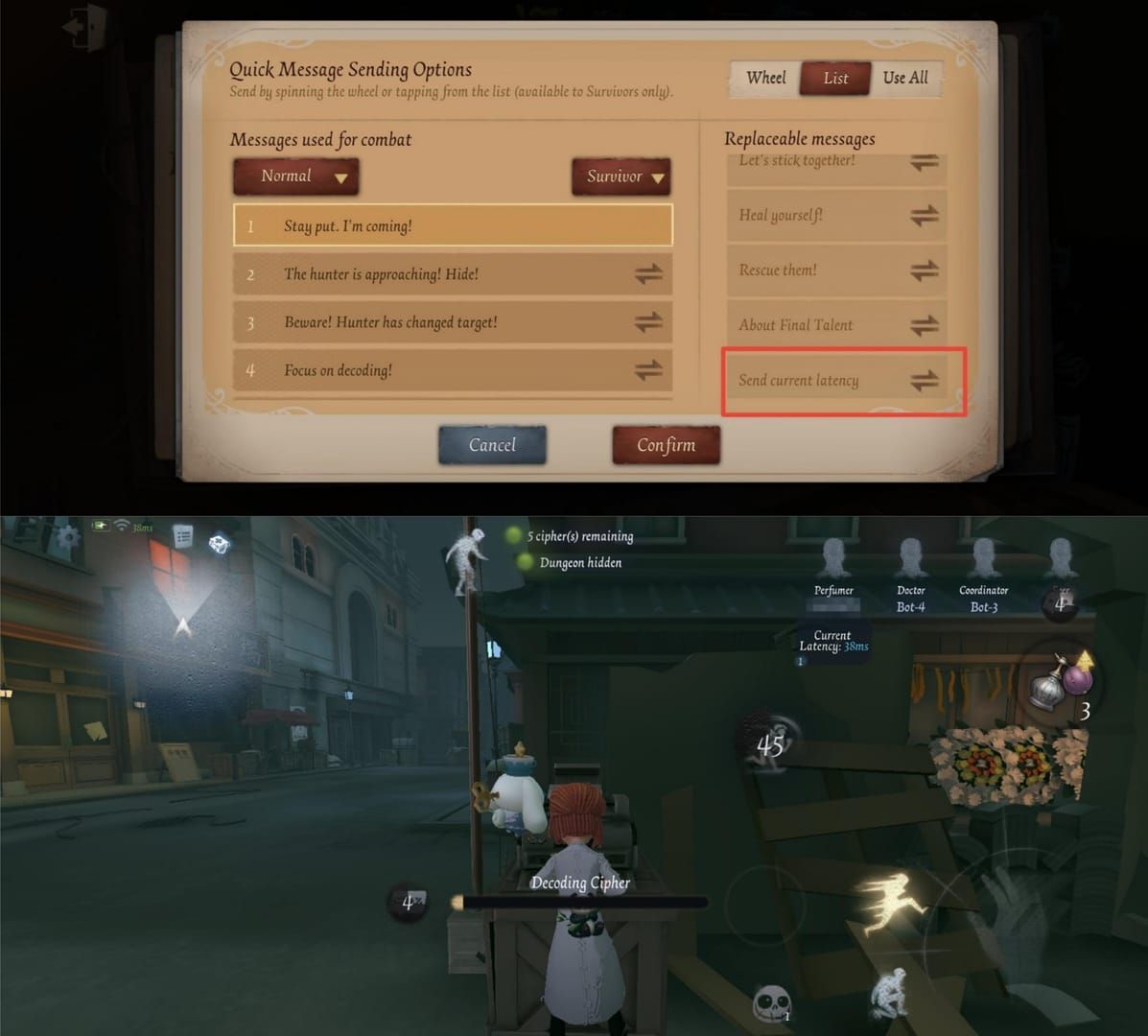
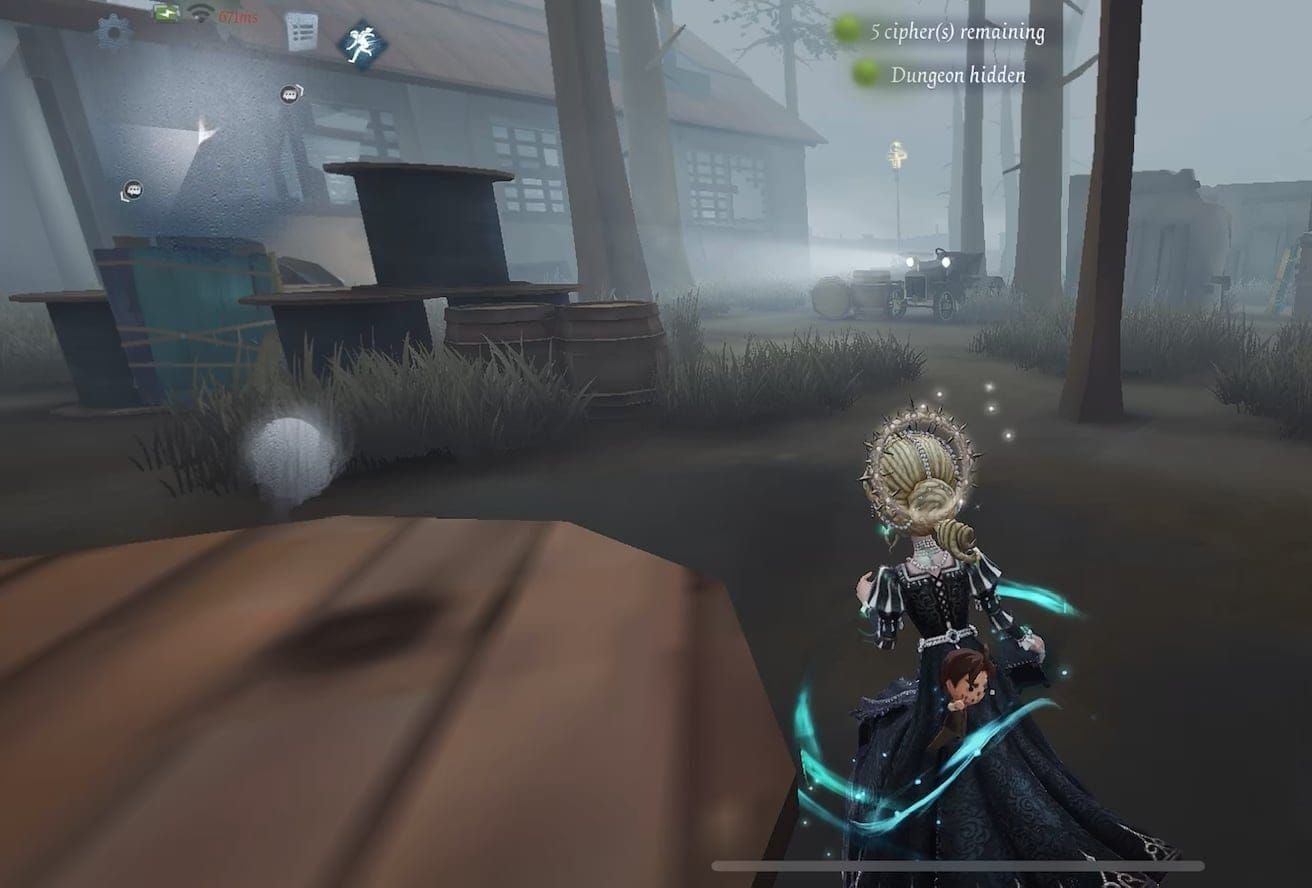
Vault animation window (60-70%) becomes unreliable above 300ms. Survivors get pulled back mid-vault, hunters experience delayed attack recovery allowing impossible escape distance. Server-authoritative architecture requires server confirmation before action execution.
Server Infrastructure and Routing
Singapore handles Southeast Asia, Hong Kong manages Chinese regions, Japan covers broader Asia-Pacific. Your device auto-connects to nearest server, but ISP routing often forces suboptimal paths. Thailand players might route through three nodes before reaching Singapore, adding 150-200ms baseline.
idv.163.com resolves to different IPs based on geographic DNS queries. When ISP DNS provides outdated/inappropriate IPs, you hit overloaded or distant clusters. This explains why identical devices on different ISPs get vastly different ping.
Peak vs. Off-Peak Patterns
Off-peak (02:00-08:00 UTC+8): 350-400ms—suboptimal but stable. Season resets (Thursdays 08:00 UTC+8) add 50-100ms for 48-72 hours.
Recent maintenance: Nov 27, 2025 (240min from 08:00 UTC+8), Nov 6 hotfix (08:00-10:30 UTC+8, Soul Weaver spinning), Nov 13 fix (08:00 UTC+8, Peddler energy charge).
Asymmetric Design Amplifies Issues
Hunters need 150ms for precise abilities, survivors effective to 200ms—50ms difference alters competitive balance. Hunter abilities (Blink, Teleport) require server-side coordinate validation. Survivor movement uses predictive client-side rendering with periodic corrections.
At 250ms+ hunter ping, hitboxes register 150-200ms after visual contact—survivors vault windows that should be hits. Survivors above 300ms can't execute tight kiting loops; position updates arrive too late for valid pallet drops/vaults before hunter attacks connect.
Real Impact on Hunters and Survivors
Hunter gameplay deteriorates above 180ms. Blink targeting unreliable—server registers position 200-300ms in past, teleports land meters off target. Teleport triggers after survivors move beyond range.
Attack recovery locks hunters into extended vulnerability at 250ms+. Server confirms hits before next action, creating 400-500ms total recovery vs. intended 200-250ms. Grants survivors extra kiting distance, turning 30-second downs into 60+ second chases.
Hunter Ability Delays
Geisha's Dash at 150ms: full distance with predictable collision. At 300ms: survivors phase through hitbox because server-side positions don't match client visuals. Server prioritizes survivor position data in collision checks.
Photographer's camera world unusable above 250ms. Requires precise timing to trap survivors between photo/real world, but latency causes desync. Survivors escape damage windows that should guarantee hits.
Survivor Kiting and Timing
Kiting relies on frame-perfect vaults/pallet drops within 60-70% animation window. At 200ms, achievable through predictive play—vault earlier to compensate. Beyond 300ms, impossible because delay exceeds animation duration.
Pallet stunning thresholds: Below 200ms = reactive stuns mid-lunge. 200-300ms = predictive timing based on hunter patterns. Above 300ms = server registers hunter attacks before pallet drops despite client showing successful stuns.
Cipher and Healing Lag
Calibration checks harder above 250ms. Visual indicator appears, but input registers 250ms later—after success window closes. Forces pre-firing calibrations before visual indicator reaches success zone.
Healing interactions suffer delays. Coordinated healing needs 12-15 seconds proximity, but high ping causes breaks from position desync. 300ms+ survivors rubber-band away, canceling action.
Ranked Disadvantages
Ranked implements stricter validation than Quick/Custom Match. Balance tuned for sub-200ms. Players exceeding 250ms face measurable disadvantages: 15-20% longer chases as survivors, 25-30% reduced hit accuracy as hunters.
60-70 day season cycle patterns: Early (days 1-14) +50-100ms from population surge. Mid (days 15-45) stabilizes. Late (days 46-70) +30-50ms from tier push activity.
Diagnosing Connection Issues
Built-in indicator shows real-time latency via colored icon (top-right). Doesn't reveal packet loss or jitter—equally critical metrics. Steady 200ms beats fluctuating 150-250ms because predictable latency allows compensation.
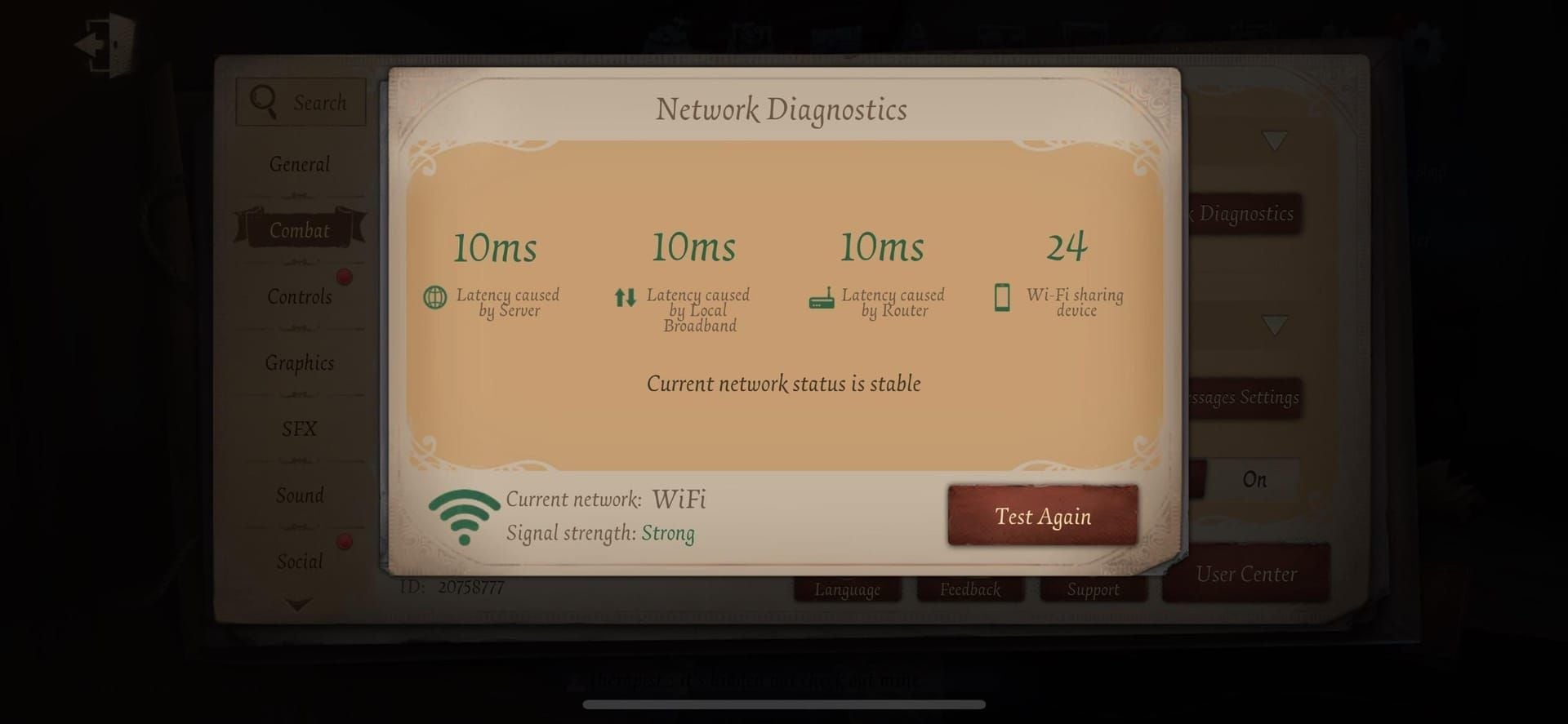
Packet loss above 1% makes inputs disappear. You press skill, client registers, but packet never reaches server. Jitter (ping variation) creates stuttering—smooth movement freezes 200-300ms then resumes.
Using Network Indicator
Updates every 500ms, sampling round-trip time. Green (sub-100ms) = optimal, rarely achievable on Asia Server from distance. Yellow (100-200ms) = acceptable competitive. Red (200ms+) = significant mechanical disadvantage.
Monitor during match phases. Lobby ping often 50-100ms lower than in-match because lobby servers handle minimal data. Green in lobby but red in match = server load issue, not your connection—DNS/optimization can't fix.
Ping vs. Packet Loss vs. Jitter
Ping = round-trip time. Packet loss = data never arrives. Jitter = ping inconsistency. Game tolerates moderate ping (200-250ms) better than minimal packet loss (1-2%) or high jitter (100ms+ variation). Stable 220ms beats 150-300ms fluctuation.
Isolate packet loss: abilities fail without activation (no cooldown, animation, effect) = packet loss. Ping delays show activation with delayed execution. Jitter = unpredictable timing—vaults work at one window, fail at identical windows seconds later.
Pre-Ranked Testing
PC diagnostics:ipconfig/flushdns clears DNS cache, thennslookup idv.163.com1.1.1.1 verifies resolution speed. Slow lookups (500ms+) indicate ISP DNS bottleneck.
Mobile: test one Quick Match before ranked. Quick Match's 400ms average provides baseline—significantly worse = postpone ranked. 5 Mbps download/1 Mbps upload requirements seem modest, but ISP throttling drops speeds from 3mbps to 100kbps during peak hours.
Identifying ISP Throttling
Throttling = sudden spikes at specific times (18:00-23:00) vs. gradual degradation. Good at 14:00, fails at 20:00 = throttling. Some ISPs deprioritize gaming during congestion.
Test: compare wired vs. mobile data. Mobile (4G/5G) delivers 190-250ms while home WiFi spikes to 400ms+ = ISP throttles residential connections.
DNS Settings Method
DNS affects connection by optimizing how devices resolve idv.163.com to server IPs. Default ISP DNS caches outdated IPs or routes through distant resolvers, adding 100-200ms. Switching to 1.1.1.1 or 8.8.8.8 provides faster, accurate resolution.
Recharge Identity V Asia through secure platforms for reliable service regardless of network conditions.
Reduced latency from 900ms to 190-250ms for DNS-related routing issues. No additional software, zero privacy concerns. Improves initial connection and server switching between matches more than in-game ping.
How DNS Affects Speed
Device queries DNS to translate idv.163.com to numerical IPs. ISP DNS may return IPs for overloaded clusters or wrong data centers. Cloudflare 1.1.1.1 and Google 8.8.8.8 maintain current databases and faster queries.
DNS resolution adds latency before gameplay. Slow lookups (300-500ms) delay lobby connections, cause Connecting to Server timeouts. Fast resolution (20-50ms) enables immediate connections, reduces initialization failures. Doesn't directly lower in-game ping but eliminates connection instability.
iPhone/iPad Configuration
Settings > WiFi > tap info icon > Configure DNS > Manual. Remove existing, add 1.1.1.1 primary, 8.8.8.8 secondary. Save, toggle Airplane Mode 10-30 seconds to force reinitialization.
iOS caches DNS aggressively. After changes, force close Identity V (swipe from app switcher), wait 10 seconds, relaunch. Ensures app queries new DNS vs. cached IPs.
Android Configuration
Settings > Network & Internet > Advanced > Private DNS > enter1dot1dot1dot1.cloudflare-dns.com or manual DNS through WiFi settings. Android 9+ supports DNS-over-TLS for encrypted queries preventing ISP interference.
Older Android: WiFi settings > long-press network > Modify Network > Advanced > IP Settings > Static. Enter current IP, set DNS 1 to 1.1.1.1, DNS 2 to 8.8.8.8. Apply, use Airplane Mode toggle: disable Mobile Data, enable Airplane Mode, wait for no signal, disable Airplane Mode, re-enable Mobile Data.
PC and Emulator Settings
Windows: Network Connections > right-click adapter > Properties > IPv4 > Properties. Choose Use following DNS > 1.1.1.1 Preferred, 8.8.8.8 Alternate. OK, runipconfig/flushdns in Command Prompt.
Emulators (BlueStacks, LDPlayer, NoxPlayer): configure DNS within emulator network settings, not Windows system. Most provide dedicated panels overriding system DNS. After changes, restart emulator completely—not just app.
DNS Server Performance
Cloudflare 1.1.1.1: 15-25ms query response for Asia-Pacific. Google 8.8.8.8: 20-30ms. Both beat ISP DNS (50-150ms). For Identity V, 1.1.1.1 often better for Singapore/Hong Kong servers, 8.8.8.8 sometimes better for Japan.
Configure both as primary/secondary for fallback. If 1.1.1.1 has outages, device auto-queries 8.8.8.8 without interruption. Critical during NetEase maintenance when server IPs change and DNS propagation delays occur.
Advanced Optimization
Router QoS (Quality of Service) allocates bandwidth by traffic type. Access admin panel (192.168.1.1 or 192.168.0.1), locate QoS, prioritize gaming or Identity V device. Ensures gameplay packets get priority over downloads/streaming.
Enable UPnP for auto port forwarding. Game uses UDP ports 10000-20000; manually forward this range for better stability. After changes, unplug router 30 seconds to clear routing tables.
Router Gaming Priority
Device-based QoS prioritizes all traffic from gaming device—simpler but less efficient if same device streams. Application-based QoS prioritizes specific protocols—requires identifying Identity V signature but delivers superior performance.
PC network adapter: Device Manager > Network Adapters > Properties > Advanced. Disable Interrupt Moderation for reduced packet delays. Increase Receive/Transmit Buffers to 512. Disable Flow Control to prevent auto-throttling.
Background App Management
Close all background apps, especially network-using ones. Cloud sync, auto-updates, social media create jitter and packet loss. iOS: enable Low Power Mode during gameplay. Android: activate Game/Performance Mode.
4GB RAM minimum critical when background apps consume memory. Insufficient RAM forces OS to swap to storage, creating delays manifesting as stuttering/input lag. Restart device before ranked to clear memory.
Network Mode Selection
5GHz WiFi superior under 10m from router with less interference than 2.4GHz, but 2.4GHz penetrates walls better for distance. Test both—stable 220-300ms WiFi beats fluctuating 180-250ms with 400ms+ spikes.
Mobile data (4G/5G) sometimes beats home WiFi due to ISP throttling or router congestion. If mobile performs better, use for ranked, WiFi for casual. Identity V uses ~30-50MB/hour.
Device Optimization Checklist
Lock 60 FPS in graphics settings. Higher increases overhead without improving responsiveness, lower reduces visual feedback. 60 FPS balances performance and clarity.
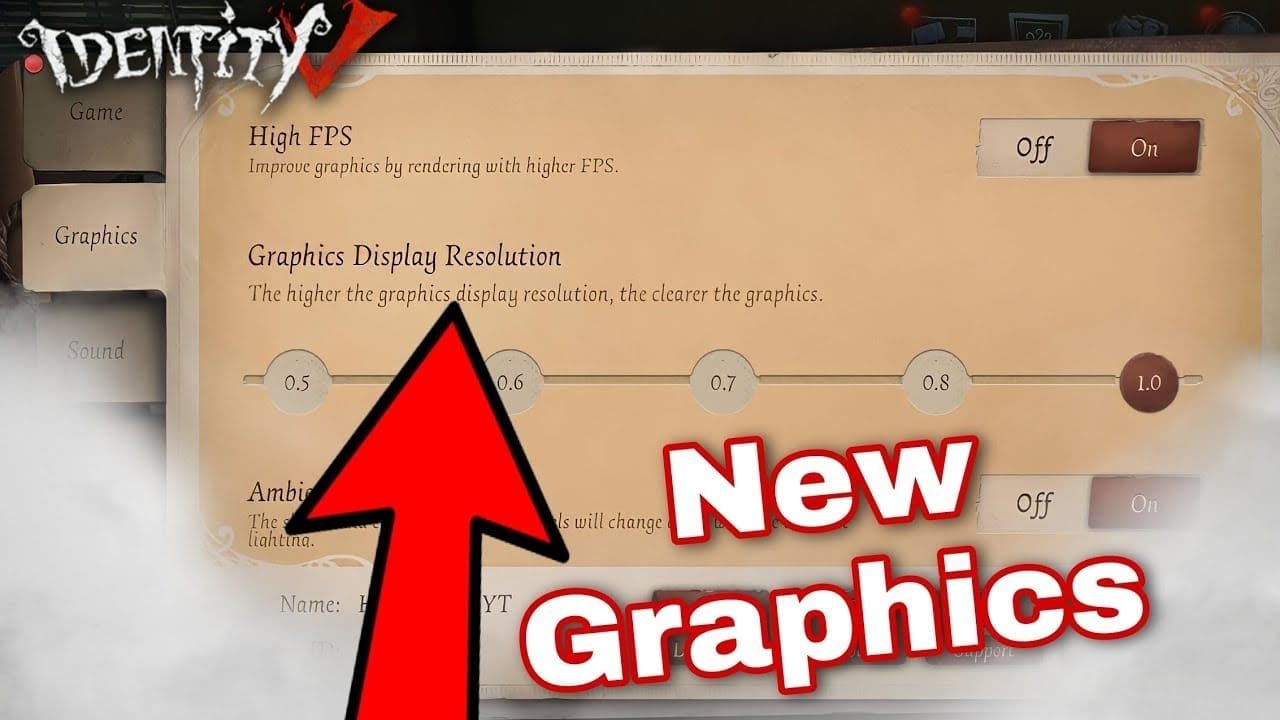
Clear cache: Android Settings > Apps > Identity V > Storage > Clear Cache. iOS auto-manages, but reinstall every 2-3 months removes accumulated files. Ensure 3-4GB install + 1-2GB free space.
Emergency Mid-Match Fixes
Airplane Mode reset most effective: enable 10-30 seconds, disable to force network reestablishment. Clears temporary routing issues, often reduces ping 100-200ms within 5-10 seconds.
Quick network switch: change WiFi to mobile data or reverse. Swipe notification panel, disable current, enable alternative, wait 3-5 seconds for reconnect. Works because different types route through different pathways.
WiFi to Mobile Data Switch
Identity V maintains connection 8-10 seconds after interruption, allowing seamless switch if quick. Disable WiFi, immediately enable mobile data, game reconnects without lobby return. Effective when ISP throttles WiFi but not mobile, or router congestion occurs.
Prepare before ranked: ensure mobile data enabled in background. Some devices disable mobile when WiFi connects—override in network settings for instant switching. Test in Quick Match first.
Airplane Mode Reset
Forces complete network reinitialization, clearing corrupted routing tables and stale DNS cache. Enable, wait until all indicators disappear (10-30 seconds), disable. Device reestablishes with fresh routing, often resolving spikes from congestion/routing errors.
Introduces 15-25 second disconnection. Execute during safe moments: hiding as survivor, after chairing as hunter, transition phases. Temporary risk beats continued 999ms ping guaranteeing failure.
Force-Close and Reconnect
Force close clears client-side network corruption. Double-tap home (iOS) or recent apps (Android), swipe Identity V away, wait 5 seconds, relaunch. Reconnects within 10-15 seconds if timed right.
Best between matches or early-game ciphers when absence minimally impacts team. Avoid late-game where 15-20 seconds costs matches. Reconnection timer allows ~90 seconds before disconnect penalties.
When to Abandon
Persistent 999ms beyond 60 seconds = server-side issues unlikely to resolve. Continuing guarantees poor performance damaging rank more than abandonment penalties. Ranking penalizes losses heavier than disconnects above mid-tier.
Evaluate abandonment first 120 seconds. Early disconnects minimize team impact, allow surrender without severe penalties. Late-game (3+ ciphers) only abandon when literally unplayable—if basic actions possible, continue to avoid max penalty.
Common Mistakes
Using distant servers worsens performance. Connecting to Europe/North America believing faster servers help adds unavoidable latency. Singapore at 150ms always beats Europe at 280ms regardless of processing speed.
Multiple simultaneous optimizations conflict. Running DNS changes with network tools creates routing confusion. Implement one solution, test 5-10 matches, add more only if needed.
Distant VPN Servers
Geographic proximity determines baseline ping—no tech circumvents physics. 5,000km away requires minimum 50-80ms for light-speed transmission alone. Distant servers add 100-200ms baseline no optimization removes.
For Asia Server, optimal locations: Singapore, Hong Kong, Taiwan, Japan, South Korea. These provide direct NetEase routing. Europe/America forces extra international routing points.
Multiple VPN Connections
Layering tools creates packet loops where data circles between services. Each layer adds 20-50ms processing overhead, increases packet loss probability. Single well-configured solution beats multiple conflicting ones.
If DNS provides 190-250ms stable, additional tools unnecessary. Only escalate when simpler methods fail. Prevents over-optimization introducing new problems.
Router Firmware Updates
Manufacturers release updates for routing efficiency, security, compatibility. Outdated firmware (2+ years) may have bugs affecting gaming traffic. Check quarterly, apply during off-peak hours.
Updates occasionally reset custom configs (DNS, QoS, port forwarding). Document settings before updating, reapply after. Prevents losing optimization gains.
Ignoring Maintenance Schedules
NetEase announces maintenance via official channels, typically 08:00 UTC+8 weekdays. Nov 27, 2025: 240min. Nov 6/13 hotfixes: 2-3 hours. Playing during guarantees instability regardless of optimization.
Season resets (Thursdays 08:00 UTC+8) add 50-100ms for 48-72 hours from population surge. Avoid ranked first day if near ping thresholds. Wait for stabilization.
Long-Term Solutions
Weekly maintenance prevents gradual degradation. Every Sunday: restart router (30-second power cycle), clear DNS cache, force close/relaunch Identity V, test Quick Match before ranked. 5-minute routine maintains baseline, identifies emerging issues.
Monitor server status through official channels. NetEase announces planned maintenance 24-48 hours advance. Unplanned outages acknowledged within 1-2 hours, helps distinguish personal vs. server-wide issues.
Weekly Checklist
Router restart: unplug 30 seconds, reconnect, wait 2-3 minutes for initialization. Clears temporary routing tables. Monthly insufficient—weekly prevents 20-50ms accumulated inefficiencies.
DNS cache:ipconfig/flushdns on PC, Airplane Mode toggle on mobile. Removes outdated IP associations. NetEase periodically shifts IPs during updates, making regular clearing essential.
Monitoring Server Status
Official announcements provide timing/duration. Nov 27, 2025: 08:00 UTC+8, 240min. Nov 6 (08:00-10:30 UTC+8), Nov 13 (08:00 UTC+8) hotfixes complete faster but need reconnection.
Community resources aggregate regional reports. If Singapore down but Hong Kong stable, switch regions temporarily until primary recovers.
ISP Plan Evaluation
Requires 5 Mbps download/1 Mbps upload minimum, but throttling reduces below thresholds during peak. If ISP throttles from 3mbps to 100kbps evenings, upgrading won't help—policy affects all tiers equally.
Test speeds at 06:00, 12:00, 18:00, 22:00. Consistent = reliable. Significant 18:00-23:00 degradation = throttling optimization can't overcome. Consider switching ISPs if throttling prevents meeting minimums during gaming hours.
Pre-Match Routine
Develop pre-ranked routine: restart router (if not within 24 hours), clear DNS, force close/relaunch Identity V, play one Quick Match to verify stable ping, proceed to ranked if meets standards. 10-minute routine prevents entering with suboptimal connections.
Document typical ping across times/days. If 180-220ms Tuesday afternoons but 300-400ms Friday evenings, schedule ranked during proven stable periods. Work with connection's natural patterns vs. fighting predictable congestion.
FAQ
Why does Identity V show 999ms ping suddenly? Complete routing failure between device and NetEase servers from ISP throttling, DNS errors, or server congestion. Switch DNS to 1.1.1.1/8.8.8.8, toggle Airplane Mode 10-30 seconds, or switch WiFi/mobile data to reestablish routing.
How does high ping affect hunter gameplay? Hunters need 150ms optimal. Above 250ms: Blink/Teleport miss from position desync, attack recovery extends 200ms to 400-500ms, hit registration delays allow survivors to vault windows that should hit, increasing chase times 25-30%.
Can survivors kite effectively with 200ms ping? Yes, 200ms within effective range. Experienced players compensate by vaulting/dropping earlier. Beyond 300ms impossible—delays exceed animation durations, causing failed interactions despite correct timing.
What's ideal ping for ranked? Hunters under 150ms, survivors under 200ms. Game's 300ms compensation limit means below this allows gameplay, but disadvantages increase above 200ms. Stable 220-250ms beats fluctuating 150-300ms with jitter.
Does DNS fix disconnections? Fixes disconnects from wrong server clusters or outdated IPs. 1.1.1.1/8.8.8.8 reduced ping from 900ms to 190-250ms for DNS-related issues. Won't fix ISP throttling, server outages, or insufficient bandwidth.
WiFi or mobile data better? 5GHz WiFi superior within 10m, delivering 220-300ms stable vs. 400ms+ 2.4GHz spikes. Mobile (4G/5G) often beats home WiFi when ISPs throttle residential during peak. Test both, use whichever provides consistent latency vs. lowest average.