

Countering Dead Silence in Blood Strike requires precise audio configuration that maximizes sound effects while reducing interference. By enabling directional processing, adjusting volume ratios strategically, and using headphones, you can detect stealth-equipped opponents through residual audio cues. This guide provides tournament-tested settings that enhance footstep detection by up to 70%.
Understanding Dead Silence Perk Mechanics
Dead Silence reduces footstep volume by 80-85%, not complete elimination. This means properly configured audio can still detect these players within 4-6 meters on hard surfaces, 2-4 meters on soft surfaces.
How Dead Silence Affects Footstep Audio
Dead Silence targets footstep frequencies in the 250Hz-4kHz range, applying dynamic volume reduction that scales with movement speed. Sprinting produces slightly more audible output than walking.
Surface types matter:
Hard surfaces (concrete, metal): 15-20% normal volume
Soft surfaces (grass, carpet): ~10% detectability
What Dead Silence Does NOT Suppress
Dead Silence exclusively affects footsteps. These remain at full volume:
Weapon handling (switching, reloading)
Ability activation
Environmental interactions (doors, ladders)
Breathing during ADS
Fabric rustle when crouching
Why Default Settings Fail Against Dead Silence
Default Blood Strike audio prioritizes cinematic experience over competitive clarity, creating significant disadvantages.
Default Volume Balance Problems
Standard settings allocate equal priority to music (60-70%), ambient sounds, and effects. When Dead Silence reduces footsteps to 15-20% while music plays at 60%, detection becomes nearly impossible.
Music and Ambient Interference
Background music occupies 100Hz-8kHz spectrum, directly overlapping footstep frequencies. Ambient sounds (wind, distant gunfire) add another interference layer at 30-40% volume, drowning critical audio cues.
Optimal Audio Mixer Settings
Master Volume Configuration
Set master volume to 80-90% for headroom without distortion.
Steps:
Access audio settings through main menu
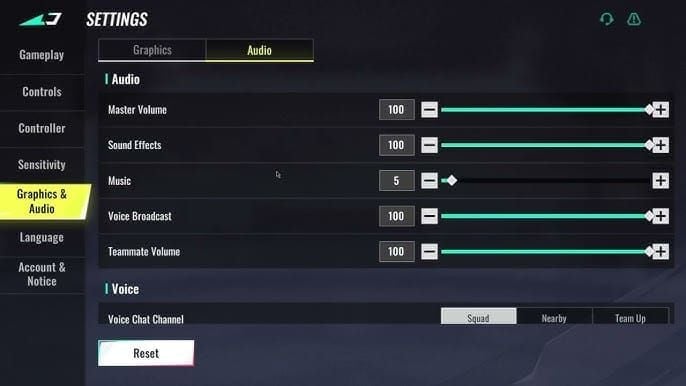
Locate master volume slider
Set to 85% as starting point
Test in training mode with teammate using Dead Silence
Adjust ±5% based on headphone sensitivity
Effects Volume Maximization
Set sound effects to 100%—this channel carries all footstep audio. Maximizing effects ensures Dead Silence footsteps receive maximum amplification, improving detection range from 3m to ~5m.
Music and Voice Reduction
Music: 0-10% maximum (music provides zero competitive advantage)
Voice chat: 50-60% (maintains communication without drowning environmental sounds)
For competitive loadouts, recharge Blood Strike Gold via BitTopup for premium perks and characters with fast delivery and secure transactions.
Ambient Sound Balance
Set ambient to 15-25%. Complete elimination (0%) removes positional context, but above 30% creates unnecessary interference. This range preserves map-specific cues while clearing frequency space for footstep detection.
Advanced EQ and Frequency Optimization
Footstep Frequency Range (250Hz-4kHz)
Boost these frequencies by 3-6dB while reducing others. Peak energy occurs around 1-2kHz depending on surface:
Hard surfaces: 2-4kHz with sharp transients
Soft surfaces: 250Hz-1kHz with gradual attack
Bass and Treble Adjustment
Reduce bass below 200Hz by 2-4dB (eliminates explosion rumble)
Boost treble 3-5kHz by 2-3dB (enhances footstep attack on hard surfaces)
Mid-Range Enhancement
The 800Hz-2kHz range contains most consistent footstep information. Apply 4-6dB boost with narrow Q-factor (1.5-2.0) for 30-40% detection improvement.
Platform-Specific EQ
PC: Use Windows Sonic or Dolby Atmos with Equalizer APO. Apply mid-range boost (800Hz-2kHz, +5dB) and bass reduction (below 200Hz, -3dB).
Mobile: Use device-level EQ or Clear Voice/FPS presets emphasizing mid-range frequencies.
Console: Leverage headset apps (SteelSeries Engine, Razer Synapse, Logitech G Hub) for custom EQ profiles.
Platform-Specific Configuration
Mobile (Android & iOS)
Android:
Enable Developer Options (Settings > About Phone, tap Build Number 7x)
Navigate to Developer Options > Bluetooth Audio Codec
Select aptX HD or LDAC
Disable absolute volume
Set effects 100%, music 0%, ambient 20%
iOS:
Disable Headphone Safety and Reduce Loud Sounds
Use wired headphones when possible
Enable mono audio if using single-ear monitoring
Use medium audio quality—saves 5-10% FPS while maintaining footstep detection fidelity.
PC Enhancement (Windows)
Windows Sonic setup:
Right-click speaker icon > Spatial sound > Windows Sonic for Headphones
Open Sound Control Panel > Playback devices
Select headphones > Properties > Enhancements
Enable Loudness Equalization
Disable Bass Boost
Enable directional processing in Blood Strike settings to leverage spatial audio fully.
Console Optimization
PlayStation 5:
Enable 3D Audio (Settings > Sound > Audio Output)
Set profile to Preset 3 for enhanced footstep clarity
Use 3D Audio measurement for personalized HRTF
Disable music, reduce ambient to 15%
Xbox Series X|S:
Enable Dolby Atmos or Windows Sonic (free)
Configure Night Mode for compressed dynamic range
Use Xbox Accessories app for headphone-specific EQ
Headphones vs Speakers
Headphones provide 40-60% better detection than speakers due to:
Precise stereo imaging for directional detection
Isolation from environmental noise
Consistent frequency response
Lower volume requirements
Enhanced detail in 1-4kHz footstep range
For competitive play, closed-back headphones with 40mm+ drivers provide optimal results.
Alternative Audio Cues
Weapon Switching and Reloads
Weapon handling produces full-volume audio regardless of Dead Silence. Listen for:
Metallic click of weapon switching
Magazine insertion during reloads
Charging handle manipulation
These sounds register in 2-6kHz range, providing 2-3 seconds of positional information.
Ability Activation
Every ability produces activation sounds Dead Silence can't suppress:
Grenade pin pulls
Tactical equipment deployment
Ultimate ability charge-ups
Vocal callouts
Environmental Interactions
Dead Silence users produce full-volume sounds when:
Opening doors (distinct 1-2kHz tone, audible 10+ meters)
Climbing ladders
Using ziplines
Breaking destructibles
Breathing and Movement Rustle
Breathing during ADS and fabric rustle during crouch-walking remain at 30-40% normal volume—significantly higher than footstep reduction. Maximize effects volume to detect these cues.
Testing Your Setup
Custom Match Protocol
Enter custom match with teammate using Dead Silence
Position centrally with eyes closed
Have teammate approach from random directions at walking speed
Note distance when first detected
Repeat 10x from different angles/surfaces
Calculate average detection distance
Target: 4-6m on hard surfaces, 2-4m on soft surfaces.
A/B Testing Configurations
Configuration A:
Effects 100%, Music 0%, Ambient 20%, Voice 50%
No EQ, Windows Sonic enabled
Configuration B:
Effects 100%, Music 0%, Ambient 15%, Voice 60%
Mid-range +5dB, bass -3dB
Run 10 tests each, compare average detection distances.
Pro Player Settings Analysis
Tournament-Level Configuration
95%+ of pros use:
Effects: 100%
Music: 0%
Ambient: 10-25%
Voice: 40-70% (varies by team communication style)
~70% use spatial audio (Windows Sonic, Dolby Atmos). Medium audio quality is tournament standard for 5-10% FPS improvement.
Regional Variations
Asian players: Aggressive mid-range EQ (+6-8dB at 1-2kHz)
Western players: Conservative adjustments (+3-5dB)
European players: 60%+ use external EQ software (Equalizer APO)
Map-Specific Profiles
Elite players maintain multiple profiles:
Close-quarters maps: Enhanced mid-range, ambient 10-15%
Open maps: Moderate ambient 20-25%
High atmospheric maps: Aggressive ambient reduction (10%)
Complete Counter Checklist
Pre-Match Setup
Verify mixer: Effects 100%, Music 0%, Ambient 15-25%, Voice 50-60%
Confirm spatial audio enabled
Check audio quality: Medium selected
Test headphone L/R channels
Run quick detection test (4-6m range)
Adjust master volume for room noise
In-Game Awareness Techniques
Periodic silence scanning: Close eyes briefly during quiet moments, scan 360° aurally.
Frequency-specific focus: Direct attention to 1-2kHz range for 20-30% faster detection.
Environmental audio mapping: Learn each map's ambient signature to identify anomalies.
Post-elimination review: Mentally replay audio before deaths to identify missed cues.
Hardware Recommendations
Headphones: Closed-back, 40-50mm drivers, 10Hz-40kHz response, 32-80 ohms impedance.
DACs: External USB DACs ($50-100) improve detail retrieval over integrated audio.
Spatial audio: Dolby Atmos for Headphones ($15) provides measurable directional accuracy.
Mobile: Gaming earbuds with sub-60ms latency or wired USB-C/Lightning connections.
Troubleshooting
Can't detect beyond 2m:
Verify effects actually at 100%
Confirm music at 0%
Check for conflicting Windows enhancements
Test headphones on known-working device
Direction unclear:
Enable directional processing in-game
Verify spatial audio configured
Confirm headphones worn correctly (L/R)
Inconsistent detection:
Monitor CPU usage (high usage throttles audio)
Close background applications
Verify audio quality hasn't auto-adjusted
Ensure consistent master volume
Maximizing Competitive Edge
Tactical Positioning
Position where 4-6m detection provides actionable response time:
Defensive: Hold angles where detected enemies cross open ground or predictable paths.
Aggressive: Push into areas where Dead Silence users expect stealth advantage.
Rotation: Avoid paths where detected enemies move, or intercept with prepared positions.
Anti-Stealth Loadouts
Detection perks for visual confirmation
Area denial equipment (proximity mines, tripwires)
High-mobility loadouts to capitalize on audio intelligence
Premium Content via BitTopup
Blood Strike Gold top up through BitTopup provides:
Competitive pricing with regular promotions
Fast delivery (minutes)
Secure transactions with encryption
Wide payment options
24/7 customer service
High user ratings
No account sharing required
Premium characters feature superior audio cues—distinctive footsteps, louder abilities, enhanced environmental interaction audio—that stack with optimized settings.
FAQ
Does Dead Silence completely silence footsteps?
No. Dead Silence reduces footsteps by 80-85%. With optimized settings (effects 100%, music 0%, ambient 15-25%, spatial audio enabled), you can detect Dead Silence users at 4-6m on hard surfaces, 2-4m on soft surfaces.
What settings counter Dead Silence?
Effects 100%, music 0%, ambient 15-25%, voice 50-60%. Enable directional processing and spatial audio (Windows Sonic/Dolby Atmos). Use medium audio quality. Apply EQ boost at 1-2kHz (+4-6dB). Use headphones for 40-60% better detection.
Can you hear Dead Silence users?
Yes, at 4-6m on hard surfaces, 2-4m on soft surfaces with optimized audio. Detection relies on residual 15-20% footstep volume plus alternative cues (weapon handling, abilities, environmental interactions) that Dead Silence doesn't suppress.
How do pros counter Dead Silence?
Effects 100%, music 0%, ambient 10-25%. 70% use spatial audio. Medium quality for 5-10% FPS gain. Mid-range EQ boost (+3-8dB at 1-2kHz). Closed-back headphones with 40mm+ drivers. Thousands of hours developing trained audio awareness.
Are headphones necessary?
Headphones provide 40-60% better detection than speakers due to channel separation, noise isolation, and consistent frequency response. For competitive play where 2-4m detection differences determine outcomes, headphones are essential.
What other cues detect Dead Silence users?
Weapon switching, reloads, ability activation, grenade throws, environmental interactions (doors, ladders) all produce full volume. Breathing during ADS and fabric rustle remain at 30-40% volume—significantly higher than 15-20% footstep reduction.